How to Connect Android Auto to Your Car Automatically
The Short Answer
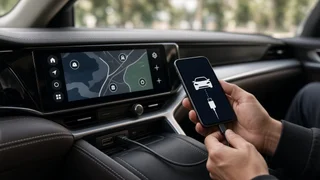
Android Auto can start on its own each time you get in the car, but only after a one-time setup and only if your phone and vehicle support the connection type you want. With a wired setup, Android Auto launches when you plug the phone into the car's data-capable USB port. With a wireless setup, the phone pairs over Bluetooth and then hands off to a Wi-Fi link, so Android Auto can appear on the dashboard screen shortly after you start the car without plugging anything in.
The key qualification is compatibility. Many vehicles that support Android Auto support only the wired version, and wireless support varies by manufacturer, model year, trim and infotainment system. Wireless operation also depends on the phone's Android version and Wi-Fi hardware. If your car supports only wired Android Auto, an automatic connection still means plugging in a cable; it simply removes the need to open the app or tap through prompts each time.
Wired vs. Wireless Android Auto
Feature | Wired Android Auto | Wireless Android Auto; How it starts | Plugging the phone into a data-capable USB port | Automatic Bluetooth pairing, then a Wi-Fi connection to the head unit; Vehicle support | The most widely supported option in Android Auto-compatible cars | Available only on certain vehicles and head units; check your model year and trim; Phone requirements | A supported Android phone with the Android Auto app or built-in Android Auto | A supported phone with a recent Android version and 5 GHz Wi-Fi capability; Charging | Usually charges the phone while connected, depending on the port | Does not charge the phone unless you also use a charger or charging pad; Common failure points | Worn or charge-only cables, low-power ports | Bluetooth or Wi-Fi turned off, interference, phone power-saving settings
Aftermarket head units and plug-in wireless adapters can add wireless Android Auto to some cars that only support the wired version from the factory. These work by sitting between the phone and the car's USB port. Results depend on the specific device and vehicle, so treat compatibility claims as something to confirm with the seller or manufacturer before buying.
What You Need Before You Start
A vehicle or aftermarket head unit that supports Android Auto, with phone projection enabled in its settings if the system offers that option; An Android phone running a supported version of Android; on recent Android versions, Android Auto is built into the system rather than installed as a separate app; The latest updates for the phone's operating system, Google services and Android Auto; A good-quality USB data cable for the first connection, even if you plan to use wireless; charge-only cables will not work; Bluetooth, Wi-Fi and location services turned on for wireless use; A stable mobile data connection for the initial setup, since some steps may download updates or confirm your account
How to Set Up Android Auto to Connect Automatically
Do the setup while the vehicle is parked in a safe place with the parking brake set. Many cars and the Android Auto app restrict setup screens while the vehicle is moving, and completing prompts on the phone while driving is unsafe.
1) Start the car and wait for the infotainment system to finish loading. Leaving the engine running or the ignition in accessory mode keeps the system powered during setup. 2) Unlock your phone and make sure Bluetooth is on. For wireless setup, also confirm Wi-Fi and location are enabled. 3) Connect the phone to the car's USB port with a data cable. Use the port marked for data or smartphone connection if your vehicle has more than one; some ports are for charging only. 4) Follow the prompts on the phone. You will typically be asked to review safety information, grant permissions such as access to contacts, notifications, phone calls and location, and allow the car to connect. 5) Follow any prompts on the car's screen. Some systems ask you to accept a projection or privacy notice, or to choose Android Auto as the connection type for this phone. 6) If your car supports wireless Android Auto, accept any request to pair over Bluetooth and allow wireless connection. On many systems, the first wired session sets up the wireless link for future drives. 7) Open the Android Auto settings on the phone. On most recent phones, this is found in the phone's Settings app under connected devices or connection preferences, then Android Auto. 8) Find the option for starting Android Auto automatically and set it to always start, or to start only if Android Auto was used on the last drive, depending on your preference. If you see an option for wireless Android Auto, make sure it is turned on. 9) In the car's settings, look for options such as auto-launch, automatic connection or preferred device, and enable them if available. Naming and placement vary widely between manufacturers. 10) If several phones are paired with the car, set your phone as the preferred or primary device so the system connects to it first.
How to Check That It Works
Turn the car off, wait until the infotainment system shuts down completely, then start it again. For a wired setup, plug the phone in once the system has loaded: Android Auto should appear on the car's screen without you opening anything on the phone. For a wireless setup, leave the phone in your pocket or bag with Bluetooth and Wi-Fi on. Android Auto should connect on its own after the system starts, sometimes after a short delay. If the car shows its native menus instead, look for an Android Auto icon or a phone projection option on the home screen; some vehicles connect in the background but do not switch to the Android Auto display until you select it.
If Android Auto Does Not Connect Automatically
Try a different, shorter USB data cable. A damaged or charge-only cable is one of the most common reasons a wired connection fails or drops. Check the list of previously connected cars in the Android Auto settings. If your car appears under rejected or blocked cars, remove it and connect again. Confirm that the automatic start option in Android Auto is not set to never. Check battery optimization or power-saving modes on the phone. Aggressive power saving can prevent Android Auto or Bluetooth from running in the background. Remove the phone from the car's Bluetooth list and remove the car from the phone's Bluetooth list, then repeat the setup from the beginning. Update the phone and, where the manufacturer provides updates, the car's infotainment software. Some vehicles receive these over the air, while others need a dealer visit or a USB update. If multiple phones are paired, disconnect or turn off Bluetooth on the others to see whether they are taking priority. If the car never offers Android Auto at all, confirm that your specific model year, trim and infotainment package support it; support can differ even within the same model line.
If the vehicle supports Android Auto but still refuses every phone and cable you try, the USB port, its wiring or the head unit software may need attention. That is a job for a dealer or a qualified car audio installer rather than something to troubleshoot by removing trim panels or dashboard components yourself.
Which Setup Makes Sense for You
If your car supports wireless Android Auto, enabling it along with the automatic start setting offers the most hands-off experience, especially for short trips. Many drivers still keep a cable or wireless charger handy, because running navigation and streaming over a wireless link can drain the battery on longer drives. If your car supports only wired Android Auto, a reliable data cable plus the automatic start setting gives you a quick, consistent connection, and you can weigh an aftermarket wireless adapter or head unit later if you want to avoid plugging in.