Connect Android Auto through USB
The short answer
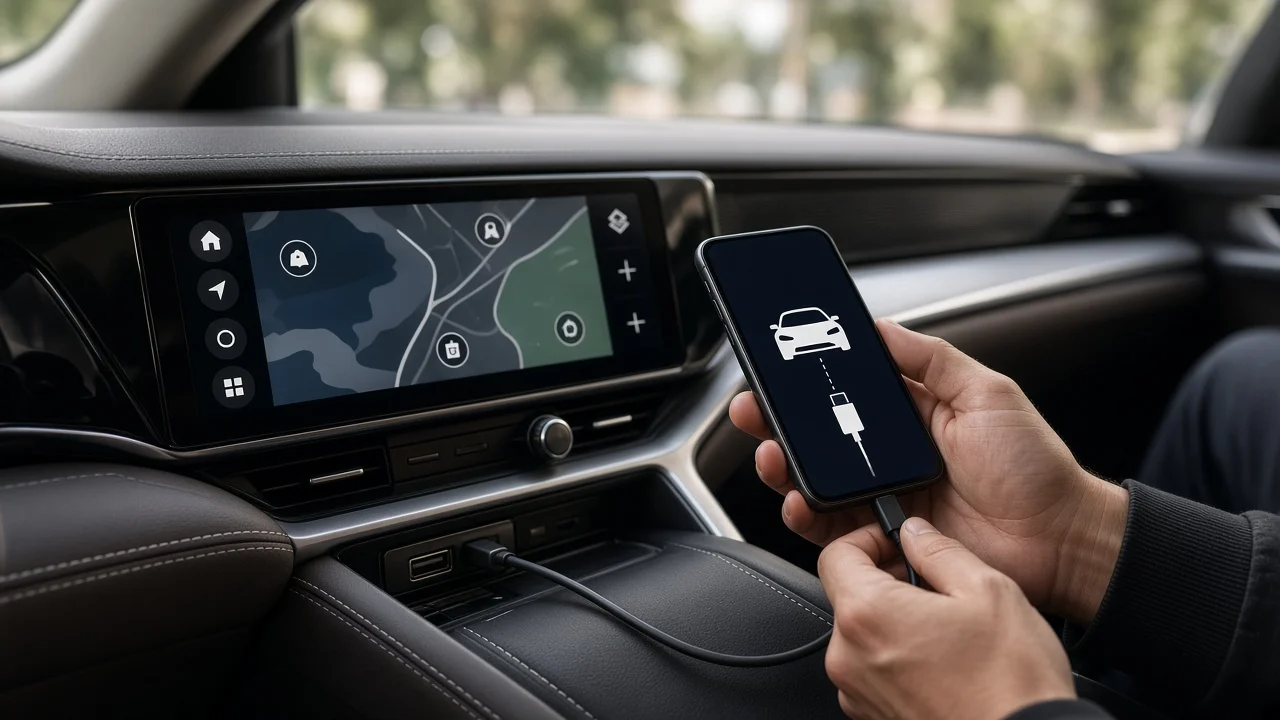
To use Android Auto over USB, you connect a compatible Android phone to a data-capable USB port in a vehicle that supports Android Auto, using a cable that carries data and not just charging power. You then accept the prompts on the phone and the car's display. Once linked, the car's infotainment screen shows a driver-oriented version of supported phone apps, such as navigation, music and messaging, which you control through the touchscreen, steering-wheel buttons or voice commands.
Support depends on the vehicle, not the phone alone. Android Auto availability varies by manufacturer, model year, trim, infotainment system and market, and some aftermarket head units add it to vehicles that lack it from the factory. No model-specific compatibility data was supplied for this guide, so confirm support for your exact vehicle in its owner's manual or with the manufacturer or dealer.
How a USB connection differs from wireless Android Auto
Android Auto can run over a USB cable or, in vehicles and head units that support it, wirelessly. A wired connection is the more widely supported method, and it usually charges the phone while in use. Wireless Android Auto removes the cable but requires specific support from both the vehicle and the phone. If your car offers only wired Android Auto, USB is the only way to use it without adding aftermarket hardware.
What you need before connecting
A vehicle or aftermarket head unit that supports Android Auto in your market. An Android phone that meets Google's current Android Auto requirements. Recent Android versions include Android Auto as a built-in feature, while older versions required a separate app. Minimum requirements change over time, so check Google's current guidance rather than relying on an older list. A USB cable that supports data transfer and fits both the phone and the car's port. Charge-only cables will power the phone but will not start Android Auto. The correct USB port in the car. Some vehicles have several ports, and only some carry data to the infotainment system; others are charge-only. The owner's manual or markings near the port usually identify the data port. Android Auto or phone projection enabled in the vehicle's infotainment settings, if your system has such a setting. A mobile data connection on the phone for features that rely on it, such as live traffic and streaming.
Steps to connect Android Auto through USB
1) Park the vehicle in a safe place with the ignition or infotainment system on. Many systems restrict setup while the vehicle is moving, and first-time setup is best done while stationary. 2) Unlock your phone and make sure it is updated, including the Android Auto component and the Google apps it relies on. 3) Plug the data cable into the vehicle's data-capable USB port, then into the phone. 4) Follow the prompts on the phone. You will typically be asked to grant permissions, such as access to contacts, notifications, location and the microphone, and to accept the terms of use. Denying some permissions can limit features such as calling, messaging or voice control. 5) Follow any prompts on the vehicle's display. Some systems ask you to confirm the new device or choose Android Auto from a menu or app icon. 6) If Android Auto does not start automatically, look for an Android Auto or phone projection icon on the infotainment screen and select it.
How to confirm it's working
The connection is complete when the Android Auto interface appears on the car's screen with your apps displayed. To confirm, try a quick check of each core function you plan to use: start a navigation route, play audio through the car's speakers and test a voice command through the steering-wheel voice button or on-screen microphone. On later trips, plugging in the phone should launch Android Auto without repeating the full setup, depending on your vehicle and phone settings.
If Android Auto won't connect over USB
Try a different cable. Worn, very long or charge-only cables are a common cause of failed or intermittent connections. Try another USB port in the car, in case the one you used is charge-only. Check the vehicle's infotainment settings to confirm Android Auto or phone projection is enabled and the phone has not been blocked or rejected. Unlock the phone when plugging in, and watch for any permission prompts you may have dismissed. In the phone's Android Auto settings, remove the car from the list of previously connected or rejected cars, then reconnect and repeat setup. Update the phone's software and Android Auto, and ask the dealer or manufacturer whether an infotainment software update is available for your vehicle. Restart both the phone and the infotainment system before trying again.
If the problem persists across different cables, ports and phones, the fault may lie in the vehicle's USB port, wiring or infotainment unit. Diagnosing or replacing those components is a job for a dealer or qualified installer, particularly for aftermarket head units, where wiring and firmware vary by product.
What this guide can't confirm
No vehicle-specific evidence was available for this guide, so it does not list which models, model years or trims support Android Auto, where each manufacturer places its data ports, or the exact menu names used on individual infotainment systems. Screen layouts, prompts and setting names differ between manufacturers and software versions. Your owner's manual and the manufacturer's current guidance are the authoritative sources for those details.