How to Disable Wireless Android Auto
The short answer
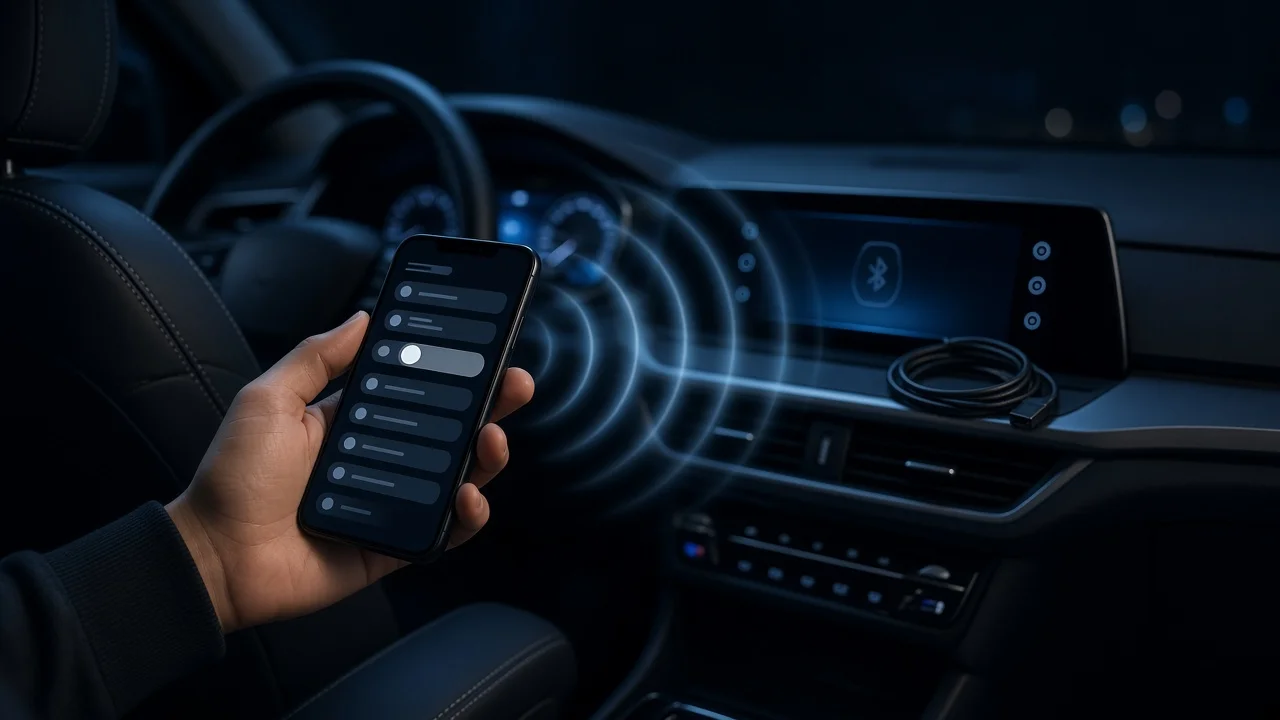
Wireless Android Auto shows your phone's Android Auto interface on the car's screen without a USB cable. The phone uses Bluetooth to find the car and a direct Wi-Fi link to carry the display and audio. The most reliable way to turn it off is in your phone's Android Auto settings: switch off the wireless Android Auto option. On most supported phones this stops the wireless connection but leaves wired Android Auto over a USB cable working.
Your setup changes the best method. If you want to block Android Auto for one car only, remove or reject that car in the phone's list of connected cars, or turn off projection in the car's own phone settings. If the wireless link comes from an aftermarket adapter plugged into the car's USB port, unplugging the adapter disables it. Menu names and locations vary by phone maker, Android version, Android Auto app version and vehicle infotainment system, so the labels below may not match your screens exactly.
Before you start
Park the vehicle somewhere safe before changing phone or infotainment settings. Do not navigate these menus while driving. Have your phone unlocked and the car's infotainment system on, if you plan to change settings on the car. Decide what to keep. You may want to keep Bluetooth hands-free calling and audio, or wired Android Auto, while removing only the wireless connection. That choice decides which method to use. Check whether the car has factory wireless Android Auto or uses an aftermarket adapter. An adapter is usually a small device plugged into a USB port.
Method 1: Turn off wireless Android Auto on your phone
Use this method to stop wireless connections to every car while keeping the option to use a USB cable.
1) Open the phone's Settings app. 2) Find the Android Auto settings. On many recent Android phones Android Auto is part of the system and sits under Connected devices, then Connection preferences, then Android Auto. On other phones it may be under Apps. If you cannot find it, type "Android Auto" into the settings search bar. 3) Look for an option named Wireless Android Auto, or something similar, and switch it off. If the option is missing, your phone, region or Android Auto version may not offer it. In that case use Method 2, 3 or 4. 4) If Android Auto is active in the car, end the session by stopping the car or using the car's own controls to leave Android Auto. Then let the phone reconnect to confirm the change.
Method 2: Stop Android Auto connecting to a specific car
Use this method if you want Android Auto in some vehicles but not in a particular one, such as a shared or rental car.
1) Open the Android Auto settings on your phone as described in Method 1. 2) Open the section that lists previously connected cars. 3) Select the car you want to block and choose to forget it or remove it. Where offered, you can also turn off the option that adds new cars to Android Auto automatically. 4) When the car next detects your phone, decline any prompt to set up Android Auto.
Method 3: Disable it from the car's infotainment system
Many factory infotainment systems let you control phone projection for each paired phone. Typical locations include phone, connectivity, device or smartphone projection menus. Depending on the system, you may be able to turn off Android Auto for your phone, turn off wireless projection only, or remove the phone completely. Check the vehicle owner's manual or the manufacturer's infotainment guide for your model year. These menus differ widely between brands and even between trim levels of the same model.
Method 4: Cut the wireless link directly
Aftermarket adapter: unplug it from the car's USB port. If you later want wired Android Auto, plug a USB cable from the phone into the same port. Phone Wi-Fi off: wireless Android Auto needs Wi-Fi, so turning off Wi-Fi usually prevents it. This also disconnects the phone from other Wi-Fi networks, so it suits a temporary disconnect rather than a permanent fix. Unpair Bluetooth: removing the car from the phone's Bluetooth devices, or the phone from the car, stops the wireless connection. It also removes hands-free calling and Bluetooth audio with that car.
Check that it worked
1) Start the car with your phone's Bluetooth on, and with Wi-Fi on unless you used the Wi-Fi method. 2) Confirm that Android Auto does not launch on the car's screen by itself. 3) If you kept Bluetooth, confirm that hands-free calling and audio still work. 4) If you want wired use, connect a USB cable and confirm Android Auto starts. If it does not, check that wired use was not also turned off in the phone or car settings. 5) If wireless Android Auto still starts, repeat the steps on both the phone and the car. Settings on either side can keep the connection active.
When to get help
Most of these steps are simple settings changes and do not need a professional. Contact a dealer or qualified installer in these cases: the infotainment system ignores its own projection settings, a system update or reset seems necessary, or an aftermarket adapter or head unit is wired behind the dashboard rather than plugged into an accessible port. Removing hard-wired equipment can affect vehicle electrical systems. No vehicle-specific instructions were available for this guide, so for your make, model and model year, follow the owner's manual or the manufacturer's support resources.