How to Turn Off Wireless Android Auto
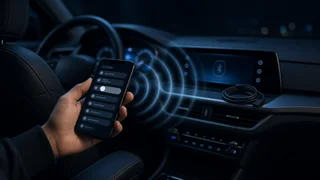
Wireless Android Auto is convenient, but it is not always the connection you want. It can drain your battery faster, warm up your phone, connect when someone else is driving, or behave less reliably than a cable. You can disable wireless Android Auto without giving up Android Auto entirely. Depending on your setup, you turn it off from the phone, from the car's infotainment system, or by removing a wireless interface adapter.
The short answer
On most Android phones that support wireless projection, open the Android Auto settings and switch off the wireless option. If your phone has no such toggle, stop the wireless link by removing the car from your phone's paired devices, disabling the phone in the car's connection settings, or unplugging the wireless adapter if your car only supports wired Android Auto natively. Once wireless is off, you can still use Android Auto with a USB cable in vehicles that support wired connections.
Menu names and locations vary by phone manufacturer, Android version, Android Auto app version, and vehicle make, model year and infotainment software. Treat the paths below as typical routes rather than exact labels for every device.
How wireless Android Auto connects
Wireless Android Auto uses two links at once. Bluetooth handles the initial device pairing and phone calls, while a direct Wi-Fi connection between the phone and the head unit carries the projected display, audio and touch input. Because both are involved, turning off only one of them may not always produce the result you expect. Bluetooth off usually stops the session from starting, but it also disconnects hands-free calling. Wi-Fi off can interrupt the projection while leaving Bluetooth audio or calls active.
Method 1: Turn off wireless Android Auto on your phone
This is the cleanest option because it targets wireless projection specifically and leaves Bluetooth and wired Android Auto working.
• Open your phone's Settings app. • Go to Connected devices, then Connection preferences, then Android Auto. On some phones, Android Auto appears as a standalone app or under a search for "Android Auto" in Settings. • Look for an option labeled Wireless Android Auto or similar. • Switch it off. • If you also want Android Auto to stop launching on its own, review the setting that starts Android Auto automatically and change it to the behavior you prefer.
Not every phone shows a wireless toggle. Whether it appears depends on software compatibility between the phone, its Android version and the installed Android Auto version. If the option is missing, use one of the methods below.
Method 2: Remove or restrict the car on your phone
If you want a specific car to stop connecting wirelessly, manage it from the list of vehicles Android Auto remembers.
• In Android Auto settings, open the list of previously connected cars and remove the vehicle, or disable it from connecting. • In your phone's Bluetooth settings, forget the car if you no longer want any connection to it. • Re-pair over USB later if you only want wired Android Auto with that car.
Forgetting the car also removes Bluetooth calling and media until you pair again, so use this approach when you want a full reset rather than a simple switch to wired.
Method 3: Disable it in the car's settings
Many head units let you control projection per phone. In the infotainment connection settings, typically under a phone, device or smartphone projection menu, you may be able to turn off wireless Android Auto for a given device, disable Android Auto for that phone, or delete the phone from the device list. The exact steps differ widely by manufacturer and model year, so check the menu structure on your own system or the owner's information that came with the vehicle.
This method is useful in shared vehicles where several drivers' phones are paired. Disabling wireless projection for a passenger's phone prevents it from taking over the screen when they get in.
Method 4: Unplug a wireless Android Auto adapter
If your car only supports wired Android Auto from the factory, wireless operation may come from an aftermarket interface adapter that plugs into the car's USB port and bridges to your phone over Bluetooth and Wi-Fi. In that case the car itself has no wireless setting to turn off. Unplug the adapter and connect your phone directly with a USB cable. Some adapters also have their own companion app or settings page, but behavior varies by product.
Wired vs. wireless Android Auto
Factor | Wireless | Wired (USB); Convenience | Connects automatically without a cable | Requires plugging in each trip; Phone battery | Typically drains, as the phone is not charged by the link | Phone usually charges while connected, depending on the port; Phone heat | Can run warmer, especially with navigation and streaming | Often cooler, though charging also adds heat; Connection stability | Can be affected by interference or pairing issues | Depends heavily on cable quality and port condition; Shared cars | Other paired phones may connect unexpectedly | Only the phone that is plugged in connects
These are general tendencies, not measured results for any specific phone or vehicle. A poor USB cable can make a wired connection less reliable than wireless, so if you switch to wired and see dropouts, try a short, good-quality data cable before blaming the head unit.
What stays the same after you turn off wireless
Disabling wireless only changes how the phone connects. Once you use a cable, the Android Auto interface, apps, voice assistant and steering wheel interface controls generally behave the same way, since vehicle integration is handled by the head unit rather than by the connection type. Bluetooth calling and audio can remain paired independently unless you chose to forget the car.
If wireless keeps reconnecting
• Confirm the wireless toggle is off in Android Auto settings, if your phone has one. • Check whether the car has its own wireless projection setting enabled for your phone. • Look for an aftermarket adapter plugged into a USB port. • Remove the car from the Android Auto connected cars list and pair again over USB. • Update the Android Auto app and, where available, the vehicle's infotainment software, since behavior can change between versions.
Bottom line
To turn off wireless Android Auto, start with the wireless toggle in your phone's Android Auto settings. If that option is not available, control it from the car's connection settings, remove the car from your phone, or unplug the wireless adapter. Afterward, a USB cable gives you the same Android Auto experience in cars that support wired connections, with more predictable charging and no unexpected wireless sessions.