How to Keep Multiple Drivers' Connected Accounts Organized
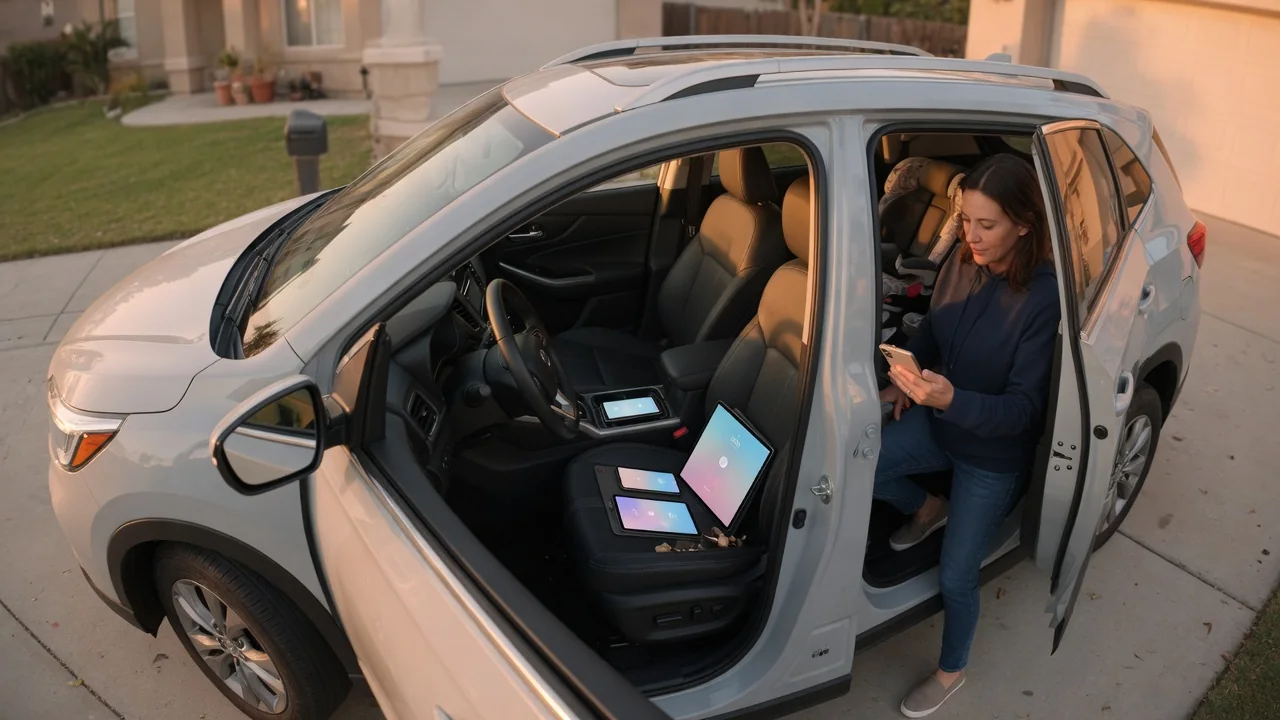
When several people share one connected car, the companion app, in-car driver profiles, and digital keys can quickly turn into a tangle of logins, saved settings, and forgotten invitations. Keeping multiple drivers' connected accounts organized comes down to three habits: give each person their own profile, grant only the permissions each driver actually needs, and remove access cleanly when someone no longer uses the vehicle. Menus and feature names differ by manufacturer, so treat the steps below as a general framework and confirm details in your owner's manual.
Separate profiles
The most common source of confusion in a shared car is a single login used by everyone. When the whole household signs in with the owner's email and password, the trip history, location data, saved destinations, and notifications all blend together. Nobody can be removed later without changing the password for everyone else. It also means the account holder's credentials, which may control billing and vehicle ownership records, sit on several phones at once. Giving each driver an individual account or user slot avoids these problems from the start.
It helps to recognize that connected cars usually involve two layers of identity. The first is the manufacturer's cloud account, used by the companion app for remote features and services. The second is the in-vehicle driver profile, which can store preferences such as seat and mirror positions, climate settings, audio presets, navigation favorites, and the paired phone. On some vehicles the two are linked, so signing in on the display pulls a driver's settings from the cloud. On others they are independent, and a profile may be tied to a specific key fob or phone key. The owner's manual and the app's help section describe how a particular system handles this.
For a tidy setup, keep the primary account with the person who is legally responsible for the vehicle and use an email address they expect to keep for years. Ask each additional driver to register with their own email and a unique password, and turn on two-factor authentication wherever it is offered. Name in-car profiles clearly rather than leaving defaults such as Driver 1 and Driver 2. Keep a short written list of who has an account, which profile belongs to whom, and which phones are paired.
Permissions
Many connected-car platforms distinguish between a primary user, sometimes called the owner or administrator, and secondary or guest users. Depending on the system, features that can be shared or withheld may include remote lock and unlock, remote start or cabin preconditioning, vehicle location, charging schedules on electrified models, trip and driving history, vehicle health alerts, digital key use, and management of subscriptions or payment details. How finely these can be controlled varies widely. Some platforms offer per-feature toggles, while others provide only a full-access or limited-access role.
A useful rule is to grant each driver only what they need. A partner who drives daily may reasonably have nearly everything except billing, while a newly licensed teen might need a digital key and alerts but not remote unlock or the ability to invite others. A dog walker, relative, or service provider is often better served by a time-limited key or a temporary guest role, if the system supports one. Some vehicles also offer restricted driving modes, such as speed or audio volume limits and location-based alerts, which can be useful for new drivers where available. Because location and trip data reveal where someone has been, discuss these features openly with every driver they cover.
Limit the ability to add, change, or remove users to one or two trusted adults. When fewer people hold administrator rights, it is easier to know why a new user appeared and to keep the account list accurate. Revisit permissions whenever circumstances change, such as a new phone, a new driver, or a change in who pays for connected services.
Remove access
Access should be removed promptly when a driver stops using the vehicle: a household member moves out, a temporary driver is finished, a phone is lost or replaced, or the car is sold, traded in, or returned at the end of a lease. The key point is that removal usually needs to happen in more than one place, because the cloud account, the in-vehicle profile, and the phone pairing are often stored separately.
A thorough removal generally follows this order. From the primary account, revoke the person's user access and any digital keys assigned to their phone. In the vehicle, delete their driver profile and unpair their phone from Bluetooth and smartphone projection. If a phone was lost, revoke its key and sign out its app sessions, and if a shared password was ever used, change it. When the car itself is leaving your hands, remove the vehicle from your connected-services account, cancel or transfer any subscription, perform the infotainment factory reset described in the owner's manual, and clear linked items such as built-in garage door programming or home integrations.
Afterward, confirm that the change took effect. Check the user list in the app, verify the deleted profile no longer appears on the display, and, where appropriate, ask the former user to confirm the vehicle has disappeared from their app. Some changes are applied only after the car next connects to the network, so a confirmation made after the car has been driven is more reliable than one made immediately.
Practical implications and limits
Connected features depend on factors outside the account settings themselves, including the market, model year, trim, active subscription, and cellular coverage where the car is parked. A remote command sent while the vehicle sits in an underground garage may be delayed or fail, so remote unlock or a phone key should not be the only way a driver can get into the car. Trial periods for connected services can also expire, and secondary users may lose features when that happens even though their accounts still exist.
It is also worth being realistic about what profiles protect. An in-vehicle profile is a convenience feature, not a security barrier; anyone with a working key can usually switch to another profile or use the car as a guest. Likewise, removing someone from the app stops future access but may not erase data the manufacturer has already collected, so review the privacy settings and data-deletion options in the manufacturer's policy if that matters to you. Managing shared car connected accounts works best as routine upkeep rather than a one-time setup.