How to Update Garmin Maps in a Honda Ridgeline
The Short Answer
If your Honda Ridgeline has factory navigation built by Garmin, you update the maps on a computer and then install them in the truck. You get the update through Honda's official navigation update channel or a Honda dealer, copy it to a USB drive, and run the installation from the truck's infotainment system. The process depends on what navigation your truck actually has. Not every Ridgeline has Garmin-based navigation, and some have no built-in navigation at all. Check that first.
Two terms used in this guide: "factory navigation" means the navigation software built into the truck's dashboard screen, also called the head unit. "Smartphone projection" means Apple CarPlay or Android Auto, which display a phone's map app on the truck's screen.
Conditions That Change the Answer
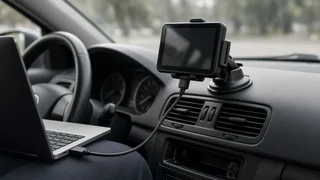
Garmin-based factory navigation: the update process in this guide applies. Non-Garmin factory navigation, which some older Ridgelines used: the update method is different, so follow Honda's instructions for that system or ask a dealer. No built-in navigation, only smartphone projection: there are no maps in the truck to update. CarPlay or Android Auto maps update through the map app on your phone. A portable Garmin unit mounted in the truck: this is a standalone device, not part of the Ridgeline. Update it with Garmin's own desktop software for that device, not through Honda.
The evidence for this guide does not confirm which model years, trims or markets came with Garmin-based navigation. Check your own truck rather than relying on the model name alone.
Step 1: Confirm Your Truck Has Garmin Navigation
Look for Garmin branding when the navigation app starts or on its system information screen. Your owner's manual or navigation manual should also describe the system. If you are unsure, a Honda dealer can tell you from your Vehicle Identification Number (VIN), the 17-character code on your registration, insurance card and the lower corner of the windshield.
Step 2: Note Your Current Map Version
Open the navigation settings and find the system or device information screen. Write down the map version shown there. You need it to tell whether a newer map is available and to confirm later that the update worked. Menu names vary by system, so check your navigation manual if you can't find this screen.
Step 3: Check for an Update Through Honda
Use Honda's official navigation update channel or contact a Honda dealer, and have your VIN ready. Honda will tell you whether an update exists for your system, how you get it and whether it costs anything. The evidence for this guide includes no prices, release dates or update schedules. Rely on Honda's current information for those.
Step 4: Prepare the Update on a Computer
Follow Honda's instructions for downloading the update. For Garmin-based systems this usually means installing a Garmin desktop application and using it to copy the map files to a USB drive. Before you start:
Use a USB drive that meets the size and format requirements in the instructions. Map files are large. Use a stable internet connection, and don't interrupt the download. If the instructions ask you to export a file from the truck to the USB drive first, do that before downloading. Some systems use this file to identify the head unit.
Step 5: Install the Update in the Truck
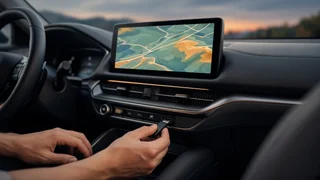
Insert the USB drive into the port named in the instructions and follow the prompts on the screen. Keep the system powered for the whole installation. Losing power partway through can leave the navigation unusable. If the instructions say to run the engine, do it outdoors or somewhere well ventilated, never in an enclosed garage, because exhaust gases are dangerous. Leave the USB drive in place until the system says the update is finished.
Step 6: Verify the Result
Go back to the system information screen and check that the map version is newer than the one you noted in Step 2. Then make a short test: confirm that the navigation finds your current location and can route to a destination. If the version hasn't changed or the system shows an error, repeat the steps exactly as written, or ask a Honda dealer to do the update.
What This Guide Cannot Confirm
The source material has no confirmed details on which Ridgeline model years or trims use Garmin navigation, how much updates cost, how often they come out, how big the files are or how long installation takes. It also doesn't give the exact menu names on your screen. For those details, use Honda's official navigation update information, your owner's manual or a Honda dealer.