How to Update Garmin Navigation in a Honda
The short answer
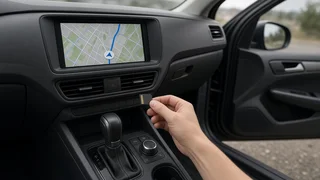
If your Honda has factory-installed navigation built on Garmin software, you update the maps through Honda's official map update service, not through the tools Garmin offers for its own portable units. In most cases you identify your vehicle (usually with the VIN, the 17-character Vehicle Identification Number), download the update to a USB flash drive, and install it through the car's USB port while following the prompts on the infotainment screen. Then you check the map version in the navigation settings to confirm the install.
Two conditions change this answer. First, not every Honda with navigation uses Garmin software. Model year, trim and market determine which system is fitted, and other systems may use a different update process. Second, if the Garmin unit is a portable device mounted on the dashboard rather than built into the car, it is updated like any standalone Garmin device, using Garmin's own update software on a computer. Honda's process does not apply to it.
Key terms
Factory or embedded navigation: navigation built into the car's infotainment head unit (the central screen and its control unit), installed by Honda. Map update: new map data covering roads, addresses and points of interest. It is separate from a software or firmware update, which changes how the system itself works. VIN: the Vehicle Identification Number. It is printed on the registration and insurance documents and is visible through the lower corner of the windshield on the driver's side. Update services use it to match the right map package to your car. Smartphone projection: Apple CarPlay or Android Auto, which display a phone's navigation app on the car's screen. Those maps update through the phone, not the car.
Step 1: Confirm which system you have
Open the navigation or system settings on the infotainment screen and look for a section such as system information, map information or version. A Garmin-based Honda system usually shows Garmin branding on the startup screen or in these menus. Write down the current map version so you can compare it after the update. If you see no Garmin branding, check the owner's manual or navigation manual for your model year. The manual describes the correct update method for your system.
Step 2: Get the update from an official source
Use Honda's official navigation update channel, which you can reach through Honda's owner resources or ask a Honda dealer about. You will typically be asked for your VIN or model details so the service can confirm compatibility and show any available update. Some updates may be free and others may be paid, depending on the vehicle and its coverage. No confirmed pricing or eligibility details were available for this guide, so check the terms shown for your specific vehicle before you buy anything. Avoid unofficial map files. An incompatible or altered file can fail to install or cause the navigation system to malfunction.
Step 3: Prepare the USB drive
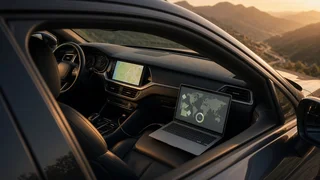
Map packages are large, so follow the official instructions on the drive's required capacity and format. Use an empty, reliable USB flash drive, and expect the download to take a while on a slower internet connection. If the service provides a download application for your computer, use it rather than copying files by hand. The application places the files in the folder structure the car expects. Let the download and any verification step finish completely before you remove the drive.
Step 4: Install the update in the vehicle
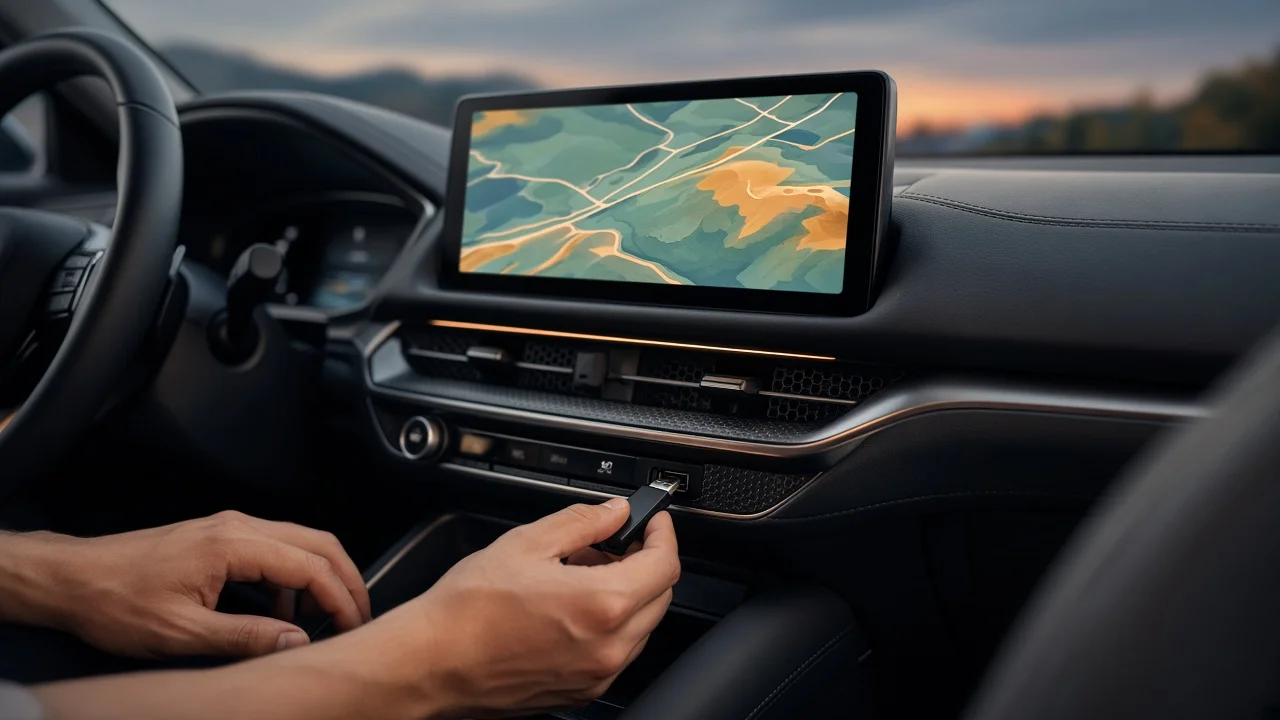
Park somewhere safe and well ventilated, such as outdoors rather than in a closed garage, because the update may take some time with the engine or power on. Start the vehicle or switch it to the power mode the instructions specify, so the battery is not drained during installation. Insert the USB drive into the USB port intended for data. Some vehicles have ports that only provide charging power. Follow the prompts on the screen to start the map update. Do not turn off the vehicle, remove the drive or operate the infotainment system until the screen says the update is complete. Interrupting the update is the most common way to cause problems. Remove the drive only when the system says it is safe to do so.
Step 5: Verify the result
Go back to the system or map information screen and compare the map version with the one you noted earlier. It should show the newer version. Then do a quick test. Search for a recently built road or a newly opened business in your area and confirm the system finds it. If the version has not changed, if the update failed partway through, or if the navigation will not start, do not keep retrying with the same files. Download the update again to a different drive and try once more. If the problem continues, contact a Honda dealer, who can perform or troubleshoot the update.
Alternatives if an update is unavailable or not worth it
If your Honda supports Apple CarPlay or Android Auto, a phone navigation app keeps its maps current through the phone, with no separate car update needed. A dealer can also install the map update for you, though they may charge for labor.
What this guide could not confirm
No verified evidence was available about which Honda model years and trims use Garmin-based navigation, how often new maps are released, update prices or free-update periods, required USB capacity, installation time, or whether any models support over-the-air map updates. Before you start, confirm these details for your exact vehicle in the owner's manual, through Honda's official update service or with a Honda dealer.