Goldwing Navigation Update: How to Check Your System, Install New Maps and Verify the Result
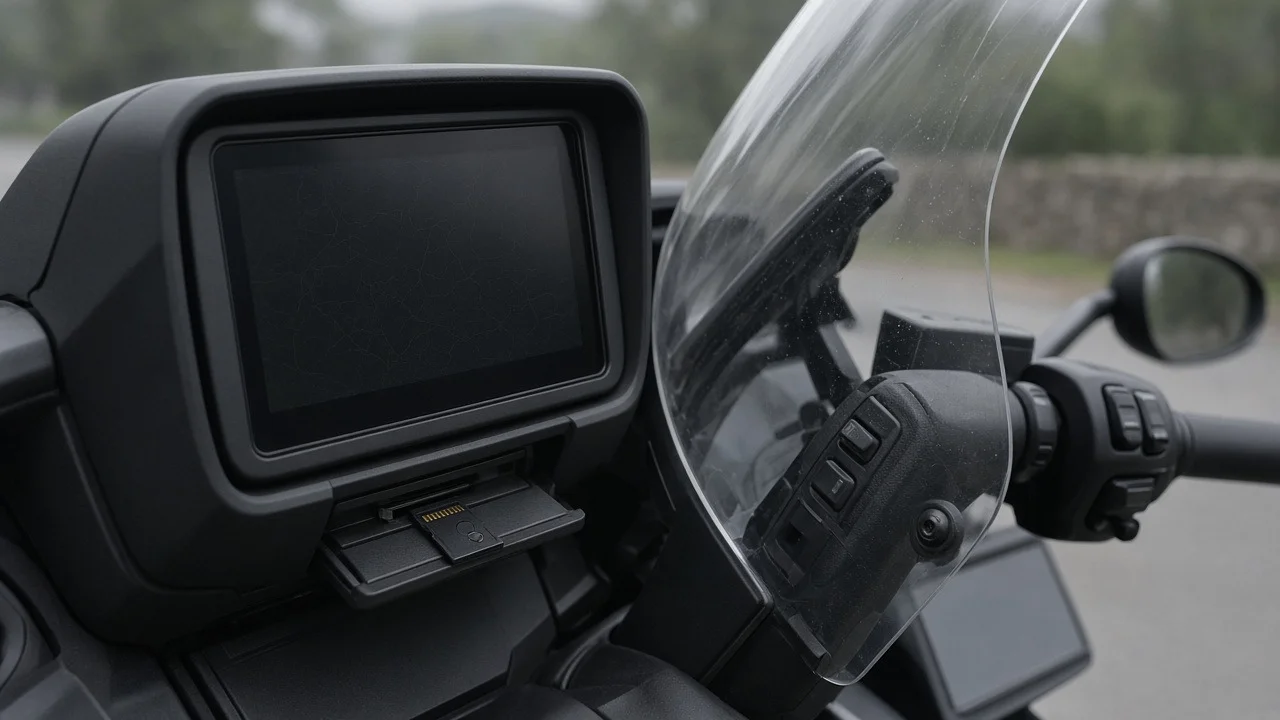
Updating navigation on a Honda Gold Wing depends on which navigation your motorcycle uses. If it has factory-installed navigation, you update the map data stored in the bike's infotainment unit. This is usually done by downloading an update package through Honda's official channel to a USB drive and installing it on the motorcycle, or by having a Honda dealer do it. If the bike has no built-in navigation and you navigate through Apple CarPlay or Android Auto, the maps come from your phone. In that case, updating the phone app is all you need, and nothing on the motorcycle changes. Model year, market and trim decide which case applies, so the first step is to identify your setup.
The Short Answer
Factory navigation: you update the map data in the Gold Wing's audio and navigation unit, either yourself with a USB drive and Honda's update process or at a dealer. Phone integration (CarPlay or Android Auto): you update the navigation app on your phone. The motorcycle only displays what the phone sends. Standalone GPS unit mounted on the bike: you update it through its own manufacturer's software. This has nothing to do with the Gold Wing's electronics. Not sure which you have: check the main menu on the display for a dedicated navigation or map function that works with no phone connected.
Step 1: Identify Which Navigation System Your Gold Wing Uses
Over the years, Gold Wing models have offered navigation in different ways. Some generations and trims had built-in navigation as standard or optional equipment. Later bikes added smartphone projection. On some model years and trims, built-in navigation may not be offered at all, and phone integration is the only map source. Vehicle compatibility is therefore the deciding factor: update tools and map packages are tied to specific hardware, and a package made for one generation will not install on another.
Setup | Where the maps live | How updates happen; Factory navigation in the bike's infotainment unit | Stored in the motorcycle's navigation unit | Official Honda map update installed by USB or by a dealer; Apple CarPlay or Android Auto | In the navigation app on your phone | Update the app through the phone's app store; Aftermarket GPS unit | Inside the standalone device | That device maker's own update software
To confirm what you have, look at the owner's manual for your exact model year. You can also open the display menu and look for a navigation function that runs without a phone, or ask a Honda dealer to check using your vehicle identification number (VIN).
Step 2: Understand Map Data vs Software Version
There are two different kinds of update, and it helps to keep them apart.
Navigation data is the map content: roads, addresses and points of interest. A map update refreshes this content. Software version (sometimes called firmware) is the program that runs the infotainment system. Software updates can fix bugs or change how features behave, including phone integration and connectivity.
A map update does not necessarily change the software, and a software update does not necessarily bring new maps. Honda generally handles infotainment software updates, including recall or service campaign updates, through dealers. If a dealer flags that your bike needs a software update, they can tell you whether to apply it before any map update.
Step 3: Check Your Current Map Version
Before you download anything, find the current map version on your Gold Wing. On systems with factory navigation, this information is normally in a settings, system information or version screen within the navigation or setup menu. Menu names vary by model year. Write down the version so you can compare it with what Honda currently offers and confirm the change afterward. If your version already matches the latest release, there is nothing to install.
Step 4: Prepare for the Update
Get the update only through Honda's official navigation update channel or a Honda dealer. Unofficial map files may not install and could cause problems. Make sure the package matches your model year and market. US map packages are built for US-market units. Use a USB flash drive with enough free space for the package. Format it as the update instructions specify, since the system may not recognize the wrong format. Charge the battery fully or connect a suitable battery maintainer. Map installs can take a long time with the ignition or accessory power on. Park in a safe, well-ventilated place. Do not ride during the installation.
Step 5: Install the Map Update
The exact screens differ between generations, so follow the instructions that come with your update package. The general process for a USB-based update on factory navigation looks like this:
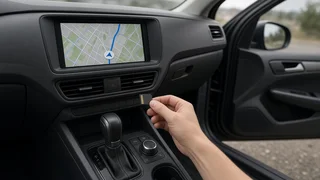
Download the update package to a computer and copy it to the USB drive exactly as instructed. Do not rename files or change the folder structure. With the motorcycle parked, turn the ignition on so the display is powered. Insert the USB drive into the bike's USB port that the instructions specify. When the system detects the update, confirm the installation on screen. If no prompt appears, look for an update option in the settings or system menu. Leave the system alone until it reports that the update is complete. Do not switch off the ignition, remove the drive or start riding while it works. Remove the USB drive only when the system says it is safe, then restart the system by cycling the ignition if the instructions call for it.
Step 6: Verify the Result
Go back to the version screen and confirm the map version has changed to the one you installed. Open the map and check that it loads normally and shows your current location. Run a test route to a recently built road or a newly opened business you know about. If it appears, the new data is active. If you use phone integration, connect your phone and confirm CarPlay or Android Auto still works as expected.
Troubleshooting Common Problems
The bike does not detect the update: check the drive's format, the file and folder structure, and that you used the correct USB port. Then try a different drive. The package will not install: confirm it matches your model year, market and hardware. A mismatched package is usually rejected. The update was interrupted: do not keep cycling the power. Try restarting the installation from the drive. If the system will not start normally or keeps failing, take the bike to a Honda dealer. The map works but your position is wrong or missing: this is a GPS reception problem, not a map problem. Move into open sky away from tall buildings, covered parking or trees, and give the system a few minutes to acquire satellites. Phone integration stopped working after an update: re-pair the phone, check for a phone or app update, and ask a dealer whether a newer infotainment software version is available.
When a Dealer Visit Makes More Sense
A Honda dealer is the better choice in these situations: you cannot find the version screen, Honda's update channel does not list your model, an installation fails or leaves the system unresponsive, or the bike needs a software update in addition to the maps. Dealers can check your VIN for open service campaigns. They can also confirm whether a map update exists for your specific Gold Wing, which matters most for older generations that may no longer receive new map releases. Ask about any cost when you book, because it can vary by dealer and service.
Phone Integration as an Alternative
If your Gold Wing supports Apple CarPlay or Android Auto, phone-based navigation can stand in for built-in maps or serve as a backup. Map data then updates automatically through the phone app, and you get features such as live traffic, which depends on your phone's mobile connection. The trade-off is that navigation relies on the phone, its cable or wireless connection, and mobile coverage. Built-in navigation can keep working in areas with no cell signal. On a long tour through remote country, it is worth having offline maps downloaded in your phone app, or an up-to-date factory map, before you leave.