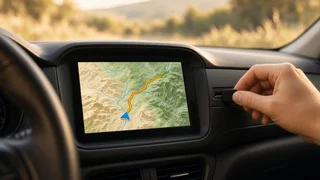
How to update car navigation maps
The short answer
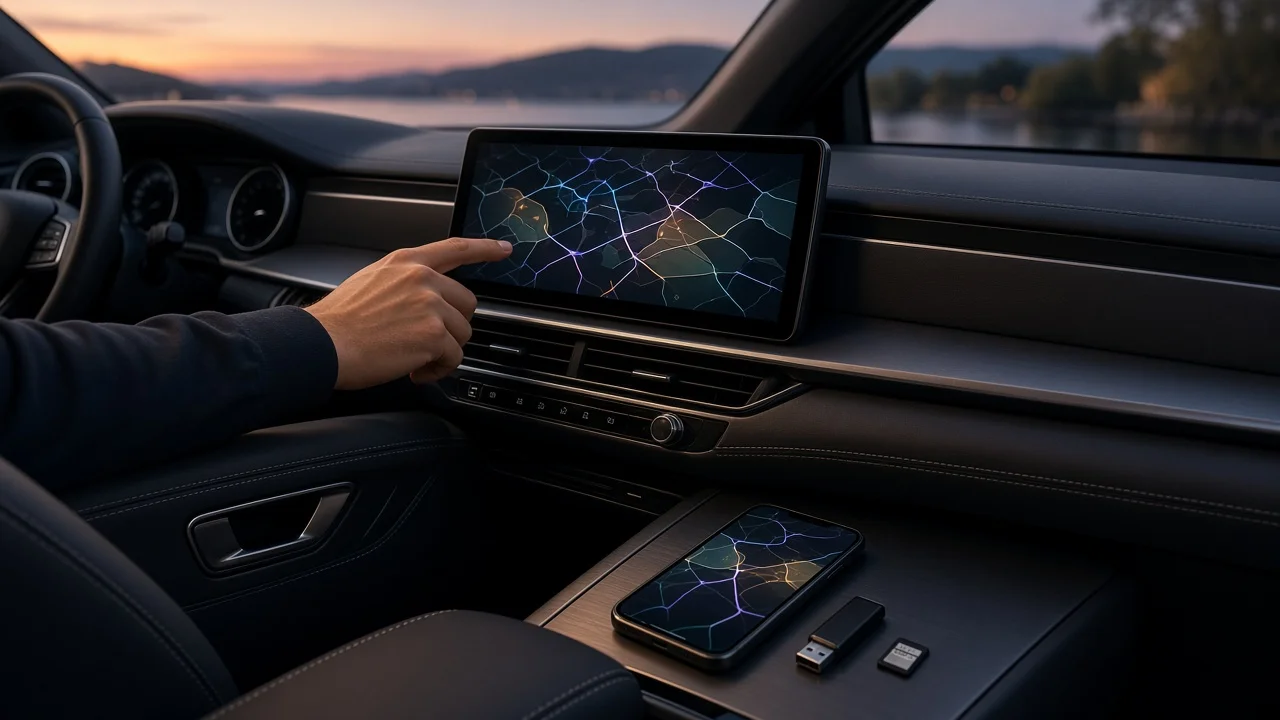
How you update car navigation maps depends on the kind of navigation your vehicle uses. Built-in (factory) systems are usually updated in one of three ways. The first is over-the-air (OTA), meaning the car downloads the update itself through its cellular or Wi-Fi connection. The second is manual, where you download the map files to a USB drive or SD card using the manufacturer's owner portal or update tool and then install them in the car. The third is dealer service. If you navigate with Apple CarPlay or Android Auto, the maps come from your phone, so you update the map app on the phone instead of the car. Portable GPS units are updated with their maker's own software or app.
A few conditions change the answer. These include your vehicle's make, model year, market and trim, whether the car has an active connected-services plan, and whether map updates for your vehicle are free or paid. Each manufacturer sets its own rules, so confirm what your owner's manual or the manufacturer's owner portal says for your specific vehicle.
Identify which type of navigation you have
Navigation type | How to recognize it | How maps are updated; Built-in with OTA support | Navigation is part of the infotainment screen, and the system menu has a software or map update option | Downloaded and installed by the vehicle, sometimes automatically; Built-in without OTA | Navigation is on the factory screen, with no in-car download option | USB drive or SD card loaded through the manufacturer's tool, or done by a dealer; Phone projection (CarPlay or Android Auto) | Maps appear only when a phone is connected | Update the map app and the phone's operating system; Portable GPS unit | A separate device mounted on the dash or windshield | The device maker's desktop software, app or Wi-Fi update
If you're not sure which applies, check the navigation or system settings menu for a map version or software update entry. You can also look in the navigation section of your owner's manual.
Before you start
Your vehicle identification number (VIN), which many manufacturer portals require to find the correct update for your car; The current map version, usually listed under navigation or system information in the infotainment settings; An owner account with the manufacturer, if updates are delivered through an owner portal or app; For the USB or SD method: a computer with internet access and a USB drive or SD card that meets the manufacturer's stated format and minimum capacity; For OTA updates: an active connected-services subscription or a Wi-Fi network the car can reach, depending on how your vehicle receives updates; Time set aside while the vehicle is parked, because installation time varies by system and update size
Steps for an over-the-air update
1) Park the vehicle somewhere safe. If the manufacturer says the engine must be running during the update, do this outdoors and never in an enclosed garage, because exhaust contains carbon monoxide. 2) Open the infotainment settings and find the software update or map update menu. 3) If your system can use Wi-Fi for downloads, connect it to a reliable network. 4) Check for updates and accept the map update when it appears. Some systems download in the background and ask you to confirm installation later. 5) Follow the on-screen instructions about the ignition state. Some systems require the vehicle to stay on, while others install when the car is off. Don't drive if the screen tells you not to. 6) Wait for a completion message before switching the vehicle off or moving it, unless the instructions say otherwise.
Steps for a USB drive or SD card update
1) Sign in to the manufacturer's owner portal or update application on your computer and enter your VIN or vehicle details. 2) Download the map update for your exact model, model year and market. Files meant for a different region or system version may not install, or may cause errors. 3) Format the USB drive or SD card as the manufacturer instructs, then copy the files exactly as directed. Don't rename the files or change the folder structure. 4) In the vehicle, put the ignition or engine in the state the instructions require, keeping the carbon monoxide caution above in mind. 5) Insert the drive into the correct port. Some vehicles accept updates only through a specific USB port or the original map SD card slot. 6) Start the update from the infotainment menu if it doesn't begin automatically. 7) Don't remove the drive, turn off the vehicle or open the doors to lock the car while the update is running, unless the instructions allow it. Interrupting a write can corrupt the system. 8) Remove the drive only after the system confirms the update is finished.
Updating phone-based navigation and portable GPS units
With Apple CarPlay or Android Auto, the car's screen displays the map app running on your phone. To get current maps, update the navigation app through the phone's app store and keep the phone's operating system up to date. Some apps also let you download offline maps for areas with poor coverage. The car itself doesn't need a map update for this kind of navigation, although infotainment software updates can sometimes improve how well the phone connection works.
For a portable GPS unit, install the maker's update software or app, connect the device by cable or Wi-Fi as directed, and let the update finish before you disconnect it. Older devices may lose update support or run short of storage for newer maps. The maker's support information should say whether your model is still supported.
Stop conditions and when to use a dealer
Stop and contact a dealer or authorized service center if any of these happen:
An update fails repeatedly; The screen freezes or stays blank after an interrupted install; The system reports that the files are incompatible with your vehicle; The vehicle shows electrical warnings during the process
Don't keep power-cycling the system or reflashing files from unofficial sources. Recovering an infotainment unit that stopped responding after a failed update usually requires dealer diagnostic equipment. Some vehicles also have no owner-installable map updates at all, so dealer installation is the only option.
Battery condition matters for long installs. If your battery is weak, or the manufacturer recommends keeping the vehicle powered for a long time, ask the dealer whether battery support is advised. Don't improvise with jump equipment unless the owner's manual allows it.
Confirm the update worked
Open the navigation or system information menu and check that the map version has changed from the one you noted before you started; Compare it with the latest version listed for your vehicle in the manufacturer's owner portal or app, where one is available; Run a quick route search to a recently built road or a new address in your area to confirm the new data is in use; Check that saved destinations and settings are still there, because some updates can reset preferences
What this guide can't confirm
This guide covers general methods only. It doesn't confirm, for any specific vehicle, whether updates are free or paid, how long free update periods last, which subscription is required, how large the files are, how long installation takes or what drive format is needed. Those details vary by manufacturer, model year, market and equipment, and they can change over time. Your owner's manual, the manufacturer's owner portal or a dealer is the authoritative source for your vehicle.