Update Garmin navigation using an SD card
The short answer
For most Garmin navigation units, an SD or microSD card is not the main way to update. It is usually a storage location for map data. Updates are normally downloaded on a computer with Garmin Express, Garmin's desktop update application, or, on some newer models, over Wi-Fi. A memory card comes into play in three main cases: when the device's internal storage is too small for a full map update, when you buy maps preloaded on a card, or when a vehicle's built-in Garmin-based system stores its maps on a removable card.
Whether the card route applies to you depends on the hardware. Portable Garmin units mounted on the dashboard and factory-installed infotainment systems that use Garmin software follow different update paths. Within each group, behavior also varies by model and model year.
Map updates and software updates are different
People searching for a Garmin software update on an SD card often mean two separate things. A map update replaces the road, address and point-of-interest data the device uses for routing. A software update, also called a firmware update, changes the program that runs the device, such as fixes, interface changes and new features.
On portable Garmin navigators, firmware is generally installed to the device's internal memory through Garmin Express or a Wi-Fi update. A memory card is mainly associated with map storage. If you are looking for a way to install firmware by copying files to an SD card on a portable unit, that is not the standard documented path. Use Garmin's own update tool unless Garmin's instructions for your specific model say otherwise.
When a memory card is used for map updates on a portable Garmin
Map packages grow over time. On older or lower-storage units, the internal memory may not have enough free space for a complete update. In that case, Garmin Express can prompt you to insert a memory card and install some or all of the map data to the card instead. The device then reads maps from both internal storage and the card.
The general process looks like this:
Confirm the device has a memory card slot and check which card type and maximum capacity it supports, as listed in its manual or specifications. Insert a compatible card into the navigator, not into the computer's card reader, unless Garmin's instructions for your model say otherwise. This keeps the map data tied to the device. Connect the navigator to a computer with a USB cable and open Garmin Express. Run the available updates. If internal space is short, follow the prompt to use the memory card. Leave the card in the device afterward. Maps installed to a card are typically locked to that device and are needed for navigation.
Garmin commonly recommends cards formatted as FAT32 for its devices. Formatting erases the card, so back up anything on it first. Supported capacities and speed classes vary by model, and no model-specific figures were available for this article. Check your device's manual before buying a card.
Preloaded map cards
Garmin has sold map data preloaded on SD and microSD cards, often for additional regions or as an alternative to downloading. With these, the update is the card itself: you insert it and the device reads the maps from it. Compatibility depends on the specific navigator, and availability of particular regions and map versions varies. Current product lineups and prices could not be confirmed here.
Built-in vehicle systems that use Garmin maps
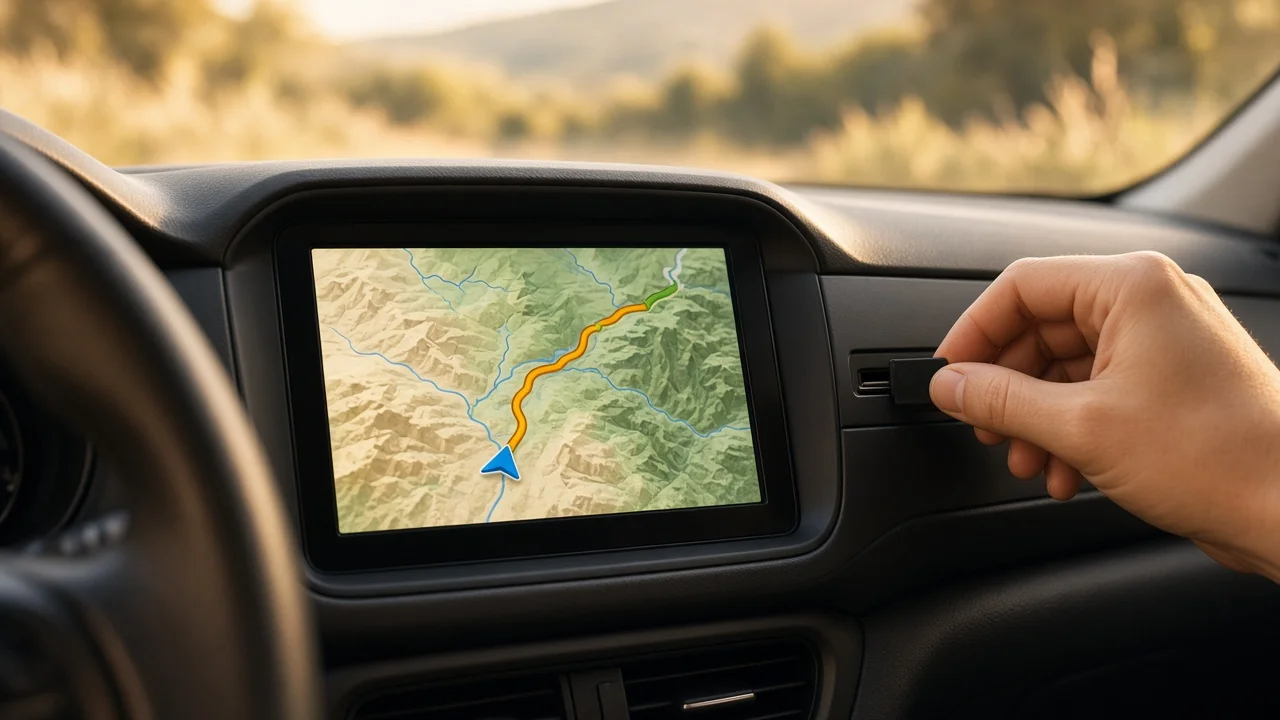
Some automakers have used Garmin navigation software in factory infotainment systems, and some of those systems store map data on a removable SD card. For these, the update process is set by the vehicle manufacturer, not by the procedure for Garmin's portable units. Depending on the brand and model year, it may involve downloading map files to a card through the automaker's update application or website, buying an updated card, or having a dealer do the update.
Map cards for in-dash systems are often tied to the specific vehicle or head unit, so a card from another car may not work. Because procedures differ by manufacturer, model year, trim and market, check the owner's manual or the automaker's navigation update guidance for your vehicle. No vehicle-specific procedures were available for this article.
Which path applies to you
Situation | Role of the SD card | Where to start; Portable Garmin with enough internal storage | Usually not needed | Garmin Express or the device's Wi-Fi update; Portable Garmin with insufficient storage for a map update | Holds part or all of the new map data | Garmin Express, with a compatible card in the device; Portable Garmin using a preloaded map card | The card is the map product | Insert the card, after confirming compatibility; Factory in-dash system with Garmin-based navigation | May hold the vehicle's map data | The automaker's update procedure for your model year; Firmware or software update on a portable unit | Not the standard method | Garmin Express or Wi-Fi update
What could not be confirmed
No model-specific evidence was available. This article does not state supported card capacities, file sizes, map update pricing, lifetime map eligibility, update frequency or which vehicle brands and model years use SD-based Garmin maps. These details vary and change over time. Confirm them in your device's manual or your vehicle's documentation before buying a card or starting an update.