How to Update a Garmin DriveSmart 65: Maps and Software
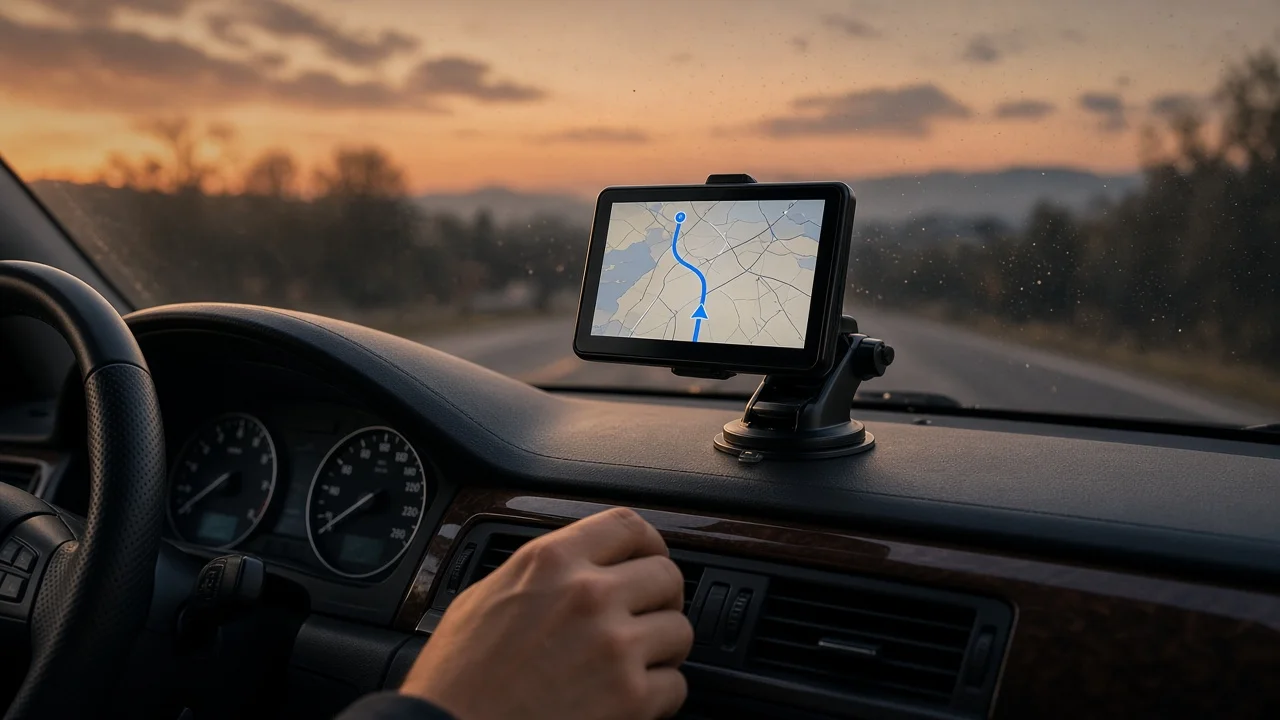
You can update a Garmin DriveSmart 65 in two ways. The first is directly over a Wi-Fi network from the device itself. The second is through Garmin Express, Garmin's desktop application for Windows and Mac computers, with the navigator connected by USB. Both methods deliver the same two kinds of updates: new map data and new device software. Which method suits you depends mostly on your Wi-Fi access, how much storage the unit has free and whether you prefer working on a computer.
What an Update Actually Changes
A DriveSmart 65 update usually falls into one of two categories, and they solve different problems.
Map updates replace the stored road network and points of interest. This covers new roads, changed intersections, revised speed limits where the map includes them, and new or closed businesses. Map updates have the most direct effect on route information, because the device can only plan routes over roads it knows about. Software updates change the device's operating firmware. They can fix bugs, refine menus and features, improve stability, and adjust how the unit handles connected services.
An update does not change the GPS receiver hardware. Raw position accuracy depends mainly on satellite reception, so a clear view of the sky and good windshield placement still matter. Fresh map data does improve how well the device matches your reported coordinates to the correct road. This is noticeable on newly built interchanges, where an outdated map can make the unit seem lost even when its position fix is fine.
Are Map Updates Included?
Many DriveSmart units sold in the US came bundled with ongoing map updates. Eligibility depends on the specific package your device was sold with, so don't assume it. The most reliable way to check is to connect the device to Garmin Express or check for updates over Wi-Fi. If updates for your map region are available to your unit, they will be offered there. Software updates are generally offered regardless of the map package.
Option 1: Updating Over Wi-Fi
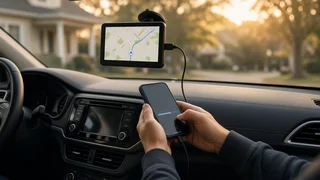
The DriveSmart 65 can download and install updates without a computer. This is usually the simplest route if you have a reliable home network. Menu labels can vary slightly between software versions, but the process generally looks like this:
Bring the device indoors or within range of your Wi-Fi network. A home network is preferable to the car's location in a driveway. Connect the unit to external power with its USB cable and a wall adapter. Large map downloads take a while, and the device may require external power before it will install updates. Open the device settings, choose the wireless network option, and join your Wi-Fi network. Go to the updates section in settings, or tap the update notification if one appears on the main screen. Choose to install all available updates, or select map and software updates individually. Leave the device powered and connected until installation finishes. It may restart one or more times.
Avoid public networks that require a sign-in page, such as many hotel or café connections. The navigator has no browser to complete that step, so the connection may appear to work while downloads fail. A phone hotspot can work, but a full map download can be large and use a significant share of a mobile data allowance.
Option 2: Updating With Garmin Express
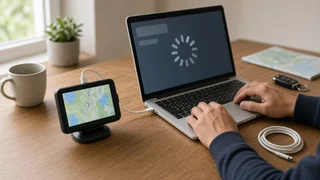
Garmin Express is the better choice if Wi-Fi is unavailable or unreliable. It also gives you more visibility into download progress and storage use.
Install Garmin Express on a Windows or Mac computer. Connect the DriveSmart 65 with a USB cable that supports data transfer. Some cables only charge and will not let the computer detect the device. Open Garmin Express and add the device when it is detected. Review the available updates and select install. Keep the computer awake and the cable connected until Garmin Express confirms the update is complete, then eject the device before unplugging it.
Wi-Fi vs. Garmin Express at a Glance
Factor | Wi-Fi on the device | Garmin Express on a computer; Equipment needed | Wi-Fi network and power adapter | Computer, data-capable USB cable; Convenience | No computer required | Requires installing desktop software; Progress visibility | Shown on the device screen | Shown on the computer with more detail; Storage management | Limited options on the device | Easier to manage regions and storage; Best for | Routine updates at home | Large updates, low storage or troubleshooting
When the Device Runs Out of Storage
Full map packages grow over time, so internal storage can eventually be too small for a complete update. The DriveSmart 65 accepts a microSD card for extra space. If an update reports insufficient storage, these steps usually help:
Insert a microSD card and run the update again so the extra space can be used. In Garmin Express, install only the map regions you need, if you don't drive across the whole map coverage area. Delete old files you no longer need, such as unused custom content, before retrying.
Smartphone Connection and Location Permissions
The DriveSmart 65 can pair with the Garmin Drive smartphone app for features such as live traffic and phone notifications, depending on region and software version. The app is not the main tool for installing map updates. For connected features to work reliably, the app needs Bluetooth access and appropriate location permissions on your phone. If traffic data or notifications stop working after a software update, check those phone permissions and re-pair the devices before assuming the update caused a fault.
Troubleshooting Common Update Problems
Device not detected by the computer: try a different USB cable or port, and confirm the cable carries data rather than charge only. Wi-Fi update stalls or fails: move closer to the router, avoid networks with sign-in pages, and keep the device on external power. Update interrupted partway: reconnect and run the update again. Garmin Express or the device will usually detect the incomplete installation. No map updates offered: the device may not be eligible for map updates, or it may already have the latest available map. Routes still look wrong after updating: check that the correct map region is enabled in the map settings. Also check for routing preferences such as toll or highway avoidance that may be changing the route.
How Often Should You Update?
Map providers release revised data periodically rather than continuously, so checking every few months is a practical habit. Check again before a long road trip, especially into areas with recent construction. Software updates are worth installing when offered, because they often include fixes. Your saved locations and device settings are normally kept through updates. Still, it's sensible to note any important saved destinations before a major update in case something needs to be re-entered.
The Bottom Line
Updating a Garmin DriveSmart 65 comes down to choosing the connection method that fits your setup. Use Wi-Fi with the device on external power for routine updates. Use Garmin Express on a computer for large downloads, storage problems or troubleshooting. Keeping the map data current gives you more accurate route information and better road matching. Keeping the software current keeps the device stable and its connected features working as intended.