How to update garmin drivesmart
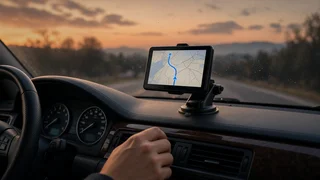
Updating a Garmin DriveSmart keeps its map data current so the device can calculate route information from accurate coordinates instead of relying on outdated road details. Stale map data may still guide the vehicle, but it can miss new intersections, changed exit numbers, or revised speed limits. The process usually combines a Wi-Fi connection, the Garmin Drive app on a phone, or a computer running Garmin Express. The best method depends on the DriveSmart model and whether the device has access to a stable network. Confirming the update afterward helps verify that position accuracy and device settings are working as expected.
Direct answer
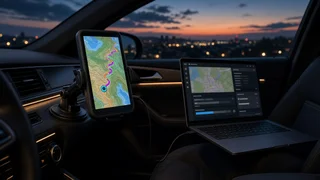
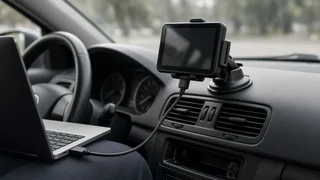
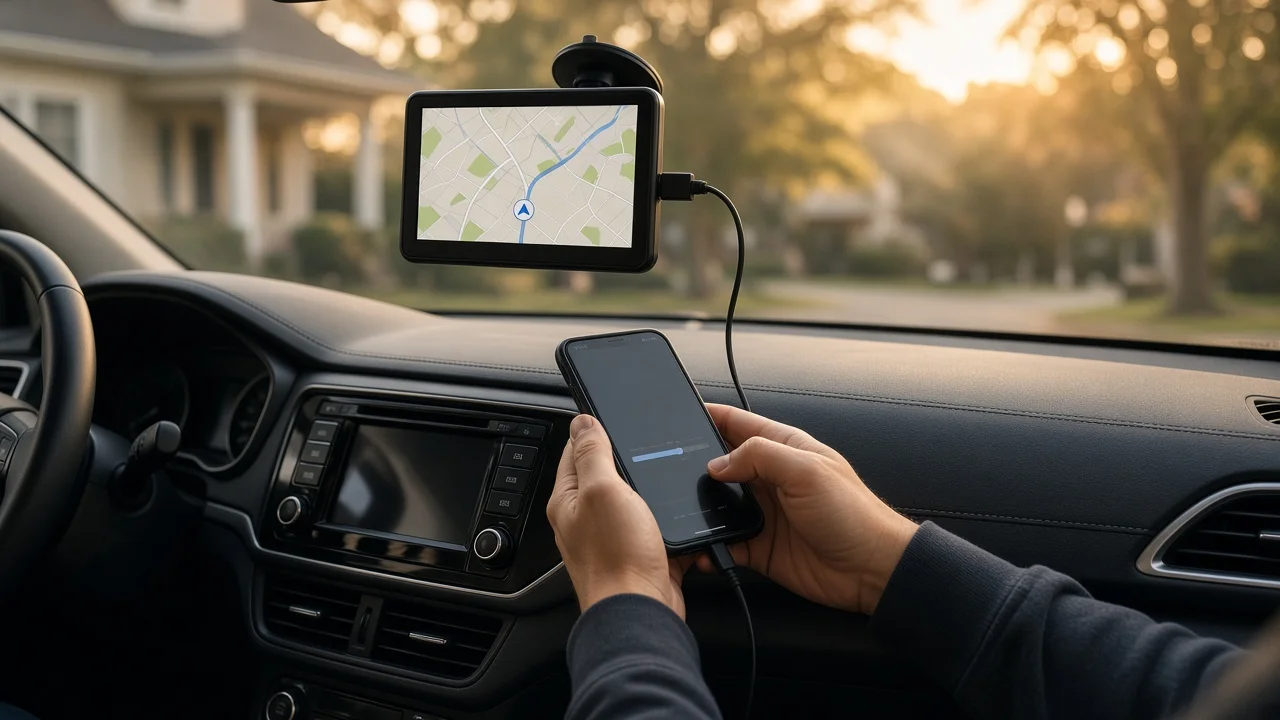
A Garmin DriveSmart can be updated through several supported paths. Many models can update directly over Wi-Fi by opening Settings, selecting Updates, and allowing the device to check for available map or software files. Another common method uses a smartphone running the Garmin Drive app; the app connects to the DriveSmart and can transfer update data through the paired connection. For a computer-based update, the owner installs Garmin Express, connects the DriveSmart with a USB cable, and follows the program prompts to install new map data and software.
The essential point is that the navigation device needs enough storage space, a reliable power source, and a stable network connection during the transfer. An interrupted update can leave map data incomplete, which may reduce position accuracy or cause the device to behave unexpectedly. Users should not remove power or disconnect the device until the screen confirms that the update is finished. Because update menus vary by DriveSmart generation, confirming the exact on-screen naming in the owner's manual for that model helps avoid selecting the wrong option.
How to proceed
Begin by connecting the DriveSmart to a power source and a Wi-Fi network unless the update will be done with Garmin Express. On the device, open Settings, look for Updates or System Updates, and check for available content. If a large map update is available, allow enough time for the download and installation. When using a computer, install the Garmin Express application, open it, and connect the DriveSmart with a compatible USB cable. The program should identify the device, display available updates, and guide the owner through installation. Do not interrupt the process while the device is writing files.
After the update finishes, restart the DriveSmart and confirm that the new map version appears in the device settings under About or Map Info. Check that the device shows a normal position fix and that route information appears for a known nearby destination. If the update failed or the device did not recognize new map data, repeat the connection through the same method and let the process run to completion. For manufacturer-dependent errors or codes, the owner should confirm the correct interpretation for that specific DriveSmart model rather than assuming a hardware problem.