Choosing a Pioneer Double-DIN Receiver with Apple CarPlay
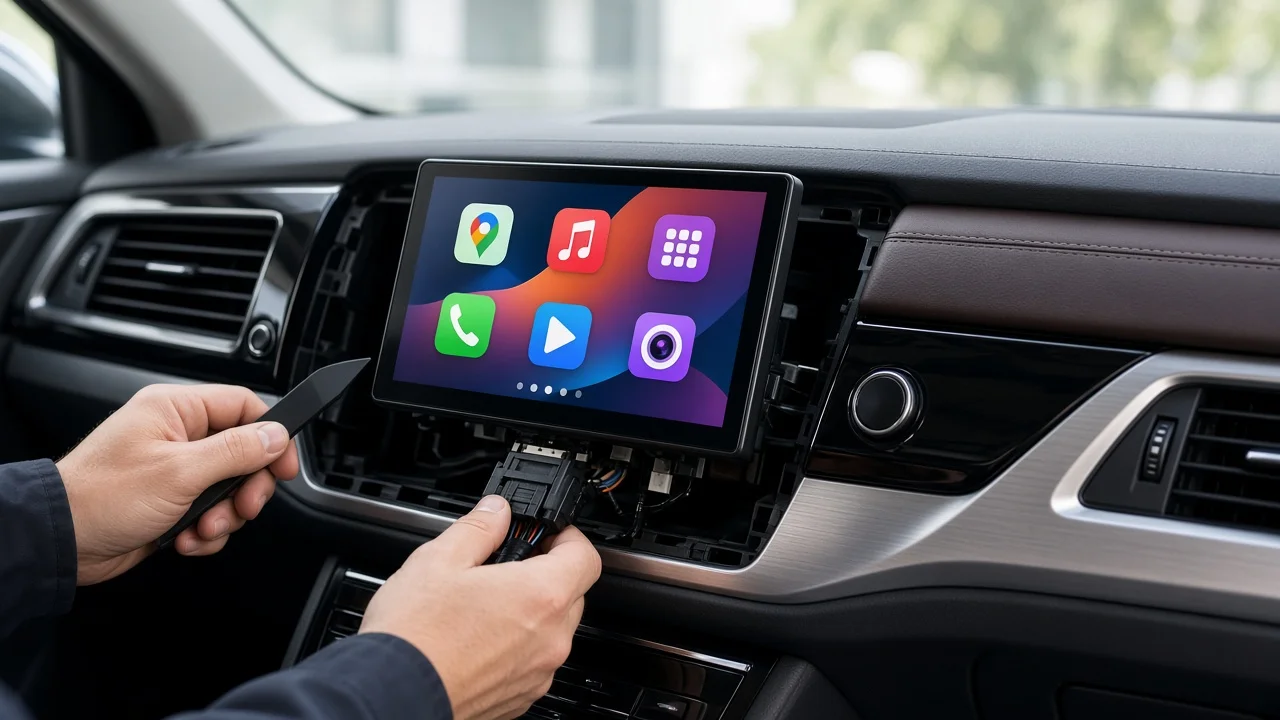
The short answer
Pioneer makes double-DIN receivers with Apple CarPlay, so the brand question is settled. The decision that matters is which unit suits your car and your iPhone habits. Three things change the answer most. First, whether your dash has a true double-DIN opening or needs a vehicle-specific kit. Second, whether you want wired or wireless CarPlay. Third, which factory features, such as steering-wheel buttons, a backup camera, a factory amplifier or climate controls built into the radio, you need to keep. Settle those three and the shortlist becomes small.
This guide does not name specific current Pioneer models or prices. No confirmed specifications, prices or availability dates were available for it. Check Pioneer's current lineup and each model's specification sheet before you buy, because features vary by model and model year.
What "double-DIN" means for your dash
DIN refers to a standard size for car radio openings. A single-DIN opening is about 7 inches wide by 2 inches tall. A double-DIN opening is the same width at about twice the height, roughly 7 by 4 inches. A standard double-DIN receiver needs that full-height opening or an adapter kit that creates one.
Many newer vehicles do not have a rectangular radio opening at all. The factory radio may be built into a molded panel that also holds climate controls or vehicle settings. Those cars can often still take a double-DIN receiver, but only with a vehicle-specific dash kit and sometimes an electronic interface that keeps the other functions working. Some cars cannot accept one without losing features. Before choosing a receiver, look up fit for your exact make, model, year and trim. Trim matters because cars with premium audio or navigation often have different dash panels and wiring from base versions of the same model.
Wired or wireless CarPlay
Not every Pioneer CarPlay receiver supports wireless CarPlay. Some models connect only through a USB cable, and support differs across the range.
Wired CarPlay: you plug the iPhone into a USB cable for every trip. The connection is generally stable, and the phone charges while connected. It usually suits shorter trips less well because you have to plug in each time, and the cable needs a tidy route to a reachable spot. Wireless CarPlay: the phone connects automatically once paired. This is convenient for short, frequent trips. The phone is not charged unless you add a charging pad or cable, and running navigation and streaming over wireless can drain the battery faster. Check the spec sheet wording carefully. Some listings say "CarPlay" without saying whether wireless is supported. Treat an unstated wireless feature as unconfirmed.
Checks before you commit
Phone and CarPlay compatibility
Confirm your iPhone model and iOS version meet Apple's current CarPlay requirements, especially if you want wireless CarPlay. If anyone else who drives the car uses an Android phone, check whether the receiver also supports Android Auto, and whether that support is wired, wireless or both. Check whether the receiver has a USB port suitable for CarPlay and how the cable is routed. Factory USB ports in the dash or console often will not carry data to an aftermarket receiver without a specific adapter. Check that a microphone is included and where it can be mounted. Siri and hands-free calls depend on its placement.
Vehicle integration
Wiring harness adapter: this connects the receiver to the car's factory plug without cutting wires. It must match your vehicle exactly. Antenna adapter: many vehicles use a factory antenna connector that does not plug directly into an aftermarket receiver. Steering-wheel controls: keeping them usually requires a separate interface module. Confirm the receiver supports that interface and that the interface supports your vehicle. Some Pioneer receivers work with third-party vehicle integration modules that can also show vehicle information. Confirm this per model. Factory amplifier or premium sound system: these often need a specific integration adapter. Without one, you may get no sound, low volume or poor sound quality. Backup camera: if the car has a factory camera, check whether an adapter can keep it working with the new screen. If you are adding a camera, confirm the receiver has a camera input. Climate, vehicle settings and warning chimes: in some cars these run through the factory radio. Confirm an interface exists that keeps them working before you buy anything.
Receiver features that affect day-to-day use
Screen type: capacitive screens respond to light touches and multi-finger gestures, similar to a phone. Resistive screens need firmer presses. Check which type the model uses, and how it looks in sunlight if you can see it in person. Screen size and mounting: some receivers have a larger screen that "floats" in front of the dash on a bracket, from a single- or double-DIN chassis. These can offer a bigger display but may block vents or controls in some cars, so check clearance. Disc drive or not: Pioneer's lineup has generally used different model prefixes for mechless digital-media units and units with a CD/DVD drive. Confirm on the spec sheet rather than relying on the prefix alone. A mechless unit is usually shallower, which can matter in tight dashes. Built-in navigation: CarPlay already provides map apps through the phone. Built-in navigation helps mainly in areas with poor cell coverage, and may need a separate GPS antenna. Audio expansion: if you plan to add amplifiers or a subwoofer later, check the number of preamp outputs and their rated voltage, along with the equalizer and crossover settings. Firmware updates: check whether the model can receive firmware updates and how they are installed. CarPlay behavior can change as iOS updates.
Condition, seller and warranty
Manufacturer warranty coverage for electronics is often tied to buying from an authorized dealer, and it may also depend on professional installation. Check the warranty terms for your market before buying from a marketplace or third-party seller. For used or refurbished units, confirm the exact model and firmware version, check that the wiring harness and microphone are included, and ask whether the screen and USB port have been tested.
Budgeting the full installation
The receiver is only part of the cost. A complete installation may also need a dash kit, a wiring harness adapter, an antenna adapter, a steering-wheel control interface, any camera or amplifier integration adapters, and labor if a shop does the work. In cars with integrated controls or premium audio, the interface hardware can be a large share of the total. Ask any installer for an itemized quote that lists each part as well as labor.
When comparing prices, note the market, the date, the currency and exactly what is included. Some offers bundle installation parts or labor and others do not. An advertised price is also not the same as what buyers actually paid. Sale prices, open-box listings and installer packages vary, so compare like with like. This guide gives no price figures, because no current pricing was confirmed.
Next steps
Confirm your vehicle's exact make, model, year and trim, and whether it has premium audio, a factory camera or integrated climate controls. Look up fit and the parts you need for that vehicle: dash kit, harness, antenna adapter and any integration interface. Decide between wired and wireless CarPlay, and whether Android Auto matters to anyone in the household. Shortlist current Pioneer models that meet those needs, using each model's official specification sheet. Get an itemized, dated quote for the full installation and confirm the warranty terms with the seller.