In-Vehicle Infotainment: What It Is, How It Works and How to Use It
The short answer
In-vehicle infotainment, often shortened to IVI, is the system in a car's dashboard that combines information and entertainment. It typically handles audio, navigation, hands-free calling, messaging, vehicle settings and connected services through a central screen, physical controls, steering wheel buttons and voice commands. How you use it depends heavily on the vehicle: the hardware, the software platform, the features included and whether a subscription is required all vary by manufacturer, model year, trim and market. The most important distinction is whether you are using the car's own built-in software or a smartphone projection system such as Apple CarPlay or Android Auto, because the two behave differently and are often available side by side.
What an infotainment system includes
Although layouts differ between brands, most modern systems are built from the same basic parts. Knowing what each part does makes it easier to find features and understand what a particular car offers.
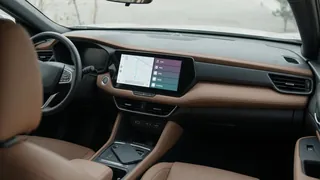
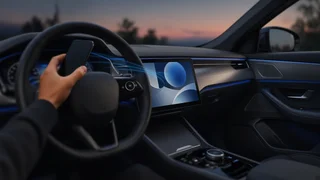
Head unit: the computer behind the dashboard that runs the infotainment software and connects to speakers, cameras, antennas and the phone. Central display: usually a touchscreen, though some vehicles pair the screen with a rotary knob or touchpad instead of, or in addition to, touch input. Physical controls: volume knobs, tuning buttons, shortcut keys and climate controls; the number of hard buttons varies widely between models. Steering wheel controls: buttons for volume, track selection, calls and voice activation that let the driver keep hands on the wheel. Digital instrument cluster or head-up display: in some vehicles, navigation directions, media information and call details appear in the driver's line of sight as well as on the central screen. Microphones and voice assistant: used for hands-free calls and spoken commands. Connectivity hardware: Bluetooth, USB ports, and in many newer vehicles Wi-Fi and a built-in cellular modem for connected services and software updates.
Built-in software versus smartphone projection
Every infotainment system runs the automaker's own software, sometimes called the native or embedded system. Many vehicles also support phone projection, where apps running on your phone are displayed on the car's screen in a car-friendly layout. Some automakers build their native system on Android Automotive OS, which is a full operating system installed in the car and may include Google apps when the manufacturer licenses them. That is different from Android Auto, which depends on a connected Android phone. The names are similar, but one lives in the car and the other comes from the phone.
Aspect | Built-in (native) system | Phone projection (Apple CarPlay, Android Auto); Where the software runs | In the vehicle's head unit | On your smartphone, displayed on the car screen; Vehicle settings and features | Usually full access to car functions, such as drive modes, charging settings or camera views | Generally limited; you switch back to the native system for most vehicle settings; Navigation and maps | Automaker-provided maps; map updates and live traffic may depend on the vehicle and any connected service plan | Uses your phone's apps and data plan, so maps update with the app; Apps | Limited to what the automaker provides or allows | Selection of compatible phone apps for audio, messaging and navigation; Appearance between vehicles | Different for each brand and sometimes each model | Broadly consistent across supported vehicles; Requires a phone | No, for core functions | Yes, connected by cable or wirelessly where supported
Support for projection is not universal. Some vehicles offer only wired connections, some offer wireless connections, and some manufacturers have chosen not to offer one or both projection systems in certain models. If phone projection matters to you, confirm what the specific model year and trim support rather than assuming it is standard.
Getting started with your system
Most of the setup work is best done while parked. Many systems restrict certain menus, keyboard entry and pairing steps while the vehicle is moving, so completing them before a trip saves frustration.
Pair your phone over Bluetooth through the system's phone or connections menu, then confirm the pairing code on both the phone and the screen. Allow contact and message access on the phone if you want caller names, phonebook search and message read-out. Connect a USB cable or start wireless pairing to launch CarPlay or Android Auto if the vehicle supports it; a quality data cable matters for wired connections, since some charge-only cables do not carry data. Set up driver profiles if available, so seat, mirror, audio and display preferences load for each driver. Arrange home-screen shortcuts and favorites for the destinations, radio stations and contacts you use most. Learn the voice activation button on the steering wheel and try a few commands while parked. Review the privacy and data-sharing settings, which control what location and usage information the vehicle may send.
Everyday functions and how to reach them
Audio is usually the most-used function. Sources typically include AM and FM radio, and depending on the vehicle, HD Radio, satellite radio, Bluetooth audio, USB media and streaming apps. Satellite radio and some streaming or connected services are commonly offered as trials that convert to paid subscriptions, so check what continues after the trial ends.
Navigation can come from the built-in system or from a projected phone app. Built-in navigation may keep working in areas without cellular coverage if maps are stored in the vehicle, and it can integrate more deeply with the car, such as showing turn arrows in the instrument cluster or, in electric vehicles, planning charging stops. Phone-based navigation tends to have current map data and familiar search. Which works better depends on the specific system and how you drive.
Hands-free calling and messaging work through the paired phone. Incoming texts can often be read aloud and answered by voice, which keeps eyes on the road better than reading the screen. Vehicle settings, such as lighting, driver-assistance preferences, camera views and in some cars climate controls, are usually reached through the native system's settings menu, even if you otherwise use phone projection.
Using infotainment safely
Infotainment systems are designed with driving in mind, but any task that takes your eyes off the road or your hands off the wheel adds risk. In the US, distracted driving laws vary by state, and many restrict handheld phone use, so hands-free operation through the car's system is the safer and often the required approach.
Set destinations, playlists and settings before you start moving. Use voice commands and steering wheel controls instead of the touchscreen while driving. Rely on physical knobs and buttons for frequent adjustments like volume, since they can be found by feel. Let a passenger operate the screen for complex tasks. Keep glances at the display brief; if a task needs more attention, pull over. Treat feature lockouts while moving as a safety design, not a fault.
Software updates and connected services
Infotainment software can receive updates that fix bugs, improve compatibility with phones or add features. Some vehicles update over the air through a built-in cellular or Wi-Fi connection, while others need a dealer visit or an update loaded from a USB drive. Phone projection apps update with your phone, which is one reason they can stay current even in older vehicles. Connected services, such as remote start from an app, live traffic, an in-car Wi-Fi hotspot or emergency assistance, typically depend on a built-in modem and may require a subscription after an initial period. The details and costs vary by manufacturer and are worth reviewing before purchase.
Common problems and simple fixes
Phone will not connect: remove the pairing on both the phone and the car, restart the phone, and pair again. CarPlay or Android Auto drops out on a wired connection: try a different data-capable cable or a different USB port, since not every port may support projection. Screen is frozen or slow: many systems can be restarted with a long press of the power or volume button; the exact method varies by vehicle and is described in the owner's manual. Voice commands misunderstand you: speak naturally after the prompt, reduce cabin noise and check whether the car's assistant or the phone's assistant is being activated. Audio plays from the wrong source: check the selected media source and the phone's audio output setting.
What to compare when choosing a vehicle
Screen size gets most of the attention, but day-to-day satisfaction usually depends more on responsiveness, menu layout and how easy common tasks are while driving. When test-driving, spend a few minutes using the system rather than just looking at it.
Phone projection support, wired or wireless, for the exact model year and trim. Physical controls for volume and climate versus touch-only operation. Speed and clarity of the menus, and how many steps common tasks take. Voice assistant quality for navigation, calls and settings. Update method and the manufacturer's record of supporting older vehicles. Which features need subscriptions and what happens when trials end. Number and type of USB ports, plus wireless charging if you plan to use wireless projection. Privacy controls and options for limiting data sharing.
Bottom line
An in-vehicle infotainment system is the hub for audio, navigation, communication and many vehicle settings. Using it well comes down to understanding whether a feature runs in the car or on your phone, doing setup while parked, and relying on voice and physical controls while driving. Because features, connectivity and subscription terms differ by brand, model year and trim, check the specific vehicle rather than assuming any one capability is standard.