How to Set a Multi-Stop Route in a Car
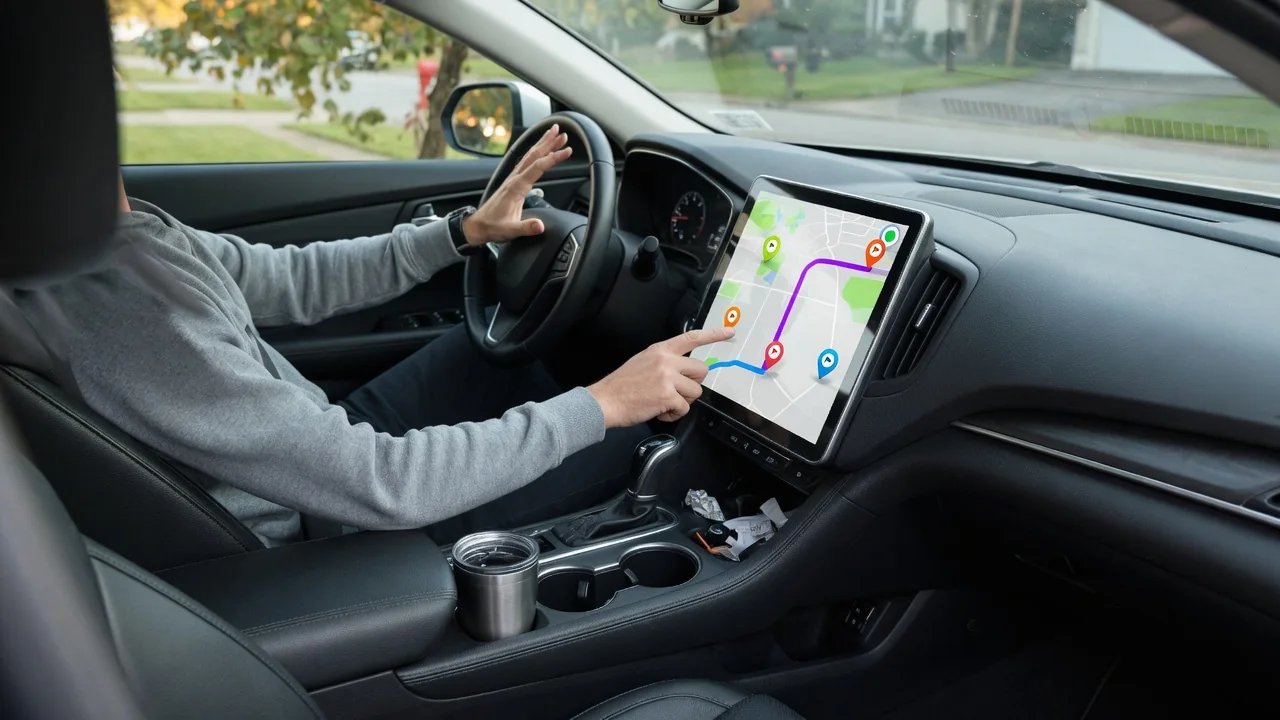
Learning how to set a multi stop route in a car turns a string of errands or a long road trip into one continuous plan instead of several separate destinations. The exact menus differ between built-in navigation systems and phone projection apps, but the workflow is similar everywhere: enter the stops, arrange them sensibly, confirm the vehicle has the energy to finish, and adjust as conditions change.
Enter stops
Most navigation systems start with a single destination and then let you build on it. After choosing the final or first address, look for an option labeled something like add stop, add waypoint, or edit route, which usually appears on the route overview screen or behind a menu icon. Each additional stop can typically be entered by typing an address, searching a business name, picking a saved favorite, or selecting a point on the map. The system then recalculates the trip to pass through each location.
Do the entering while parked, because many vehicles lock keyboard input once the car is moving and voice commands may handle only one stop at a time. Phone projection systems that mirror a map app follow their own rules and may allow fewer stops than the native navigation, or the reverse. Some manufacturers also offer a companion app that lets you build the route at home and send it to the car. The owner's manual or on-screen help will show which methods your particular vehicle supports.
Order them
Stops are usually driven in the order they were added, which is not always the most efficient sequence. Open the stop list and look for drag handles, arrows, or a reorder command that lets you move entries up and down. A practical example is a morning with a school drop-off, a parts store, and a grocery run: the fixed-time stop goes first, the store with later opening hours next, and the groceries last so cold items spend the least time in a warm cabin.
Some systems include an optimize function that rearranges waypoints for the shortest total distance or time, while others leave the sequence entirely to the driver. Automatic ordering does not know about appointments, opening hours, or which stop involves loading heavy cargo, so review the result before accepting it. Watch the total distance and estimated arrival time as you shuffle entries; a noticeable drop suggests you removed backtracking. Also confirm the final destination stayed at the end, since reordering can occasionally shift it.
Check remaining charge or fuel
A longer route with several stops uses more energy than the simple distance between start and finish suggests. Before leaving, compare the total trip distance shown in the route summary with the range estimate on the instrument cluster. That estimate is based on recent driving and can fall faster than expected with highway speeds, cold weather, heavy climate control use, hills, or a loaded vehicle. Leaving a comfortable margin rather than planning to arrive nearly empty makes the whole route less stressful.
Electric vehicles with integrated route planning often display a predicted battery percentage at each stop and may suggest charging stops automatically, though that feature depends on the model and software. In a gasoline, diesel, or hybrid car, the navigation usually will not factor in fuel at all, so adding a fuel station as its own waypoint is the simplest safeguard. Place the refueling or charging stop where it fits naturally, such as next to a planned meal break, rather than treating it as an afterthought late in the trip.
Everyday Use and Observations
Once underway, the display typically shows guidance to the next stop along with either the time to that waypoint or to the final destination, and some systems let you toggle between the two. When you arrive, the navigation may continue automatically, ask you to confirm, or wait until the car is restarted. Pay attention to how your vehicle behaves after the ignition is switched off, because some systems resume the remaining route on their own while others need a prompt accepted first.
Plans change mid-trip, and most systems allow you to skip the next stop or delete it from the list without rebuilding everything. Passengers can handle these edits where the screen permits it, or you can pull over safely to do so. Traffic-aware navigation may reroute between waypoints, which can change arrival times at each one, so glance at the updated estimates if someone is expecting you. For routes you repeat, such as a weekly delivery loop, saving the trip as a favorite avoids re-entering every address.
Limits and Next Steps
Every system has limits. The maximum number of waypoints varies, map data may be outdated if the vehicle has not received updates, and live traffic or charger availability often requires an active data connection or subscription. Phone-based apps and built-in navigation also do not usually share routes with each other, so a trip built in one may not appear in the other. Range predictions remain estimates, and a business listed on the map may have moved or closed since the data was compiled.
If your route needs more stops than the system accepts, split it into two legs and load the second once the first is complete. Checking opening hours and charger or station details before departure covers gaps the map cannot. For features that seem missing, such as stop optimization or sending routes from a phone, consult the owner's manual or the dealer, since these functions depend on model year, trim, and software version. A short practice route around town is a low-risk way to learn the menus before a long trip.