How to Set a Favorite Radio Station in an Unfamiliar Car
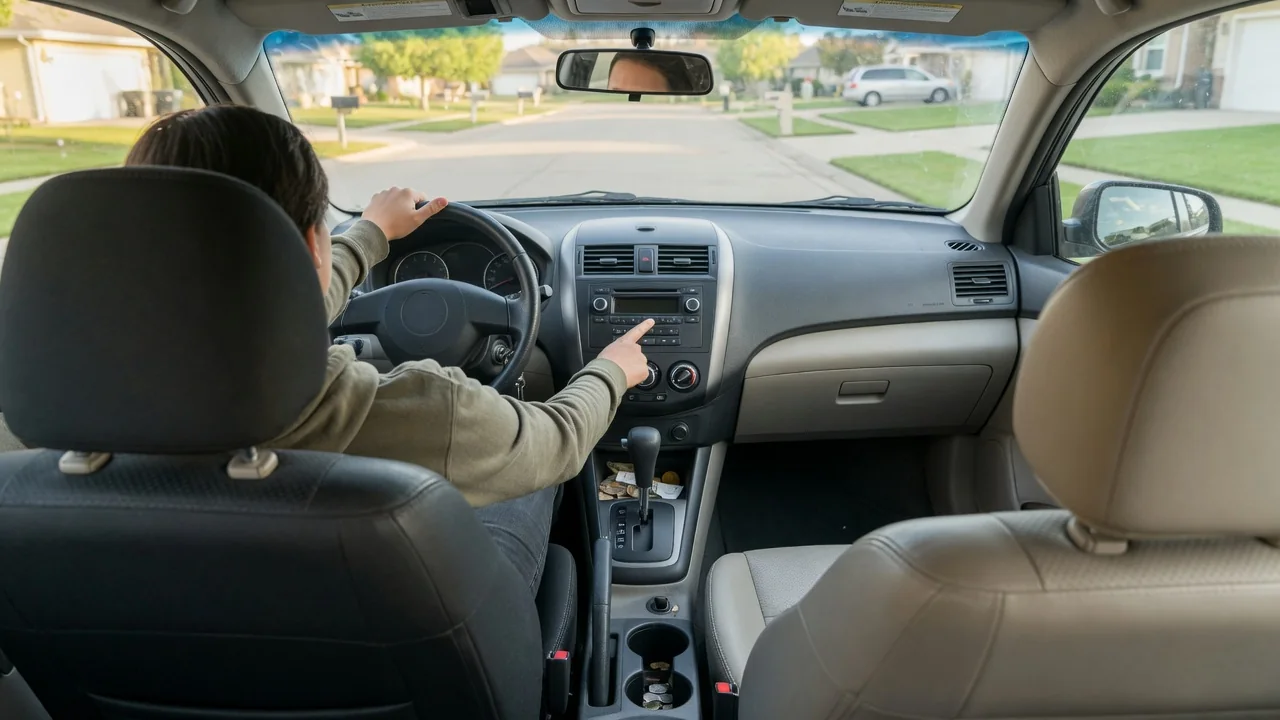
Climbing into a rental, a borrowed truck, or a newly purchased used car often means facing an audio system that looks nothing like the one you know. Learning how to set a favorite radio station in an unfamiliar car comes down to three steps that hold across nearly every brand: choose the band, tune to the station, then save and confirm the preset.
Select band
Presets are almost always stored per band, so the first job is making sure the radio is listening to the right one. Look for a physical button labeled Band, Radio, AM/FM, or Source, or a Media or Audio tile on a touchscreen. Pressing it repeatedly usually cycles through the available options, and the display should show the active band alongside the current frequency. If the screen is showing a phone connection or streaming app, the radio source has not yet been selected.
What appears in that cycle depends on the vehicle. Some radios offer several FM groups, often shown as FM1 and FM2, which are the same broadcast band with separate sets of preset slots. Others add satellite radio, HD Radio, or digital broadcasting, and some newer vehicles omit AM entirely. Certain touchscreen systems pool favorites from every band into one shared row instead. Noting which arrangement you see tells you where a saved station will live and where to look for it later.
Tune
With the band chosen, bring the radio to the station you want. Most systems offer two methods: manual tuning, which moves one frequency step at a time, and seek or scan, which jumps to the next signal strong enough to hold. A rotary knob on the right side of the unit commonly handles manual tuning, while arrow buttons often perform a seek. On touchscreens, look for on-screen arrows, a draggable frequency bar, or a keypad icon for entering the frequency directly.
Watch the display as you tune. The frequency should settle on the number you expect, and many radios will then show the station name or song information sent with the broadcast. If seek skips past your station, the signal may be weak where the car is parked, so manual tuning is the better choice. Be aware that the same control can behave differently between vehicles; a short press may seek while a long press tunes manually, or the reverse. On steering wheel controls, arrows may only step through existing presets.
Save and verify
The most widespread saving method is pressing and holding a preset button or on-screen preset slot while the desired station is playing. After a moment the radio usually signals success with a beep, a brief mute, or a change in the slot label to the new frequency. Releasing too early typically recalls whatever was stored there before rather than saving, which is the most common reason a first attempt seems to fail. Some touchscreen systems instead use a star, heart, or plus icon beside the station name.
Verification takes only a few seconds and is worth doing before driving off. Tune to a different station, then tap the preset once briefly; the radio should return to the frequency you stored. Check that the slot label matches as well. Remember that saving over an occupied slot replaces the earlier station, which matters in a borrowed car whose owner has their own favorites. Choosing an empty slot, or a second preset page if one exists, leaves their settings intact.
Everyday Use and Observations
Once stored, a favorite is normally recalled with a single short press, and many vehicles let you step through presets from the steering wheel so your eyes stay on the road. Do all of the setup while parked; hunting through unfamiliar menus in traffic is a real distraction, and some systems deliberately lock certain on-screen functions while the vehicle is moving. If a keypad or settings option appears grayed out, that restriction, rather than a fault, is the likely explanation.
Reception changes with location, so a preset saved in one city may deliver static or a different broadcaster in another. That is the nature of terrestrial radio rather than a problem with the stored setting. In some vehicles, favorites are tied to a driver profile or a particular key, so the station you saved may seem to vanish when another person's profile loads. Presets can also be cleared when the battery is disconnected on certain older radios, though many modern units retain them.
Limits and Next Steps
A brand-neutral process covers the majority of radios, but not every design follows it. A few systems require opening an edit or manage-favorites menu before a slot can be assigned, and others save automatically through an autostore function that fills presets with the strongest local signals, potentially overwriting existing ones. Rental and fleet vehicles occasionally have settings restricted. If holding a slot produces no response after a couple of deliberate attempts, the system probably uses a different method.
The owner's manual is the dependable next step; its audio section, often reachable through an index entry for presets or favorites, describes the exact sequence for that vehicle. Many newer cars also include a digital manual within the infotainment screen itself. For a rental, the counter staff or the vehicle's owner can usually demonstrate in moments. If the radio produces no sound, shows no frequency, or will not hold any station at all, that points beyond preset setup and warrants a look by a qualified technician.