How to Keep Navigation From Distracting the Driver
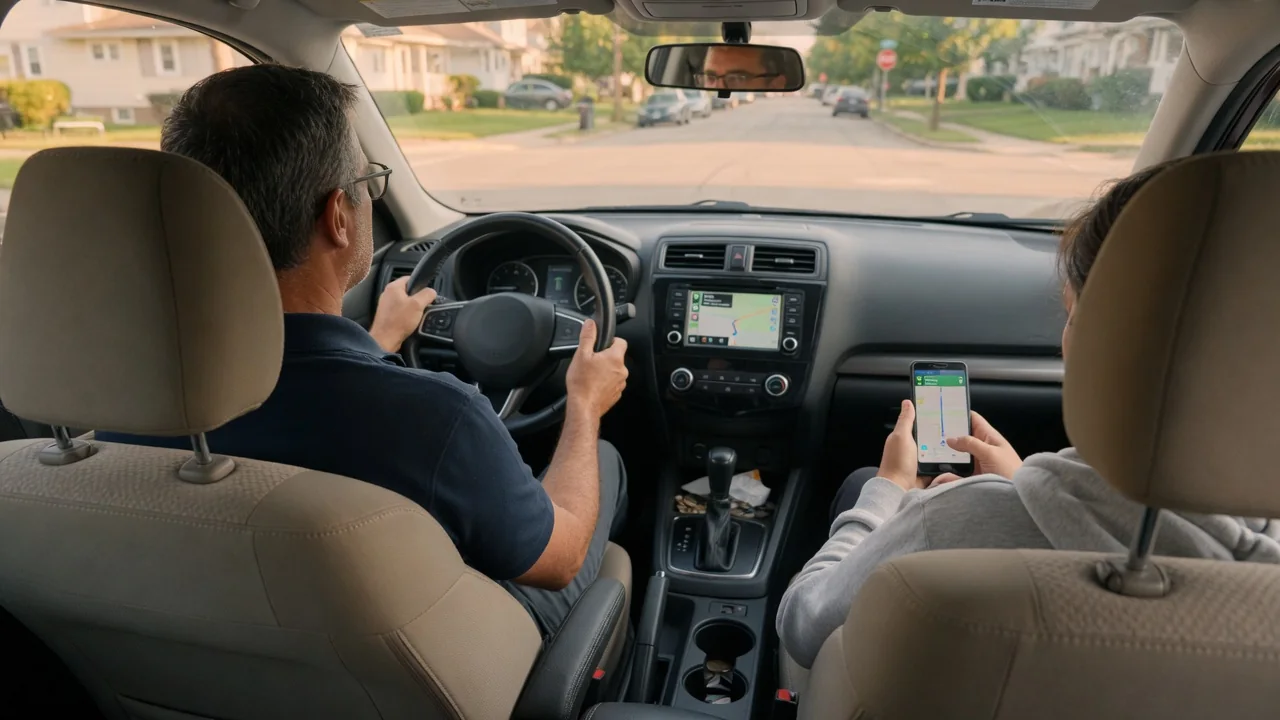
Learning how to keep navigation from distracting the driver starts before the car moves. A map screen is helpful only when it asks for a glance rather than a study session. With the destination entered while parked, voice guidance tuned to a comfortable level, and a passenger handling any changes, the system fades into the background and attention stays on the road ahead.
Set route early
The safest moment to program a destination is while the vehicle is parked with the transmission in park or the parking brake set. Typing an address, choosing among similar street names, and confirming the result all require reading and fine finger movements that compete directly with watching traffic. Entering the route in the driveway or parking space also lets the system finish calculating and acquire a satellite signal, so the first instruction arrives before the first intersection rather than halfway through it.
Use that parked time to preview the whole trip. Look over the route overview, note the major highway numbers and the final few turns, and decide whether to accept toll roads or an alternate path. Add planned fuel, charging, or meal stops as waypoints so nothing needs entering later. Some built-in systems lock keyboard entry once the vehicle moves, while phone-projection apps behave differently, so the exact steps and restrictions depend on the vehicle and the software version it runs.
Use audio cues
Spoken turn-by-turn directions let the eyes stay on the road while the ears handle the route. Before leaving, confirm that voice guidance is switched on and set the guidance volume loud enough to hear over road noise, the climate fan, and music. Many systems have a separate navigation volume that can only be adjusted while a prompt is playing or within a sound menu, so testing it while parked avoids fumbling with a knob when an instruction is missed at highway speed.
Notice how the system phrases its prompts during the first few minutes. Some announce distance and street name, others add lane guidance or a chime shortly before the turn, and many lower the music briefly while speaking. If prompts come through a phone, check that the audio is routed through the car speakers rather than the handset. Vehicles with a head-up display or instrument-cluster arrows give a further cue near the natural line of sight, though that equipment varies by trim and model.
Avoid mid-drive menus
Scrolling through menus, pinching the map, or searching for a new destination while moving takes eyes, hands, and thought away from driving at the same time. A touch screen offers no tactile feedback, so each tap needs a look to confirm it landed. If the plan changes, the simplest answer is a front-seat passenger, who can enter the new address, compare routes, and read out what matters. Agreeing before departure that the passenger handles the screen removes the temptation altogether.
Driving alone, rely on tools that need the least attention. A steering wheel voice button can often accept a spoken address or a request for the nearest fuel station, although recognition quality differs between systems and still demands some concentration. Saved favorites and recent destinations shorten any unavoidable interaction to a tap or two. When a change needs real typing or reading, pull into a parking lot or rest area first; a missed exit costs minutes, and the system will simply reroute.
Everyday Use and Observations
Screen position and appearance shape how much a glance costs. A phone in a mount should sit near the natural sight line without blocking the windshield view or an airbag, and it should be secure enough not to shift over bumps. On any display, a simplified map with clutter such as points of interest turned off is quicker to read. Automatic day and night modes and a dimmer brightness after dark reduce glare, and silencing message notifications keeps banners from covering the next turn.
Pay attention to personal habits over a few ordinary trips. Repeated looks at the arrival time, long stares to work out a complicated interchange, or a hand drifting toward the screen at every traffic slowdown all suggest the setup needs changing. Switching between a heading-up and north-up view, or a closer automatic zoom at junctions, may make each glance shorter. On familiar commutes, guidance may be worth running only for traffic alerts, with the voice muted and the route already known.
Limits and Next Steps
Navigation is an aid, not an authority. Map data can lag behind new construction, closures, and changed turn restrictions, and satellite positioning may drift in tunnels, among tall buildings, or on stacked roadways. Road signs, signals, and what is visible through the windshield always take priority over an instruction from the speaker. When a prompt seems wrong or arrives too late to follow safely, continue with traffic and let the route recalculate rather than braking hard or cutting across lanes.
A sensible next step is to spend ten minutes parked with the owner's manual or the on-screen help, learning where the guidance volume, voice options, and display settings live in that particular vehicle. Keeping map and app software updated improves routing accuracy, and local laws on handheld phone use and mount placement are worth checking because they differ by state. Before a long trip, brief the passenger on the route and how the system works so help is ready when plans change.