How to Check a Route Before Leaving in an Unfamiliar Car
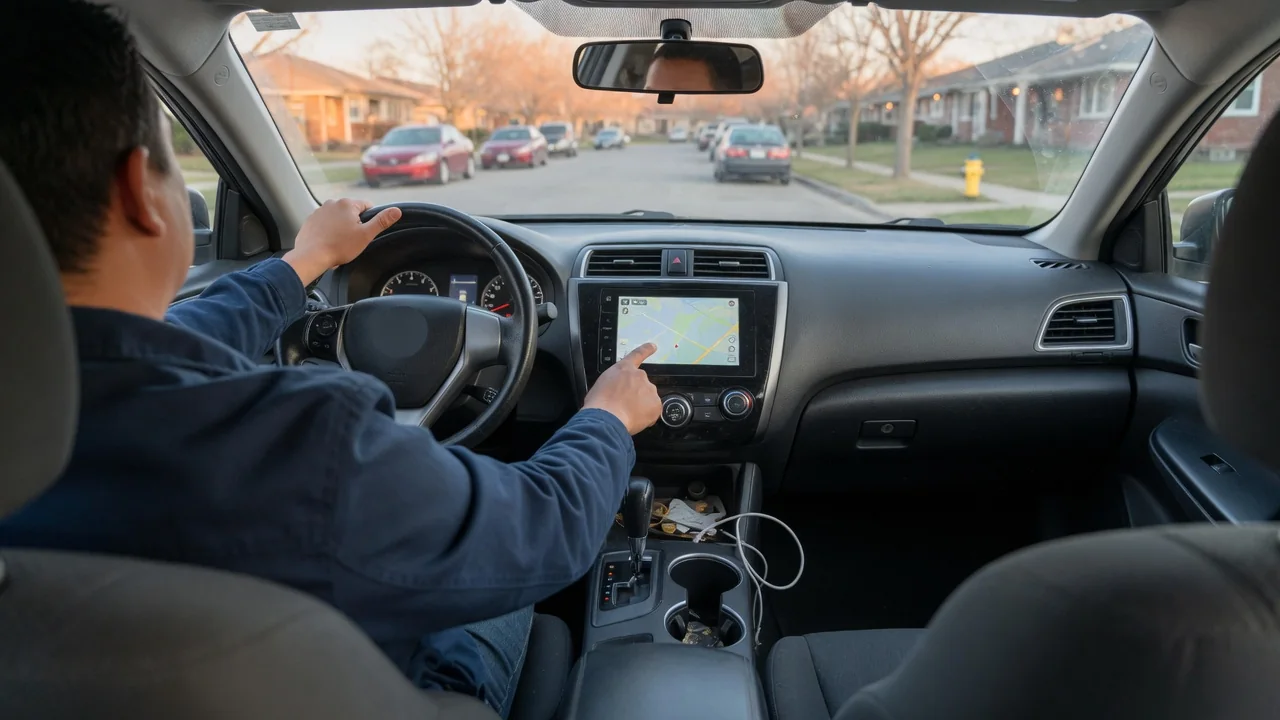
Sliding into a rental, a borrowed vehicle, or a newly purchased model means learning a different screen, different buttons, and a different navigation logic all at once. Knowing how to check a route before leaving in an unfamiliar car keeps that learning in the parking spot rather than in traffic. A few minutes spent stationary with the controls makes the first miles calmer and far more predictable.
Preview route
With the car parked and the transmission in park or the parking brake set, enter the destination and look for an overview or route preview option before pressing start. Most built-in systems and phone mirroring apps show the whole trip on one screen, with estimated arrival time, distance, and often two or three alternative routes. Zooming out reveals whether the suggested path uses highways, toll roads, ferries, or dense city streets, which matters when you do not yet know how the car accelerates, brakes, or fits in narrow lanes.
Scroll through the turn list if one is offered, paying attention to the first few maneuvers out of the lot, since those arrive while you are still adjusting to the pedals and mirrors. Note any complicated interchanges, left exits, or quick successive turns. Layouts vary: some vehicles place the overview behind a menu icon, others use a rotary controller or touchpad instead of a touchscreen, and some lock destination entry once the car is moving, which is another reason to finish the review while stationary.
Find voice and map settings
Guidance volume is usually separate from audio volume, and in many cars it can only be adjusted while a spoken prompt is actually playing. Trigger a prompt by starting guidance or using a repeat instruction button if the system has one, then turn the volume knob or steering wheel control until the voice is clear over fan and road noise. If the voice is muted from a previous driver, the setting typically sits in the navigation or sound menu, though the exact wording differs between manufacturers.
Map orientation deserves the same attention. Heading-up view rotates the map so the road ahead points to the top of the screen, while north-up keeps the map fixed; choose whichever matches how you normally read directions. Check whether the display is in miles or kilometers, whether the language suits you, and whether route preferences such as avoiding tolls or highways were left switched on. Some cars repeat turn arrows in the instrument cluster or a head-up display, so glance there before pulling away.
Keep backup
An unfamiliar system can freeze, lose its satellite fix in a parking structure, or carry outdated map data that does not know about a newer road. Loading the same destination on your phone gives a second reference, and downloading the area for offline use protects against weak cellular coverage in rural stretches or tunnels. A phone mount helps keep the screen in your line of sight without holding it, and it is worth confirming that the car's charging port actually delivers power before relying on it.
A low-tech backup is equally useful. Write down or memorize the major road numbers, the exit name, and one or two landmarks near the destination, so a silent screen does not leave you guessing. If the phone connects through mirroring software, be aware that some vehicles need a cable while others pair wirelessly, and a worn cable can drop the connection mid-trip. Having a passenger act as navigator, when one is available, removes much of the pressure from the driver entirely.
Everyday Use and Observations
On the move, the first few instructions tell you how the system behaves. Notice how early it announces turns, whether it gives lane guidance, and how quickly it recalculates after a missed exit. Compare the displayed speed limit and the position marker with what you see through the windshield; a marker that lags or drifts suggests a weak signal, and spoken prompts become more reliable than the picture. Brief glances are enough, because the voice and the cluster arrows should carry most of the work.
Screen behavior also changes with conditions. Many displays switch to a darker night mode when the headlights come on, and sunlight can wash out a screen mounted high on the dashboard, so brightness adjustments are best made at a stop. Traffic rerouting prompts may pop up asking for confirmation, and an unfamiliar interface makes those harder to answer quickly; letting the prompt time out is usually safer than hunting for the right button. Steering wheel controls and voice commands, once located, reduce reaching toward the center stack.
Limits and Next Steps
No navigation system fully understands the vehicle it sits in. A route that suits a compact sedan may include low clearances, tight parking ramps, or weight-restricted roads that matter in a tall van or a truck with a trailer. Electric and plug-in vehicles add range and charging stops to the equation, and a built-in planner may or may not account for them depending on the model and its software. Temporary closures and construction can also be missing, so road signs always outrank the screen.
When something does not behave as expected, pull over somewhere safe before investigating. The owner's manual, often stored in the glovebox or available through the infotainment menu, explains the specific controls for that vehicle, and a rental agent or the owner can usually demonstrate them in a minute. For repeated use of the same car, saving home and frequent destinations and setting preferred voice and map options under your own profile, where profiles exist, makes each later departure quicker.