GPS Map Update: How to Get the Latest Sat Nav Maps on Your Car or Portable Navigator
The Short Answer
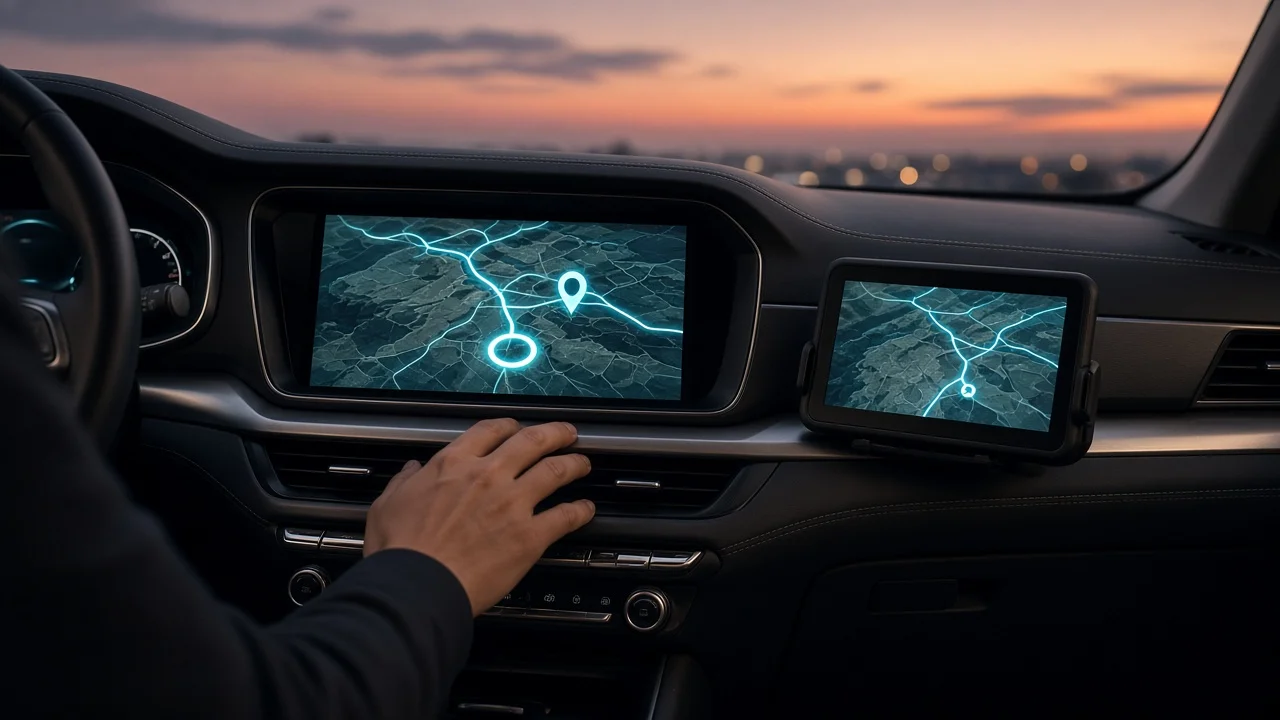
You update GPS maps by installing a newer map database from the maker of your navigation system. A map database is the stored data your navigator uses to know roads, addresses, speed limits and points of interest. GPS satellites only report your position. They do not send map data, so the maps stay as they are until you update them.
How you get the latest sat nav update depends on the type of navigator you have. Most fall into one of three groups.
1) Built-in vehicle navigation (factory infotainment): updated over the air through the car's internet connection, by USB drive or SD card from the automaker's update portal, or by a dealer. 2) Portable navigation devices (standalone units on the dashboard or windshield): updated by connecting the device to a computer running the manufacturer's update software, or over Wi-Fi on some models. 3) Phone-based navigation (including apps shown on the car screen through smartphone projection): updated automatically when the app updates or loads maps online. No separate car map update is needed.
Two things can change this answer for your vehicle. First, update methods, availability and cost vary by automaker, model year, market and trim, so check your owner's manual or the automaker's support resources for your exact vehicle. Second, older systems may no longer get new maps from the manufacturer.
Before You Start: Identify Your System
1) Find out whether the maps live in the car's infotainment unit, a portable device, or a phone app. 2) Note the current map version. This is usually under a menu such as Settings, System Information or Navigation Info. 3) For a built-in system, have your vehicle identification number (VIN) ready. Automaker update portals often use it to match the correct map package to your car. 4) For a portable device, note the model name. It is usually printed on the back or listed in the device settings.
Updating Built-In Car Navigation
Over-the-Air Updates
Some newer vehicles download map updates through a built-in cellular connection or a Wi-Fi hotspot. These are called over-the-air (OTA) updates. Whether your vehicle supports OTA map updates, and whether an active connected-services subscription is required, depends on the automaker and model.
1) Park somewhere with good cellular coverage, or connect the car to a trusted Wi-Fi network if the system supports it. 2) Open the infotainment settings and look for a software update or map update option. 3) Accept the download and follow the on-screen prompts. 4) Some systems install only while the vehicle is on or parked. Follow the system's instructions and do not interrupt the installation.
USB or SD Card Updates
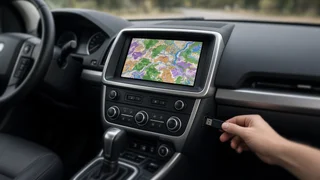
1) Go to your automaker's navigation update portal on a computer and enter your VIN or vehicle details. 2) Download the map package or the automaker's update tool. Map files can be large, so allow time and make sure you have enough storage. 3) Copy the update to a USB drive or SD card formatted the way the instructions specify. 4) Insert the drive into the car with the vehicle on, then start the update from the infotainment menu if it doesn't begin automatically. 5) Keep the drive inserted and the system powered until the update says it is complete.
Dealer Updates
If your vehicle doesn't support OTA or self-installed updates, or you'd rather not do it yourself, a franchised dealer service department can usually install the latest map version. Ask in advance whether the update is covered under any warranty or connected-services plan, or whether there is a charge.
Updating a Portable GPS Navigator
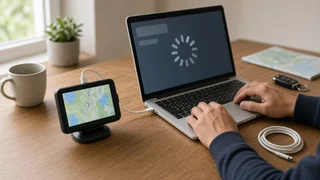
1) Install the device manufacturer's official update software on a computer, or check whether your model can update over Wi-Fi. 2) Charge the device fully. 3) Connect it to the computer with a data-capable USB cable, or connect it to Wi-Fi. 4) Let the software detect the device and list available map and software updates. 5) Free up storage if asked. Some updates let you choose which regions to install. 6) Start the update and leave the device connected until it is complete.
How to Confirm the Update Worked
1) Recheck the map version in the system information menu and compare it to the version you noted earlier. 2) Search for a recently built road or a new address in your area to see if it appears. 3) Plan a short route to confirm guidance works normally. 4) If the version hasn't changed or the system shows an error, repeat the process using the manufacturer's instructions, or contact the automaker, device maker or dealer.
Safety and Practical Tips
1) Don't run the engine in an enclosed space such as a closed garage while an in-car update installs. 2) Use only official update sources. Unofficial map files can fail to install or cause system problems. 3) Don't power off the system or remove the drive during installation. An interrupted update can leave the navigation unit unusable until it is repaired. 4) Even after updating, road layouts can change faster than map releases, so follow posted signs and current road conditions.
What This Guide Can't Tell You
No confirmed details were available on specific map versions, release schedules, prices, subscription terms or which vehicles and devices are still supported. These vary by manufacturer, model year and US market equipment. For those details, check your owner's manual, the automaker's or device maker's support resources, or a dealer.