Update Garmin sat nav maps and software
Garmin car navigators get two kinds of updates: software (firmware) updates and map updates. They are related, but they follow different rules. Whether an update is free depends mostly on the update type and on what your device was sold with.
The short answer: is a Garmin GPS update free?
Software updates for supported Garmin automotive navigators are generally provided at no charge. Map updates are free only if your device includes map update coverage. Many Garmin car units are sold with lifetime map updates, which Garmin applies for the useful life of the device as Garmin defines it. If your device has no such coverage, newer maps usually have to be bought. Older models may stop receiving updates altogether.
In short, a free update is likely if your navigator came with lifetime maps and is still supported. Otherwise, expect to pay for maps, or find that no newer maps are offered for your unit.
Software updates versus map updates
Update type | What it changes | Typical cost; Software (firmware) | The device's operating software: bug fixes, feature changes and compatibility improvements | Generally free for supported devices; Maps | Road data, addresses, points of interest and routing information | Free with included map update coverage; otherwise usually a paid purchase
Firmware is the built-in software that runs the navigator. Map data is a separate, much larger file set, which is why map updates take longer and need more storage space.
How to tell whether your device includes free map updates
Check the model name. On many Garmin automotive models, an "LM" or "LMT" suffix indicates lifetime maps. The "T" commonly refers to traffic capability. Naming conventions vary by model line and era, so treat the suffix as a clue rather than proof. Check the original packaging or product listing for wording about lifetime or included map updates. Connect the device to Garmin's update software. It reports which updates are available and whether a purchase is required.
Ways to download and install updates
Garmin offers two main update routes. Which one you can use depends on your model.
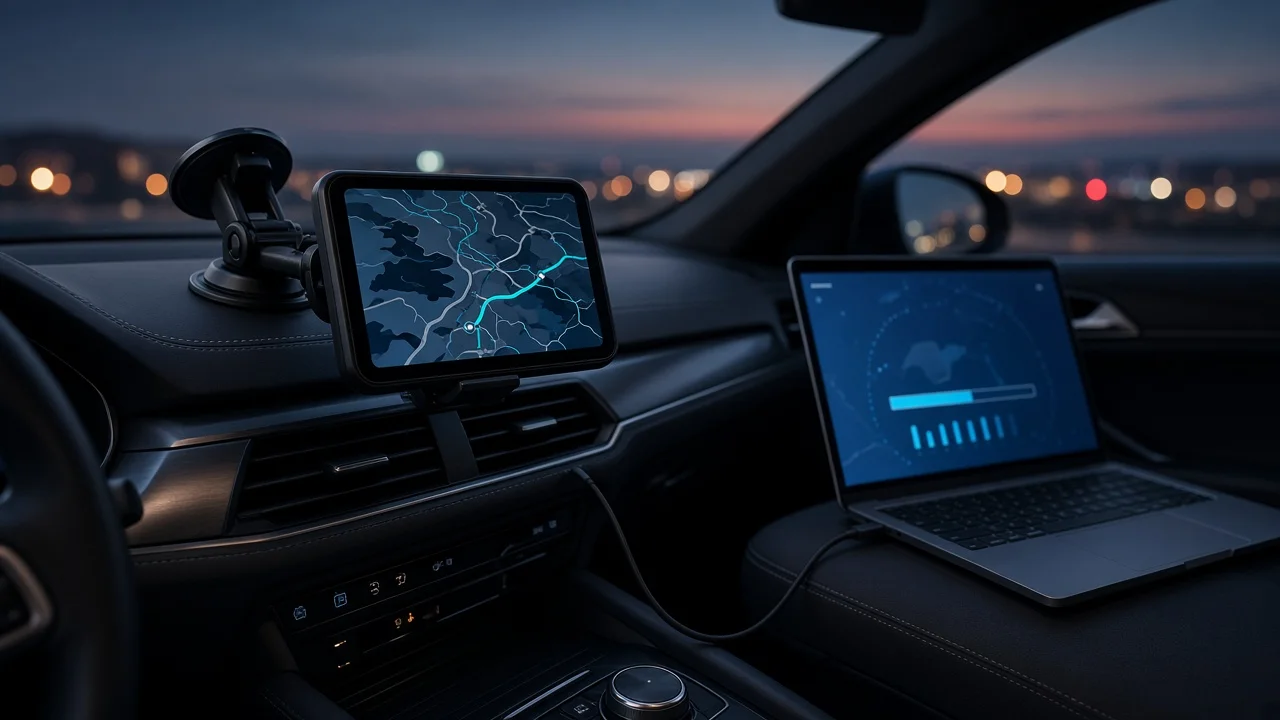
Garmin Express on a computer: Garmin's free desktop application for Windows and macOS. You connect the navigator by USB, add the device in the app, and install any available software and map updates. Wi-Fi updates on the device: Some newer Garmin navigators can connect to a Wi-Fi network and download updates directly, with no computer needed. This option is usually found in the device's settings menu.
General steps with Garmin Express
Install Garmin Express on your computer and open it. Connect the navigator with a USB cable that supports data transfer, not only charging. Add the device when the app detects it. You may be asked to sign in to or create a Garmin account. Review the available updates and choose to install them. Keep the device connected and the computer awake until installation finishes, then disconnect the navigator safely.
Map files are large, so a stable internet connection and enough free space on the device help the process go smoothly. If internal memory runs short, some models accept a memory card for additional map storage. Whether this works depends on the model.
When a free update is not available
If Garmin Express or the device shows no map update, or asks for payment, the unit probably lacks included map coverage or is no longer supported. For an older navigator, compare the price of a paid map update with the price of a newer device or a smartphone navigation app before buying. Note that a paid map purchase does not reverse a model's end of support.
What this guide could not confirm
No confirmed, model-specific evidence was available for this article. It therefore does not state prices for paid map updates, lists of supported or discontinued models, file sizes, update intervals or exact menu paths. These details vary by model and region and can change over time. Check them in Garmin Express or in your device's documentation for your specific navigator in the US market.