How to Update the Navigation in a Genesis G80
The Short Answer
There are two common ways to update the navigation in a Genesis G80. One is to download the map and software package on a computer using Genesis's official navigation update software, copy it to a USB drive or SD card, and install it in the car. The other, on vehicles that support it, is an over-the-air (OTA) update, which downloads the update wirelessly through the car's built-in connectivity. Which method applies depends on your G80's model year, market and infotainment hardware, so check your owner's manual or the infotainment settings menu before you start.
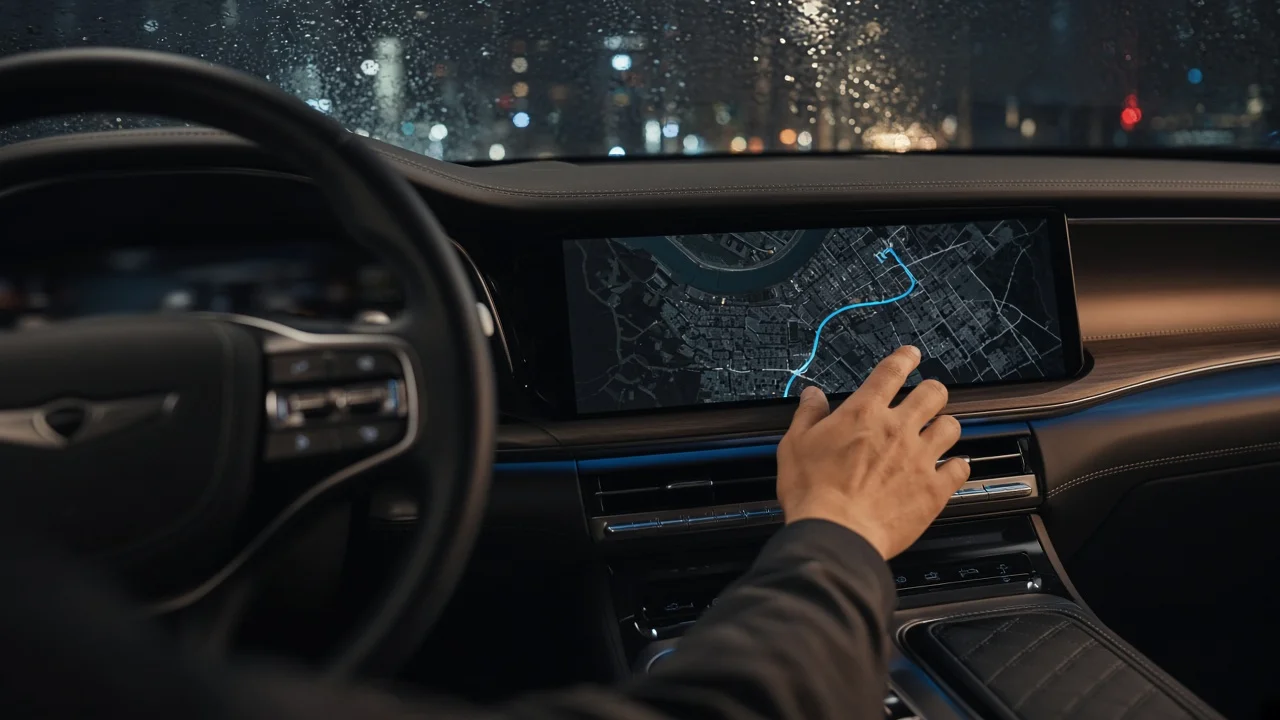
In this guide, a navigation update means new map data, and often new infotainment system software, that the head unit installs. The head unit is the central touchscreen system that runs navigation, audio and vehicle settings. Map and software updates are often bundled together, so an update can change menus or features as well as roads and points of interest.
What Determines Which Method You Use
Update procedures vary between G80 generations and head unit versions. Some vehicles support only media-based updates (USB or SD card). Others can also receive updates wirelessly. The source material for this article did not include confirmed details about which model years or trims support each method, so treat the steps below as the general process and confirm the specifics for your car.
Look in the infotainment settings for a software update or system information menu. If it offers a wireless update option, your car may support OTA updates. Check the owner's manual or the navigation manual for your model year. It describes the supported update method and the media type, USB or SD card. If you are unsure, a Genesis retailer or service center can confirm the method and can usually perform the update for you.
Updating With a USB Drive or SD Card
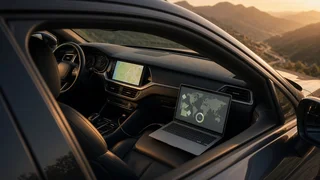
This is the standard method for Genesis navigation systems that do not update over the air. It is also a fallback when a wireless update is unavailable. You will need a computer and a blank USB drive or SD card, depending on which one your head unit accepts. The update software shows the storage capacity required for your package, so check that figure before you begin.
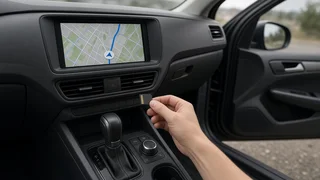
1) On a Windows or Mac computer, download and install Genesis's official Navigation Updater software from the Genesis navigation update website. 2) Open the software, sign in or create an account, and select or register your vehicle so the software offers the correct update package. 3) Insert an empty USB drive or SD card. Formatting it as the software instructs helps avoid errors. 4) Download the update to the drive. Large map packages can take a long time to download and copy, so keep the computer awake and connected throughout. 5) Safely eject the drive from the computer. 6) In the vehicle, start the engine or switch the car on so the infotainment system stays powered. If the engine is running, do this outdoors or in a well-ventilated area, not in an enclosed garage. 7) Insert the drive into the correct port or card slot. The system may detect the update automatically. If it does not, start it from the update option in the settings menu. 8) Follow the on-screen prompts. Do not switch off the vehicle, remove the drive or operate the system while the update runs. The system will restart once or more during installation.
Updating Over the Air
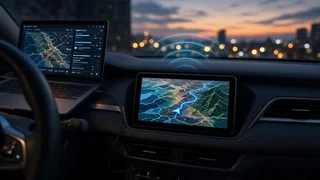
On G80 models that support OTA updates, the vehicle can download map or software updates through its built-in connectivity. A notification may appear on the screen, or you can check manually in the software update section of the settings menu. OTA availability can depend on an active Genesis connected services account and network coverage. Some updates download while you drive but install only when the car is parked. Follow the on-screen instructions and avoid switching the vehicle off during installation.
How to Confirm the Update Worked
Open the system information or software information screen in the infotainment settings and note the map and software version numbers. Compare them with the latest version shown in the Navigation Updater software or the OTA update screen. Start a route to a familiar destination and check that navigation, voice guidance and search work normally.
If Something Goes Wrong
If the system does not recognize the drive, try reformatting it, downloading the package again, or using a different drive. If an update fails partway through or the screen will not start normally afterward, stop retrying and contact a Genesis service center. An interrupted installation may need professional recovery.
Information Gaps to Check for Your Car
The source material for this article did not include confirmed model-year coverage, update frequency, file sizes, installation times or cost information. It is also unclear whether map updates are complimentary for your vehicle or for how long, which may depend on the model year and any Genesis ownership program. Confirm these details with a Genesis retailer or in your vehicle's documentation.