What to Do When Your Dashcam Did Not Record an Accident
The short answer
If your dashcam did not capture a collision, your claim does not fall apart. Police reports, insurance adjusters and courts relied on other evidence long before dashcams were common, and they still do. Footage is useful supporting evidence, but you do not need it to report a crash or file a claim. What matters now is to stay safe, preserve whatever the camera may have saved, collect other evidence while it is still available, and later work out why the camera failed so it does not happen again.
One qualification changes the picture. A dashcam that seems not to have recorded may in fact have saved the clip. It may be in a folder you have not checked, or it may be at risk of being overwritten. Before you assume nothing exists, protect the memory card and inspect it properly.
First priorities at the scene
Missing footage does not change the basic steps after a crash. Deal with safety and legal obligations first. Evidence comes second.
Check for injuries and call 911 if anyone is hurt or the vehicles are blocking traffic. Move to a safe spot if the vehicles can be driven and local rules allow it. Turn on your hazard lights. Exchange names, contact details, insurance information, license plate numbers and vehicle descriptions with the other driver or drivers. Ask whether police will attend or file a report, and note the report or incident number if you are given one. Stick to the facts when you describe the crash. Do not guess about fault or speed.
Reporting requirements and deadlines vary by state and by insurance policy. Check your policy and your state's rules rather than relying on a general timeframe.
Protect anything the dashcam may have saved
Most dashcams use loop recording. The camera records continuously in short segments, and when the memory card fills up it deletes the oldest segment to make room for a new one. Many models also have a G-sensor, which is an accelerometer that detects sudden impacts. When it detects one, the camera locks the current clip in a protected area so loop recording cannot erase it. If the G-sensor did not trigger, the crash may still be on the card as an ordinary loop file. That file will be overwritten if the camera keeps recording.
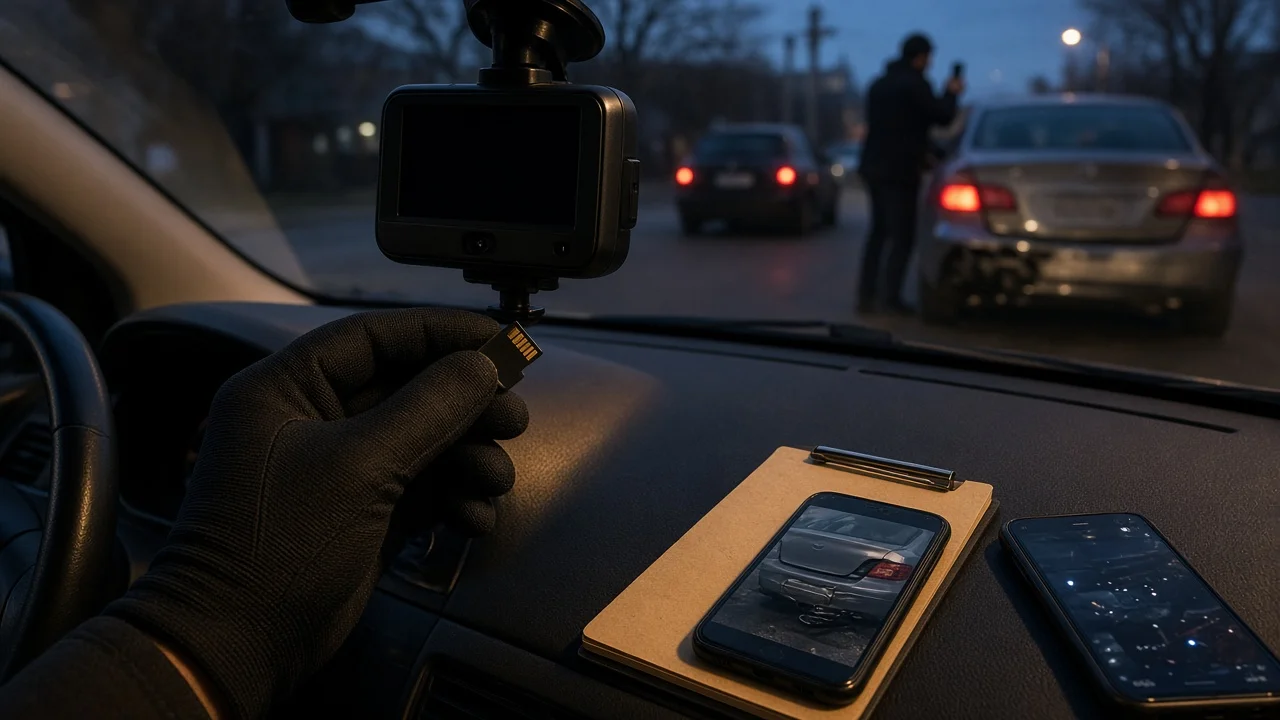
Once the vehicle is parked safely, switch the camera off or unplug its power so it stops writing new files. Remove the memory card gently and keep it somewhere it will not be bent, lost or exposed to heat. Do not format the card, and do not delete files on the camera's screen. At home, copy the entire contents of the card to a computer before you open or play any files. Then work from the copy. Look through every folder. Many cameras keep impact-locked clips in a separate folder from normal loop recordings. Folder names differ by brand, so check your model's manual. Check the files from just before and just after the crash time. A camera's clock may be set wrong or may not have adjusted for daylight saving time. If your dashcam pairs with a phone app or cloud service, check whether clips were uploaded or stored there.
If the computer says the card is unreadable or corrupted, stop using it. Do not write anything new to it. Consumer data recovery software can sometimes recover deleted or damaged video files. If the footage matters a lot, for example in an injury case or a disputed fault claim, a professional data recovery service is the safer choice, because repeated home attempts can make recovery harder.
Gather evidence from other sources
Without footage, other evidence carries more weight. Some of it disappears quickly. Many third-party camera systems also overwrite on a schedule, so act soon.
Photos and video from your phone: vehicle positions, damage on every vehicle involved, skid marks, debris, traffic signals and signs, road and weather conditions, and the wider scene from several angles. Witnesses: names and phone numbers of anyone who saw the crash, including passengers. The police report: a record made at the time by someone who was not involved. Other drivers' dashcams: drivers nearby, rideshare drivers or commercial vehicles may have captured the crash. Nearby businesses and homes: security cameras and video doorbells. Ask politely and soon. Owners may need a formal request from your insurer or attorney before they release footage. Traffic or municipal cameras: availability and access rules vary by jurisdiction, and footage may not be kept for long. Your vehicle's event data recorder: many modern vehicles have one, and it can store data such as speed and braking just before a crash. Retrieving the data needs specialized equipment, and access may involve ownership and legal questions. This is normally handled by insurers, attorneys or accident reconstruction specialists. Connected-car apps or telematics: some vehicles and some insurer apps log trip data that may help establish time and location. Your own notes: write down what happened as soon as you can, while your memory is fresh.
Telling your insurer
Be accurate about the footage. If the camera did not record, say so. If you are still trying to recover files, say that too. Do not suggest that footage exists when you are not sure, and never edit or trim clips you do recover. Hand over the original files. Altered or misrepresented evidence can damage your credibility and your claim. If injuries are involved or fault is disputed, consider talking to an attorney about how to preserve and present evidence.
Why dashcams fail to record a crash
Once the urgent steps are done, work out what went wrong. Most failures have one of a few causes: storage, power, setup or physical position. The checks below will help you narrow it down. How each feature behaves depends on the make and model, so confirm against your camera's manual.
Possible cause | What to check | What the result indicates; Memory card full of locked event files | Count the files in the protected or event folder | Some cameras stop recording or stop saving new events when protected storage is full. Rough roads or high G-sensor sensitivity can fill it with false triggers; Memory card failure or wear | Copy files to a computer and look for errors, missing segments or files that will not play | Constant recording wears cards out. Gaps or corruption point to the card, not the camera; Incompatible or unsupported card | Compare the card's type, capacity and speed class with the manufacturer's list | An unsupported card may record unreliably or not at all; Camera had no power | Check whether the camera was on at the time. Was the ignition off? Did the cable or socket come loose? | Many cameras run only when the ignition is on, so a parked-car hit is missed unless parking mode is set up; Parking mode not active or cut off | Check parking mode settings and any low-voltage cutoff setting on a hardwire kit | A hardwire kit may cut power to protect the car's battery, which ends recording; Impact knocked the camera or cable loose | Inspect the mount, the cable and the power connection | Recording may have stopped at the moment of impact; Camera was facing the wrong way | Consider where the impact was and what the camera covers | A front-only camera will not capture a rear or side collision; G-sensor did not lock the clip | Search the ordinary loop files around the crash time | Low sensitivity can leave the crash as an unprotected file, which may have been overwritten later; Overheating | Check whether the car was parked in strong sun or heat | Many cameras shut down to protect themselves when they get too hot; Firmware or settings fault | Check for error messages, frozen screens or settings that changed unexpectedly | A firmware update or a reset to defaults may help, following the manufacturer's instructions
Treat any error message as a clue to follow up, not proof that a particular part has failed. Changing one thing at a time and testing after each change shows you the real cause.
When to stop and get professional help
The card holds important footage but cannot be read. Use a data recovery service instead of retrying at home. A hardwired camera shows signs of electrical trouble, such as blown fuses, burning smells, a battery that keeps going flat or damaged wiring after the crash. Have a qualified installer or technician inspect it. The camera will not power on, or it keeps failing after a reset and a new card. Contact the manufacturer about warranty support. The crash involved injuries or significant disputed liability. Get legal advice on preserving evidence.
Making sure it records next time
Watch for the camera's recording indicator or audio prompt each time you start the car. Play back a few clips now and then to make sure files are saving and are clear enough to read plates and signs. Use a memory card from the manufacturer's approved list. Choose a high-endurance card if the manufacturer recommends one for continuous recording. Format the card in the camera itself at whatever interval the manufacturer advises, and replace cards that show errors. Set the G-sensor sensitivity so real impacts are locked without filling the card with false alarms. If you need coverage while parked, set up parking mode with a suitable power source. If you are not comfortable with vehicle wiring, have a hardwire kit installed professionally. Add a rear camera if your model supports one, and aim both lenses correctly. Keep the windshield area in front of the lens clean. Install firmware updates from the manufacturer.
Limits of this guide
This is general guidance. It does not cover any particular dashcam brand or model. Folder names, parking mode behavior, supported memory cards, G-sensor settings and voltage cutoff options all vary between manufacturers, so check your camera's manual. Accident reporting rules, timeframes and evidence-access rules depend on your state and your insurance policy. Confirm them with your insurer, your local authorities or an attorney.