Car Scanner ELM OBD2 App: Is It Right for Your Diagnostic Setup?
Before you start
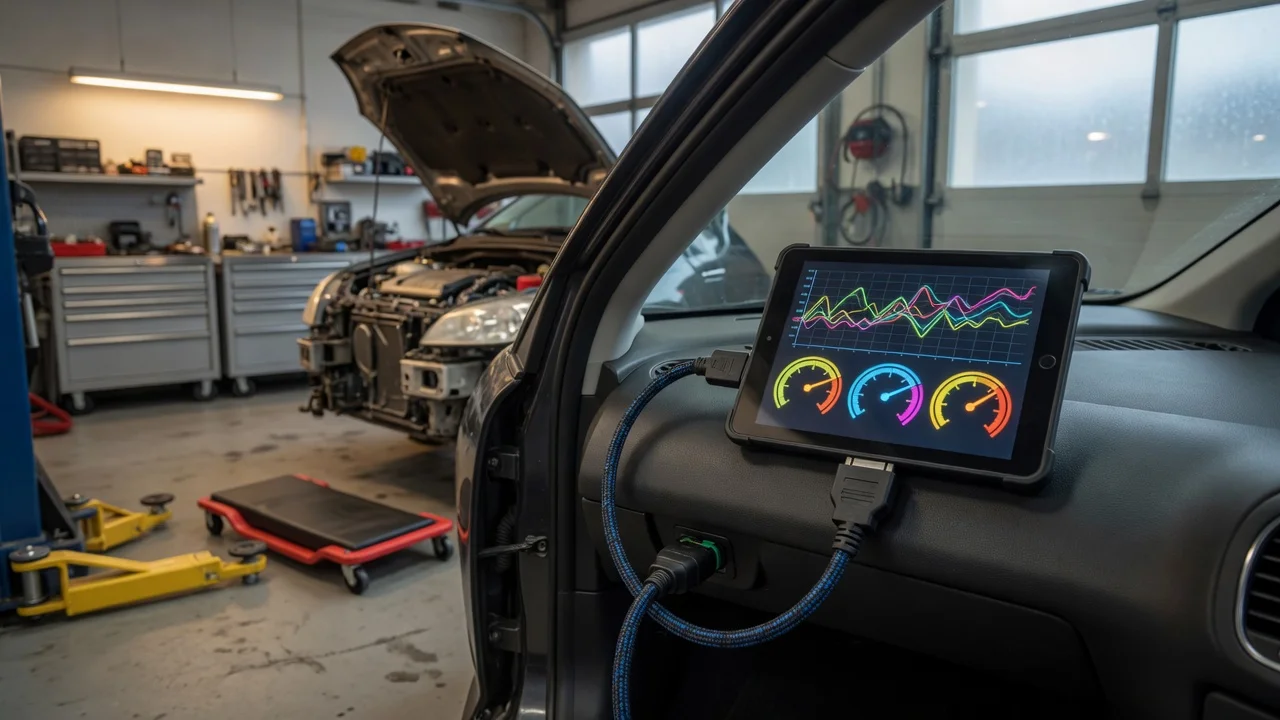
The app is designed to work with an ELM327-compatible OBD2 adapter that plugs into the vehicle diagnostic port. The phone or tablet connects to that adapter, usually over Bluetooth or Wi-Fi depending on the adapter model. Check whether your adapter matches the connection type shown in the app's connection or settings screen before pairing.
This is a local diagnostic process: the app reads data from the vehicle through the adapter. Do not rely on it as a promise of privacy, data storage, or fault detection for safety-critical vehicle systems. Verify file handling and privacy claims in the app store listing or the developer's current documentation for your platform version.
Step-by-step instructions
Set up the adapter before opening the vehicle app. Confirm the vehicle is off, then plug the ELM327 adapter into the OBD2 port. The port is commonly located under the dashboard on the driver side, but its position can vary by vehicle.
Open phone or tablet settings and pair the adapter if it uses Bluetooth. If the adapter creates a Wi-Fi network, connect to that network instead. The app does not normally require an internet connection for the basic scanning steps after it is installed and configured.
Open the Car Scanner ELM OBD2 app and choose the adapter type or connection profile shown for your device. Wait for the status screen to confirm that the adapter is connected. If the screen shows a protocol list or connection selector, pick the option that matches your adapter and connection type.
Start the vehicle to allow the OBD2 system and sensors to begin reporting live data. Avoid changing settings that are unclear. Make only the selections needed for a basic scan or dashboard reading, and note the original setting if you need to return to it later.
Check the output
A successful connection usually shows visible live values, such as engine speed, coolant temperature, or vehicle speed. If the app displays a diagnostic trouble code section, check whether codes appear with a clear status such as confirmed or pending. A blank code list can mean that no codes are being reported through the adapter during that session.
Confirm that the values update when the vehicle is running and that the adapter remains connected. Interpret codes only as a starting point: an OBD2 code identifies a reported condition, not a complete repair instruction. The app may not show every manufacturer-specific code or support every vehicle parameter.
Common problems and next steps
If the adapter is not found, first check the phone connection screen and confirm that the adapter is not already paired with another device. Turn the ignition off, remove and reseat the adapter, then try again with the vehicle in the state recommended by the adapter instructions.
For a connection that drops or shows incomplete data, check power at the OBD2 port and interference with the Bluetooth or Wi-Fi signal. Keep the phone or tablet within a practical distance from the adapter. If the app shows an unexpected code or a reading you cannot interpret, continue with a professional diagnostic inspection rather than changing vehicle components based on the app alone.