FIXD OBD2 Scanner: Is It Right for Your Diagnostic Needs?
Identify the symptom and environment
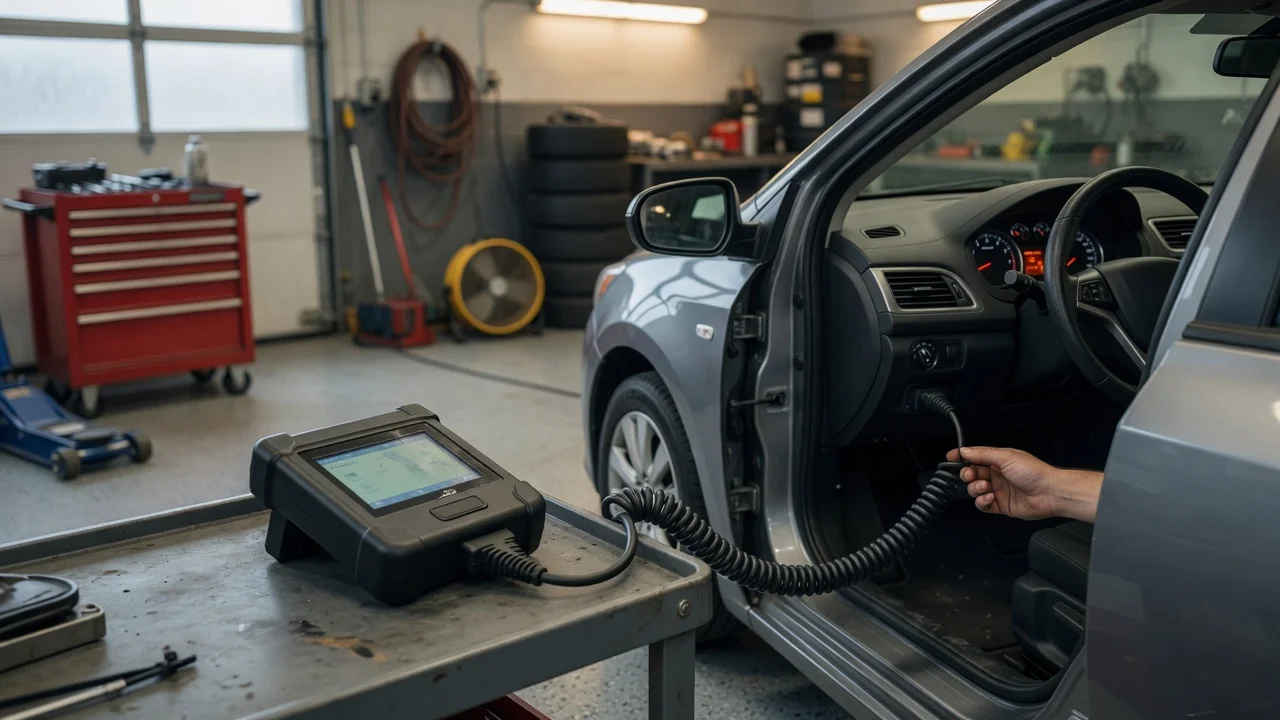
The FIXD OBD2 scanner plugs into a vehicle’s OBD2 port and sends diagnostic information to the FIXD app on a phone. It is most commonly used with an Android or iOS device over Bluetooth. Before changing anything, note exactly what happens: whether the scanner will not pair, the app shows a connection error, a check engine code is missing or unclear, or live data keeps dropping. Also record the vehicle year, make and model, the phone operating system version, and whether the engine is off or running when the issue occurs.
Isolate where the fault occurs
Start by separating the phone, the app, the scanner and the vehicle. Confirm that Bluetooth is enabled and that the scanner appears as an available device. If another phone is available, try connecting with the same app to see whether the symptom follows the scanner or the phone. If a different OBD2 tool reads the vehicle normally, the port is likely working and the issue is probably with the FIXD device, its pairing state or the app installation. Keep the app selection consistent while testing so you are only changing one factor at a time.
Try reversible fixes in order
Begin with the least disruptive steps. Close and reopen the FIXD app, then check that it has the expected Bluetooth or location permission. Some Android versions require location permission for a Bluetooth scan even when the app itself does not use navigation. In the phone’s app settings, clear the app cache rather than its data if you want to avoid repeating a sign-in or setup. Remove the scanner from the phone’s Bluetooth list, press and hold its button if the unit has a reset or pairing control, and pair it again through the app’s recommended flow. Avoid changing vehicle-related settings until the phone and app connection is stable.
Confirm the result
Repeat the original action that failed. If the symptom was no connection, start the engine and wait for the app to show the scanner as connected and the vehicle profile as recognized. If the original issue was a missing or unclear code, open the code screen again and check whether the code, its description and the vehicle information now load. If the problem was intermittent live data, leave the app open for several minutes while the engine idles and watch for repeated drops. Only consider the fix confirmed when the original symptom is gone under the same conditions, not just because the app opened normally.
If the problem remains
Keep a note of what changed after each attempted fix, including whether the scanner appears in Bluetooth settings, whether the app sees it, and what the vehicle’s port does with another tool. If the app does not maintain a connection but the vehicle is readable with a different scanner, device support may be needed. If the vehicle is also unreadable with another tool, the OBD2 port or a fuse may need professional inspection. Do not treat a failed connection alone as proof that the vehicle or scanner is permanently damaged.
What FIXD OBD2 reviews typically highlight
FIXD OBD2 scanner reviews often focus on ease of setup, the readability of codes in a consumer-friendly app and the usefulness of basic maintenance reminders. Some reviewers compare it with simpler code readers or more advanced diagnostic tools and note differences in the amount of data shown. Because review experiences vary with vehicle compatibility, phone operating system and app version, use reviews to understand common strengths and limitations rather than as proof that a specific vehicle issue will be resolved.
When the scanner is a practical fit
The FIXD scanner is most practical for owners who want a simple way to read check engine codes and monitor basic maintenance intervals without carrying a professional scan tool. It is not a complete replacement for manufacturer-specific diagnostics or advanced module testing. Check the current app requirements and vehicle coverage before purchase, and confirm whether the device offers the data you actually want, such as freeze frame, live sensor values or emissions-related information.