Ring Car Cam Not Recording While Driving: What It Means and What to Check
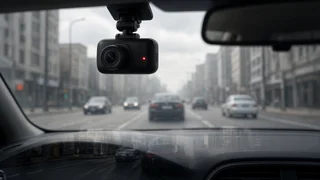
If your Ring Car Cam is not recording while driving, the device may not be faulty. Ring Car Cam was built mainly as a vehicle security camera that records specific events. Many conventional dash cams instead record continuously in a loop from ignition to shutdown. So the first step is to work out which situation you have: expected behavior for an event-based camera, or a real setup or hardware problem.
The Short Answer
Ring Car Cam was designed around triggered recordings, not constant capture of every drive. As introduced, its driving-related recording centered on specific situations. These included a user-started recording during a traffic stop and automatic capture when the camera detects a possible crash. Parked monitoring covered motion or disturbance around the vehicle. If you expected a full record of every trip, the camera may simply not work that way.
Features, modes and subscription requirements can change with firmware updates and Ring's service plans. Check the current options in the Ring app for your own device before concluding anything. If footage is missing from an event that should have triggered a recording, treat it as a fault and work through the checks below.
Event-Based Recording vs Continuous Loop Recording
Loop recording means the camera records nonstop to local storage and overwrites the oldest files when space runs out. Event-based recording means the camera saves clips only when something triggers it, such as detected motion, a sudden impact or a manual command. The difference matters most after a collision, because it decides whether the moments before the incident were captured at all.
Aspect | Event-based camera (Ring Car Cam design) | Typical loop-recording dash cam; What gets recorded while driving | Triggered events such as a detected crash or a manually started recording | Every moment of every drive, overwritten over time; Where footage usually goes | Uploaded to the cloud through a cellular or Wi-Fi connection, depending on setup and plan | Stored locally, usually on a removable memory card; Gap risk | Anything that does not trigger a recording may not be saved | Footage may be overwritten if not saved soon after an incident; Main strength | Remote alerts and access, parked security, connected features | A complete record of driving with no reliance on connectivity
Common Reasons a Ring Car Cam Fails to Record
If an event that should have triggered a recording produced no clip, these are the usual areas to check. They are general causes for connected dash cams, not confirmed faults of any particular unit.
Power supply: Ring Car Cam draws power from the vehicle's OBD-II port, the standardized diagnostic socket usually found under the dashboard. A loose plug, an extension cable or a vehicle that cuts power to the port can interrupt operation. Vehicle compatibility: Some vehicles, including certain hybrids, EVs and models with unusual OBD-II behavior, may not supply power the way the camera expects. Check that your vehicle is supported. App modes and settings: Recording types can be turned on or off in the Ring app. A mode change, a disabled feature or a privacy setting can stop the clips you expect. Subscription status: Saving, viewing and sharing recordings has generally depended on a Ring service plan. A lapsed plan can affect what you can access afterward. Connectivity: Clips are uploaded over cellular or Wi-Fi. Weak coverage, an inactive data connection or a vehicle parked out of range can delay or block uploads. Firmware: An out-of-date or partly installed update can cause erratic behavior. Confirm the device is on current firmware in the app. Camera position and lenses: A dirty lens, an obstructed view or a privacy cover over the cabin-facing camera can produce unusable or missing interior footage.
A Practical Checking Order
1) Confirm in the Ring app which recording types your device and plan currently support, so you know what should be recorded. 2) Check the device's status and connectivity indicators in the app with the engine running. 3) Reseat the OBD-II connection firmly and remove any splitter or extension you added. 4) Review mode and feature settings, including anything that limits recording for privacy. 5) Confirm your subscription is active. 6) Update the firmware, then restart the device by unplugging and reconnecting it. 7) Test a manual recording while parked in a safe place with good coverage, then check whether the clip appears. 8) If clips still fail to appear, contact Ring support with your device details and a description of the issue.
If You Need Continuous Driving Footage
If you mainly want proof of every drive, for collisions, insurance disputes or road-rage incidents, a loop-recording dash cam is the better fit. Some drivers run both: a connected camera for parked security and remote alerts, and a conventional dash cam for continuous road footage. Two devices mean more wiring, mounting space and cost, but they cover each other's gaps.
Preserving Footage After a Collision
When a camera does capture an incident, how you handle the clip affects how useful it is to an insurer, police officer or attorney. Cloud recordings are kept only for a limited time that depends on your plan and settings. Do not assume a clip will be there weeks later.
Save the original recording: download the clip in its unedited form as soon as possible and keep a backup copy. Trimmed or re-encoded versions can be questioned. Note the incident time: write down the date and time, and compare them with the timestamp shown in the footage. Note any difference between the two. Record vehicle identification: note the license plates, makes, models and colors of the other vehicles involved, whether or not the camera captured them clearly. Collect witness details: get names and contact information from witnesses. A camera may miss angles that a person saw. Keep the report reference: if police attend or you file a report, record the report number and give it alongside the footage. Check record retention: find out how long your plan keeps clips. Move important files to your own storage well before they would expire.
Bottom Line
A Ring Car Cam that does not record your ordinary drives may be working as designed, because its approach is event-based rather than continuous. When an expected event produced no clip, check power, vehicle compatibility, app settings, subscription, connectivity and firmware in that order. If complete driving evidence is your priority, add a loop-recording dash cam. After any incident, secure the original file promptly along with the supporting details that make it credible.