How Long Dash Cam Footage Remains Available
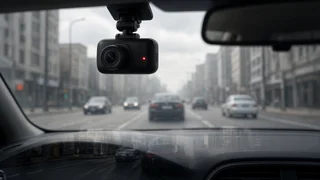
Most dash cams do not keep footage indefinitely. They record continuously in a loop, and once the memory card fills, the oldest unprotected clips are erased to make room for new ones. How long a given recording survives depends on the card's capacity, the camera's video settings, how many channels it records, and how much driving or parked recording happens after the moment you care about. For someone who has just been in a collision or witnessed one, the practical answer is that footage can be overwritten within hours or days of normal driving, so it should be protected or copied as soon as it is safe to do so.
The Short Answer
Footage remains available only until the loop cycle comes back around to it. A large card with modest video settings can hold many hours of driving before anything is overwritten, while a small card in a high-resolution, multi-camera setup may cycle much faster. Clips the camera marks as protected, usually called event or locked files, are excluded from normal overwriting, but they are stored in a limited section of the card and can still be lost if that section fills or the card is formatted. Footage uploaded to a cloud service follows the provider's retention policy instead of the card's capacity, and that policy varies by brand and subscription.
How Loop Recording Works
A dash cam saves video in short segments rather than as one long file. The segment length is often adjustable in the camera's settings. When the card has no free space left for a new segment, the camera deletes the oldest regular segment and keeps recording. This design means the camera never stops because the card is full, but it also means ordinary footage has a limited lifespan that shrinks every time the car is driven.
Loop recording does not distinguish between a routine commute and the minutes before a crash unless the camera has been told that a clip matters. That is the role of event protection.
Protected Event Files
Most dash cams include a G-sensor, an accelerometer that detects sudden impacts, hard braking or sharp movements. When it triggers, the camera moves the current segment, and often the segments immediately before and after it, into a protected folder. Many cameras also have a manual button that does the same thing when the driver presses it.
Protected files are kept out of the regular loop, but they are not permanent. Many cameras reserve only a portion of the card for event files. When that portion fills, some models overwrite the oldest event files, while others stop saving new ones or prompt the driver. A G-sensor set too sensitive can fill the event folder with clips triggered by potholes or speed bumps, pushing out the clip that actually matters. Checking how a specific camera handles a full event folder, and tuning the sensitivity, helps avoid surprises.
What Determines Dash Cam Memory Card Recording Time
Recording time is essentially the card's usable capacity divided by the rate at which the camera writes data. Several settings and hardware choices change that rate.
Card capacity: a larger card holds more footage before the loop restarts, provided the camera supports that capacity. Resolution and frame rate: higher resolution and higher frame rates generally produce larger files per minute. Bitrate: the amount of data written per second. Two cameras at the same resolution can use very different bitrates, so resolution alone does not predict storage use. Video compression: newer codecs such as H.265 can store similar image quality in less space than older codecs such as H.264, if the camera supports them. Number of channels: front-and-rear or three-channel systems write a separate stream for each camera, multiplying storage use. Audio: recording sound adds a small amount of data compared with video. Parking mode: recording while the vehicle is parked consumes card space that would otherwise hold driving footage, unless the mode records only on motion or impact, or uses low-frame-rate time-lapse. Event folder size: space reserved for protected files is unavailable to the regular loop.
Estimating Your Own Loop Length
The most reliable estimate comes from the camera itself. Drive for a known period, then check how much card space that recording used, or look at the size of a single segment and its length. Some cameras and companion apps also display estimated remaining time. If you know the bitrate, the arithmetic is straightforward:
Recording time (seconds) ≈ usable card capacity (megabits) ÷ total bitrate of all channels (megabits per second); 1 byte = 8 bits; Usable capacity is lower than the label because of formatting and reserved event space.
As a purely hypothetical illustration, if a front and rear camera together wrote a combined 20 megabits per second, each hour of driving would consume roughly 9 gigabytes. Your camera's actual bitrate may be higher or lower, so substitute its real figure rather than relying on this example.
Card Choice and Reliability
Constant rewriting wears out flash memory faster than occasional use. Cards marketed as high-endurance are designed for continuous recording in dash cams and security cameras and are generally a better match than standard cards intended for phones or cameras. Using a card above the camera's maximum supported capacity, or one slower than the camera requires, can cause recording errors or corrupted files. Many manufacturers recommend formatting the card in the camera periodically; doing so erases everything, including protected files, so copy anything important first. Periodically playing back a recent clip is a simple way to confirm the camera is actually saving usable video.
Cloud and App Storage
Connected dash cams may upload event clips over Wi-Fi to a phone or over a cellular connection to a cloud account. Copies on a phone last until you delete them. Cloud copies last as long as the service's record retention policy allows, which differs between providers and plan levels and can change over time. Cloud uploads may also be lower resolution or shorter than the file on the card, so the card copy is usually the original recording and should be preserved as well.
Comparing Where Footage Lives
Storage location | How long it typically remains | Main risk; Regular loop on the card | Until the loop cycles back to it | Overwritten by continued driving or parking mode; Protected event folder | Until the event folder fills or the card is formatted | Pushed out by other events, depending on camera behavior; Phone or computer copy | Until you delete it | Device loss or accidental deletion; Cloud account | According to the provider's retention policy | Policy limits, subscription changes, reduced quality
Preserving Footage After a Collision
After any incident, the priority is safety and following the instructions of emergency responders. Once that is handled, a few steps help make sure the recording is still there when an insurer, police officer or attorney asks for it.
Protect the clip: press the camera's event button if the G-sensor did not trigger, so the segment is moved out of the loop. Stop further overwriting: if you can do so safely, power the camera off or remove the card before driving further, especially if the event folder is small. Note the incident time: write down the time and location so the right clip can be found quickly, and check whether the camera's clock and date were set correctly. Copy the original recording: transfer the unedited files to a computer or other storage and keep at least one untouched copy. Avoid trimming, re-encoding or filtering the only version. Capture identifying details: if the footage shows license plates or other vehicle identification, note them separately in case the video is unclear on later viewing. Record witness details: names and contact information of witnesses complement the video, which may not show everything. Keep the report reference: store the police report number and insurance claim reference with the footage so it can be matched to the incident later. Keep the card set aside: if the footage is important, consider using a different card in the camera until the matter is resolved.
If the Footage Belongs to Someone Else
When another driver, a rideshare vehicle or a commercial fleet may have recorded an incident, the same loop timing applies to their camera. Asking promptly improves the chance the clip still exists. Fleet operators often have their own retention schedules, and they or their insurers may handle requests through a formal process. Whether and how footage can be requested depends on the circumstances and on applicable state rules, so an insurer or attorney is the right point of contact for disputed cases.
Settings Worth Reviewing Now
Because the time to think about retention is before an incident, it is worth checking a few settings today: the card's capacity and condition, the resolution and number of active channels, whether parking mode is recording continuously or only on events, how sensitive the G-sensor is, how large the event folder is and what happens when it fills, and whether the clock is accurate. Knowing roughly how many hours your camera holds turns the question of how long footage remains available from a guess into a known window you can act within.