How to Use an Online Compass to Report Your Direction of Travel
The Short Answer
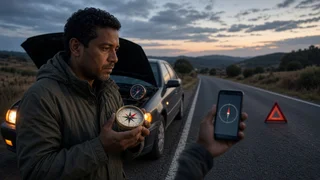
Once you are stopped somewhere safe, open a compass app or browser-based compass on your phone. Allow it to use the phone's motion and orientation sensors. Hold the phone flat with its top edge pointing the way your vehicle was traveling, then read the heading. Report the nearest compass direction, such as north, northeast, south or southeast, together with the road name and the nearest exit, mile marker or landmark. One condition changes this answer: on a signed highway, the direction printed on the road signs (for example, "northbound") is usually what responders use to locate you. That signed direction can differ from your actual compass heading on a particular stretch of road, so give the signed direction first and the compass reading as a supporting detail.
A few terms are used throughout. Heading is the direction you are pointing or moving, measured in degrees clockwise from north. Direction of travel is the way your vehicle was moving before it stopped, which is not necessarily the way you are facing while standing beside it. An online compass is a web page or app that turns your phone's built-in magnetic and motion sensors into a compass display.
Why Direction of Travel Matters in a Breakdown Report
On a divided highway, the two directions of travel can be separated by a median, a barrier or a long stretch of road with no crossover. If a tow truck, roadside assistance provider or emergency crew goes to the wrong side, they may have to travel to the next interchange and come back. A clear direction of travel, combined with a location reference, helps them reach the correct side of the road the first time.
Before You Start
A smartphone with a magnetometer (the sensor that detects magnetic fields). Most current smartphones have one, but some budget or older devices may not. A compass app, or a browser that allows a web page to read motion and orientation sensors. Location services turned on if the compass offers a true north setting, because that mode needs your position. A safe place to stand or sit, away from moving traffic.
Browser-based compasses depend on the browser and operating system allowing sensor access. Some browsers ask for permission, and others may block access or show no reading at all. If the online compass does not respond, try a dedicated compass app or the compass shown in your phone's map app.
Step-by-Step: Finding and Reporting Your Direction
1) Get to safety first
Do not use a phone compass while driving. Move the vehicle as far out of traffic as you can, turn on the hazard warning lights and decide whether it is safer to stay inside or to leave the vehicle and move away from the traffic side. If anyone is injured or the vehicle is in a dangerous spot, call 911 before doing anything else. Finding your heading is a detail to add to a report. It should never delay a call for help.
2) Open the compass and grant permissions
Open the online compass or compass app. If it asks for permission to use motion, orientation or location data, allow it. Without these permissions, the display may stay blank or frozen.
3) Calibrate if prompted
Many compass tools ask you to calibrate. This usually means moving the phone in a slow figure-eight motion or rotating it on several axes until the prompt disappears. Follow the instructions in your app, because calibration methods differ between apps and phone makers.
4) Reduce magnetic interference
Phone compasses detect magnetic fields, so nearby metal and magnets can pull the reading off. Inside a vehicle, the steel body, speakers and magnetic phone mounts can all cause errors. Take the phone off any magnetic mount or case accessory. If it is safe to step out, stand a few paces from the vehicle and from guardrails or signposts. If it is not safe to leave the vehicle, take the reading inside, but treat it as approximate.
5) Point the phone along your direction of travel
Hold the phone flat and level, screen facing up, with the top edge pointing the way the vehicle was moving. If the vehicle came to rest facing along its lane, which is typical when you pull onto the shoulder, point the phone the same way the front of the vehicle faces. If the vehicle spun, was pushed or is facing an odd angle, ignore its position. Instead, point toward where you were heading, using the flow of traffic on your side of the road as a guide.
6) Read the heading and convert it to a direction
Most online compasses show both a degree value and a letter such as N, NE or SE. If yours shows only degrees, use the table below to find the nearest of the eight main compass points. Northeast lies halfway between north and east, and southeast lies halfway between south and east.
Direction | Center heading | Heading range; North (N) | 0° / 360° | 337.5° to 22.5°; Northeast (NE) | 45° | 22.5° to 67.5°; East (E) | 90° | 67.5° to 112.5°; Southeast (SE) | 135° | 112.5° to 157.5°; South (S) | 180° | 157.5° to 202.5°; Southwest (SW) | 225° | 202.5° to 247.5°; West (W) | 270° | 247.5° to 292.5°; Northwest (NW) | 315° | 292.5° to 337.5°
To find north, turn slowly until the needle or heading reads 0°. That is the way north lies. South is directly behind you at 180°. For northeast or southeast, turn until the reading is near 45° or 135°.
7) Cross-check against signs and your map
Compare the compass result with any route signs you passed, the last exit or junction you remember, and the blue location dot and arrow in your map app. US highway signs show a signed direction, such as north, south, east or west, for the whole route. A road signed as northbound may still curve northeast or even west for a stretch. If the signs and the compass disagree, report both. For example: "I-whatever northbound, but the compass shows I'm heading northeast here."
8) Give the report
Give location details in roughly this order, so the most useful information comes first:
Road name or route number; Signed direction of travel (for example, southbound); Nearest exit, mile marker or cross street, and whether you have already passed it; Which side of the road you are on (right shoulder, left shoulder or median); Compass heading, if it adds clarity or the road is unsigned; Nearby landmarks, plus GPS coordinates from your map app if available; Vehicle color, make and model
Completion check
Your report is complete when the person taking it can repeat back your road, direction of travel and nearest reference point without confusion. Your compass reading should also either match the signed direction or have any difference explained. If the dispatcher still seems unsure which side of the road you are on, describe the traffic beside you, such as "traffic is passing me heading toward the city," or share your live location if they ask for it.
Limits of Online Compasses
Magnetic north and true north. A compass may show magnetic north, which is where the Earth's magnetic field points, or true north, which is the geographic North Pole. The gap between them varies by location. When you are only reporting a general direction such as north or southeast, the difference rarely changes the answer. If your app offers a true north option and location access is on, choosing true north will usually match your map app more closely.
Sensor accuracy. Phone compasses can be affected by interference, poor calibration and the way the phone is held. Treat any reading taken inside the vehicle, or next to large metal objects, as rough. When a reading looks wrong, repeat the calibration step and try again.
No signal or no sensor. A compass reading generally does not need a data connection, but loading a web-based compass in the first place does. If you are likely to drive through areas with poor coverage, installing a compass app ahead of time avoids relying on a web page. If your phone has no magnetometer, use the map app's movement arrow while the vehicle is still moving safely, or depend on road signs and landmarks instead.
Information Gaps to Be Aware Of
This guide does not cover individual compass apps, browser versions or phone models. Permission prompts, calibration steps and whether true north is offered all vary, so check your app's own instructions. Roadside assistance providers and dispatch centers may also ask for location details in a different order or format. Follow their prompts when they differ from the order given here.