How to update NDrive GPS maps
The short answer
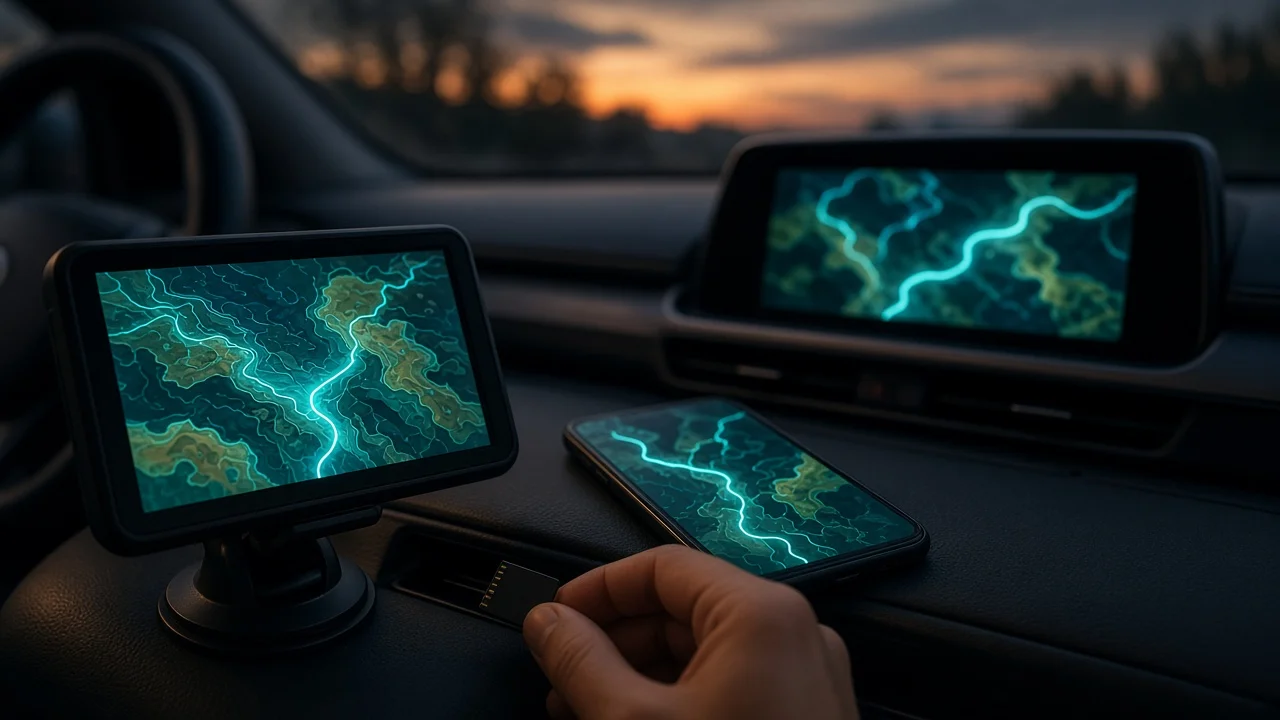
Updating NDrive maps means replacing the map data the navigation software uses with a newer version. Map data is the stored road network, addresses and points of interest that route calculation relies on. How you update it depends on where NDrive runs. On a smartphone or tablet app, updates are normally downloaded from inside the app over an internet connection. On a portable navigator or a car unit that reads maps from a memory card, updates are usually installed through a computer, using the update tool or method named in the device's documentation. On an in-dash head unit sold under a carmaker's or aftermarket brand's name, updates come through that brand's own channel rather than from NDrive directly.
One condition changes the answer: whether an update exists at all, and whether it is free or paid, depends on your device, your license and your region. No confirmed information was available for this guide on current NDrive update services, prices, latest map versions or US map coverage. Treat the steps below as the general process and check the specifics against your device's manufacturer instructions.
Terms used in this guide
Map data: the stored maps the software navigates with. Updating the app does not always update the maps, and the reverse is also true. Navigation software: the NDrive program that displays maps and calculates routes. License or activation: the purchase record that entitles a device or account to specific maps. Updates are often tied to it. Head unit: the screen and control unit built into a vehicle's dashboard. Portable navigation device (PND): a standalone GPS unit that mounts on the windshield or dashboard.
Identify which type of NDrive installation you have
Before doing anything, work out which of these describes your setup, because the update route is different for each.
App on a phone or tablet: NDrive appears as an app on your device's home screen. Portable navigator: a separate GPS unit, sometimes sold under another brand, with NDrive shown on its start-up or about screen. Memory-card unit: an aftermarket or factory car system that loads maps from an SD or microSD card. Integrated head unit: navigation built into the car, where NDrive may be listed only in the system information or software credits. If you are not sure, open the settings or about screen and note the software version, map version and device model. You will need these details later.
What you need before you start
Your device model, current software version and current map version. The account login or license details used when the maps were purchased or activated. A stable Wi-Fi or wired internet connection. Map files can be large, so avoid metered mobile data. Enough free storage on the device or memory card. The update tool or app usually reports how much space is required. For portable navigators and memory-card units: a computer, the correct USB cable or a card reader, and the update tool or instructions named by the device manufacturer. A backup of the memory card or device contents, including saved favorites and home address if the device allows export. A reliable power source, so the device does not shut down partway through.
Steps: NDrive app on a phone or tablet
1) Connect to Wi-Fi and plug the device into a charger. 2) Update the NDrive app itself through your device's app store, if an update is offered. Newer maps may require a newer app version. 3) Open NDrive and go to the store, maps or downloads section of the menu. Menu names vary between versions. 4) Sign in with the account linked to your map purchase, if prompted. 5) Look for an available update for each installed map region and start the download. 6) Keep the app open and the screen awake if the app asks you to. Do not force-close the app during installation. 7) When the download finishes, restart the app so the new map data loads.
Steps: portable navigator or memory-card unit
1) Find the update method in the device's manual or the manufacturer's support material. Some devices use a desktop update tool, while others need map files copied onto the memory card in a specific folder structure. 2) Back up the full contents of the device's internal storage or memory card to your computer before changing anything. 3) Connect the navigator by USB, or remove the memory card and insert it into a card reader. Remove the card only with the unit switched off. 4) Run the manufacturer's update tool and sign in, or follow the documented file-copy procedure exactly. Do not rename, move or delete system folders unless the instructions say to. 5) Let the transfer finish completely. Do not unplug the cable or remove the card while files are writing. 6) Eject the device or card safely from the computer before disconnecting it. 7) Reinsert the card into the unit if you removed it, switch the unit on and allow extra time for the first start-up.
Steps: in-dash head unit
Factory and branded aftermarket head units are updated through the vehicle maker's or unit brand's process. That process may use a USB drive, a memory card, an over-the-air download or a dealer visit. Follow that brand's instructions for your exact model and model year. Procedures do not carry over reliably between vehicles or units.
1) Confirm the correct update for your vehicle or unit using its model, model year, market and current software version. 2) Prepare the USB drive or card exactly as the instructions specify, including any required formatting. 3) Park the vehicle in a safe place with the parking brake set. Never start or monitor an update while driving. 4) If the instructions require the engine running to protect the battery, do this only outdoors or in a well-ventilated space. Never run the engine in an enclosed garage because of carbon monoxide. 5) Insert the media and start the update from the system menu as instructed. 6) Do not switch off the ignition, remove the media or open and close doors repeatedly unless the instructions allow it. Interrupting power can leave the unit unable to start. 7) Wait for the system to confirm completion and restart.
Stop condition: if the head unit freezes, shows an error, or does not restart after an update, do not keep retrying or disconnect the battery to force a reset. Contact the dealer or the unit's authorized installer. Recovering a failed head-unit update is work for qualified service.
Check that the update worked
Open the about or map information screen and confirm the map version has changed from the one you noted earlier. Check that every map region you own is still listed and loads correctly. Search for a recently built road or a new business near you, if you know of one, to confirm newer data is present. Plan a test route while parked and confirm it calculates normally. Confirm that saved favorites and your home address are still present. Restore them from your backup if they are missing.
If no update is offered or the update fails
If the app or tool reports that no update is available, your maps may already be the latest release for your license, your license may not include updates, or update support for that device may have ended. If the download or installation fails, check free storage, your internet connection and your sign-in details, then retry once. For portable navigators and card-based units, restoring your backup returns the device to its previous working state. If problems continue, contact the support channel for the company that sold the device or app. For a vehicle head unit, contact the dealer or installer.
Gaps in this guide
No confirmed evidence was available on the current status of NDrive's update services, which devices are still supported, update prices, the latest map release, or US map coverage. Menu names, tools and file procedures also vary by software version and device. Confirm these details with the device or vehicle manufacturer's current instructions before updating.