How to Install Hieha Wireless CarPlay
The Short Answer
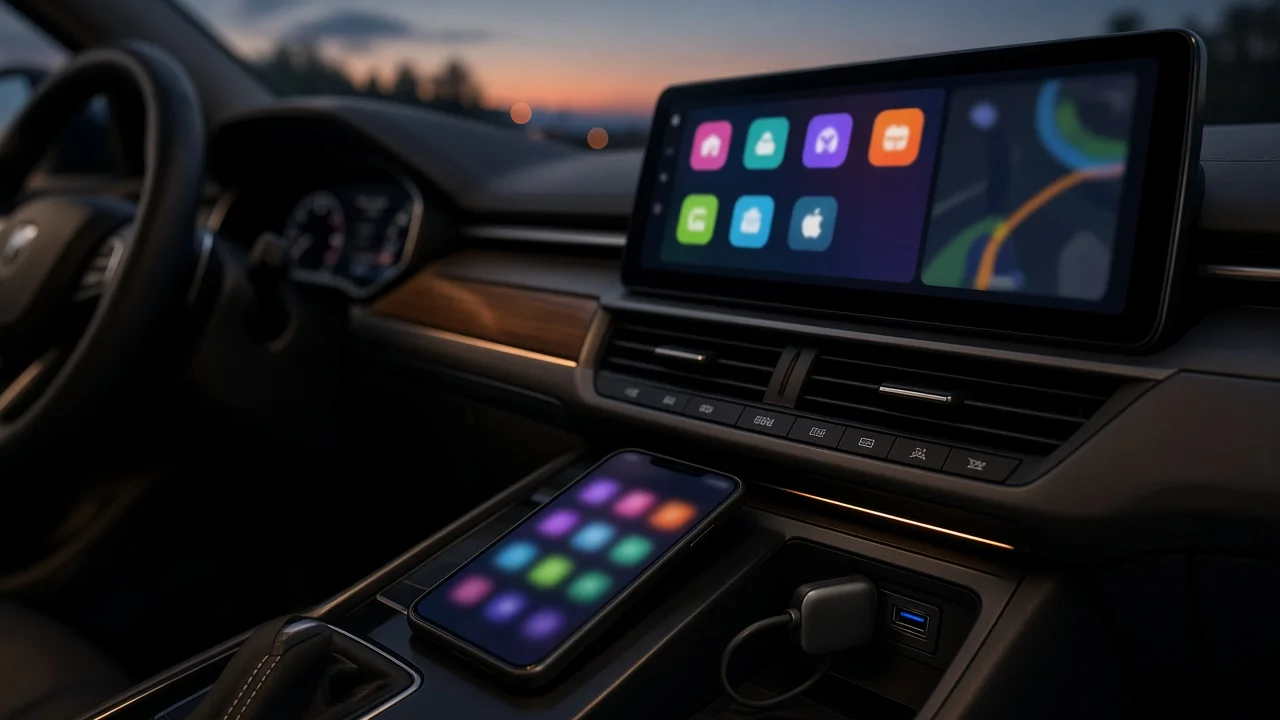
Installing a Hieha wireless CarPlay product usually involves no tools and no wiring. For a plug-in adapter, you plug it into your car's CarPlay USB port, pair your iPhone with it over Bluetooth, and approve the CarPlay prompt. After that, the phone connects wirelessly each time you start the car. Apple CarPlay is Apple's system that mirrors selected iPhone apps, such as maps, music, messages and calls, onto the car's display.
Your vehicle determines whether this works. A plug-in wireless adapter only converts existing wired CarPlay into wireless CarPlay. If your car does not already show CarPlay when you connect an iPhone with a cable, an adapter will not add it. In that case you need either a replacement head unit (the car's main infotainment screen and radio) or a self-contained portable CarPlay screen. Both are covered below.
What This Guide Can and Cannot Confirm
No verified Hieha product documentation was available for this guide. It does not state model names, supported vehicles, iOS versions, indicator-light meanings, Bluetooth device names, firmware procedures or prices. The steps reflect how wireless CarPlay adapters and portable CarPlay screens generally work. Where the manual that came with your Hieha unit differs, follow the manual. Compatibility with any particular make, model year or trim is also unconfirmed. Check the seller's compatibility information for your exact vehicle before relying on the product.
Step 1: Identify Which Type of Hieha Product You Have
Plug-in adapter (dongle): a small unit that plugs into a USB port. It needs a car with factory or aftermarket wired CarPlay. Follow the adapter steps below. Portable CarPlay screen: a standalone display that mounts on the dash or windshield and runs CarPlay itself. It does not need CarPlay in the car. Skip to the portable screen section.
Installing a Plug-In Wireless CarPlay Adapter
Prerequisites and Equipment
A vehicle whose infotainment system already supports wired CarPlay. An iPhone with Bluetooth and Wi-Fi available. Check the Hieha packaging or manual for the minimum iOS version, which is not confirmed here. The Hieha adapter and any cable or USB-C/USB-A converter supplied with it. A working Lightning or USB-C cable to test wired CarPlay first. The vehicle parked somewhere safe with the ignition or accessory power on.
Ordered Steps
1) Park the vehicle, set the parking brake and switch on the ignition or accessory mode. Do not set up the adapter while driving. 2) Confirm wired CarPlay works by connecting your iPhone with a cable. If CarPlay does not appear on the car screen, stop here. An adapter cannot add CarPlay to a car that lacks it. 3) Note which USB port launched CarPlay. Many vehicles have several ports, and only one may carry CarPlay data. It is often marked with a phone or CarPlay symbol. The others may supply charging power only. 4) Unplug the cable, then plug the Hieha adapter directly into that CarPlay port. Use the supplied converter if your port shape differs. Avoid unapproved USB hubs or extension cables, which can cause connection failures. 5) Wait for the adapter to power up. If it has an indicator light, check the manual for what the light should show when it is ready to pair. 6) On the iPhone, turn on Bluetooth and Wi-Fi. You do not need to join a Wi-Fi network manually. Wireless CarPlay uses Bluetooth for the initial handshake and a direct Wi-Fi link for the session. 7) Open Bluetooth settings on the iPhone and select the adapter's name. The car screen may instead show instructions or a pairing code. Confirm the pairing code if one is displayed. 8) When the iPhone asks whether to use CarPlay with the adapter, accept. Also allow contact and notification sharing if you want calls and messages on the car screen. 9) Wait for CarPlay to load on the car's display. The first connection can take longer than later ones.
Completion Check
CarPlay appears on the car screen with no cable connected to the phone. Music plays through the car speakers, and the volume controls work. A test call works in both directions, using the car's microphone. Navigation and Siri respond normally. After you switch the car off, wait briefly and restart it, the iPhone reconnects to CarPlay on its own.
If It Does Not Connect
Confirm the adapter is in the port that worked for wired CarPlay, not a charge-only port. In the iPhone's Settings, go to General, then CarPlay, and remove old entries for the car or adapter. Then pair again. Forget the adapter in iPhone Bluetooth settings and repeat the pairing steps. Check that CarPlay is not blocked under Screen Time content restrictions. If the phone is still paired to the car's own Bluetooth for calls, connection conflicts can occur. Try disconnecting it from the car's Bluetooth before re-pairing with the adapter. Apply firmware updates only through the method the manufacturer provides, and do not unplug the adapter or switch off the car during an update. If the car shows an error, the adapter repeatedly drops out, or the USB port becomes unusually hot or smells of burning, unplug the adapter and stop using it.
Installing a Portable CarPlay Screen
A portable screen runs CarPlay itself and sends sound to the car in some other way, so the install focuses on mounting, power and audio.
1) Choose a mounting spot that does not block your view of the road, the instrument cluster or any airbag deployment area. Many US states restrict objects mounted on the windshield, and the rules vary by state, so check your state's rules before using a windshield mount. 2) Clean the mounting surface and attach the supplied mount according to the manual. 3) Plug the power cable into the vehicle's 12-volt accessory socket or the power source the manual specifies. Route the cable away from the pedals, the steering column, the gear selector and airbag covers. 4) Connect audio by whichever method the unit supports and the car accepts, such as an AUX cable, an FM transmitter frequency, or Bluetooth to the car stereo. If you use FM, choose an unused frequency and tune the car radio to match. 5) Pair the iPhone with the screen over Bluetooth and accept the CarPlay prompt, as with the adapter. 6) Run the same completion checks: audio, calls, navigation, and automatic reconnection after a restart.
Some portable screens offer an optional reversing camera. Wiring one usually means connecting to the reverse-light circuit and routing cable through the vehicle body. That work affects vehicle electrics and lighting, so use a qualified installer unless you are experienced with automotive wiring.
When to Use a Professional Installer
Plugging in an adapter or a portable screen is owner-level work. Replacing the factory head unit to gain CarPlay is a different job. It can involve removing dash trim near airbags, adapting wiring harnesses, keeping steering-wheel controls and vehicle data connections working, and sometimes integrating with factory amplifiers or cameras. The correct parts depend on the exact model year and trim. For that route, use a qualified car audio installer and confirm the replacement unit is listed as compatible with your vehicle.