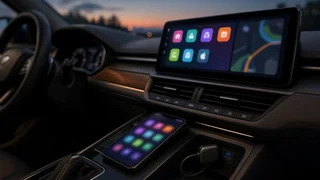
Setting Up Wireless Apple CarPlay with TLink
The short answer
TLink is a name used on aftermarket wireless CarPlay products and the companion software some of them run, including plug-in adapters and some aftermarket screens. Setup usually follows the same pattern as most aftermarket wireless CarPlay solutions. You connect the device to the car or power it on, pair your iPhone over Bluetooth, and then let the phone and the device move to a Wi-Fi link that carries the CarPlay session. After the first pairing, the connection should start automatically when you get in the car with Bluetooth and Wi-Fi turned on.
The main qualification is what kind of TLink product you have. A plug-in adapter generally needs a vehicle or head unit that already supports wired CarPlay, because it converts that existing wired connection into a wireless one. It cannot add CarPlay to a car that has no CarPlay support. A standalone screen or aftermarket head unit with TLink software provides the CarPlay display itself, so it does not depend on the car's factory system. Menu names, firmware features, and supported models differ by product and firmware version. Check your device's own instructions or on-screen menus where they differ from the general steps below.
How adapter-based wireless CarPlay works
Apple CarPlay projects an iPhone interface onto a car display, while the apps themselves run on the phone. Wireless CarPlay uses Bluetooth for the first handshake and then a direct Wi-Fi connection between the phone and the car-side device for the video, audio, and touch data. A wireless adapter sits in the middle. To the car, it looks like an iPhone plugged in by cable. To the iPhone, it looks like a wireless CarPlay receiver.
Because the adapter relays the session, factory features that depend on CarPlay usually keep working through it. These include steering-wheel controls, the voice-command button for Siri, and the car's microphone and speakers. How well each one works depends on the vehicle and the adapter's compatibility with it.
What you need before starting
An iPhone with a reasonably current version of iOS, with Bluetooth and Wi-Fi turned on. For a plug-in adapter, a vehicle or head unit with working wired CarPlay. Confirm this first by connecting the iPhone with a cable. The correct USB port. Many cars have several ports, and often only one supports CarPlay data; it may be marked with a phone or smartphone icon. The correct connector or cable for that port, such as USB-A or USB-C. CarPlay allowed on the phone. In Screen Time settings, CarPlay must not be restricted.
Typical setup steps
1) Start the car, or turn on accessory power, and let the infotainment system finish booting. 2) Plug the TLink adapter into the CarPlay-capable USB port, or power on the TLink screen. Wait until it shows a pairing or ready screen or indicator light. 3) On the iPhone, open Settings, then Bluetooth, and select the device name shown on the car display or printed on the device. 4) Confirm the pairing code on both the phone and the screen, if prompted. 5) When the iPhone asks whether to use CarPlay with this device, choose Use CarPlay. Allow notifications, contacts, and other permissions if you want those features. 6) Wait for the CarPlay home screen to appear. The first connection can take longer than later ones. 7) Optionally, open Settings, General, CarPlay on the iPhone to rename the connection or rearrange the app icons.
Some TLink devices show a settings page before CarPlay starts or provide a menu reachable from the car screen. There you may find options such as firmware version, audio routing, connection mode, or which phone to connect automatically. If more than one paired iPhone is in the car, this is usually where you choose which one takes priority.
How it differs from factory wireless CarPlay
Aspect | Factory wireless CarPlay | Aftermarket wireless adapter (such as TLink); Car requirement | Built into the vehicle's infotainment | Usually needs existing wired CarPlay support (plug-in adapters); Connection path | Phone connects directly to the head unit | Phone connects to the adapter, which relays to the head unit over USB; Startup time | Generally integrated with the system boot | Adapter must boot and reconnect, which can add delay after starting the car; Responsiveness | Depends on the head unit | An extra relay step can add slight audio or touch lag in some cars; Updates | Through the automaker or dealer | Through the adapter's own firmware process, which varies by product; Cost | Included with the vehicle or option package | Separate purchase; can be moved to another compatible car
The trade-offs listed above are general tendencies of adapter-based wireless CarPlay. How noticeable they are varies by vehicle, head unit, adapter firmware, and phone. Some owners notice little difference from a cable, while others notice slower startup or occasional dropouts.
Common problems and fixes
No CarPlay prompt or connection: confirm wired CarPlay works in that port, then reseat the adapter and restart the infotainment system. Phone connects to Bluetooth audio but not CarPlay: on the iPhone, open Settings, General, CarPlay, select the car, and choose Forget This Car. Remove the Bluetooth pairing too, then pair again from scratch. It worked once but won't reconnect: make sure Wi-Fi is on in Settings, not just toggled off temporarily from Control Center. Then check that the car's own Bluetooth isn't grabbing the phone first. Audio stutters or drops: move the phone away from other strong wireless sources. Check for an adapter firmware update, and try connecting the adapter directly to the port without hubs or extension cables. Adapter keeps restarting: a USB port may not supply steady power. Try another CarPlay-capable port if the car has one, or follow the adapter's guidance on power. Wrong phone connects when two iPhones are in the car: set a priority device in the adapter menu if one is offered, or turn off Bluetooth on the phone that shouldn't connect.
Is it the right choice?
A TLink adapter or similar product makes sense if your car already has wired CarPlay and you want to stop plugging in on every trip. It can be especially useful for short, frequent drives. It is not a way to add CarPlay to a car that lacks it; for that, you would need a TLink-style standalone screen or a replacement head unit. If you rely on fast startup or have had connection trouble in the past, a cable or factory wireless CarPlay may still be the more consistent option. Before buying, check that the specific product lists compatibility with your vehicle's model year and infotainment system, since support varies between trims and markets.