Dual DC207BT Bluetooth Pairing: How It Works and How to Fix Common Problems
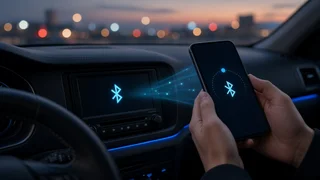
Pairing a phone with a Dual DC207BT follows the same basic process as most aftermarket Bluetooth car stereos. You put the receiver in a mode where it can be discovered, find it in your phone's Bluetooth list, and confirm the connection. Once paired, the stereo can handle hands-free calls and, if the unit and phone both support it, stream audio. This guide explains the general process, what controls call quality, and how to troubleshoot a connection that will not form or keeps dropping. One qualification matters. Button labels, menu wording, the name the receiver broadcasts, and any default PIN can differ between production runs and firmware versions. Detailed specifications for this model were not available for this article. Treat the steps below as the general pattern used by Dual Bluetooth receivers. Where your unit's display or owner's documentation differs, follow the unit.
The Short Answer
To pair your phone, switch the vehicle to accessory or run mode and power on the receiver. Select the Bluetooth or phone function so the unit becomes discoverable. Turn on Bluetooth on your phone and choose the receiver from the list of nearby devices. If the phone asks you to confirm a matching code or enter a PIN, do so. After the first successful pairing, most units reconnect automatically whenever the stereo powers up and the phone's Bluetooth is on.
What Bluetooth Pairing Actually Does
Device pairing is a one-time exchange in which the phone and the receiver agree to trust each other and store a shared security key. After that, connecting is a separate step that happens every time you get in the car. Pairing can succeed while connecting fails, and the reverse can happen too. This distinction explains many common problems.
Car audio uses several Bluetooth profiles. A profile is a defined set of rules for a specific job. Three are relevant here:
Hands-Free Profile (HFP): carries two-way call audio and basic call controls such as answer and hang up. Advanced Audio Distribution Profile (A2DP): carries stereo music streaming from the phone. Audio/Video Remote Control Profile (AVRCP): lets the receiver send play, pause and track commands to the phone.
A phone can be connected for calls but not for media, or the other way around. If music works but calls do not, or calls work but music does not, check the phone's Bluetooth settings for that device. Make sure both call audio and media audio are enabled.
General Pairing Steps
Park the vehicle and set the ignition to accessory or on so the receiver has power. Power on the receiver and select its Bluetooth source or press its phone/Bluetooth button, depending on how your unit is laid out. On the phone, open Bluetooth settings and make sure Bluetooth is on. Wait for the receiver to appear in the list of available devices, then select it. If a numeric code appears on both screens, confirm they match. If a PIN is requested, enter the code given in the unit's documentation. Many aftermarket receivers use a simple default such as 0000, but do not assume this for your unit. Accept any phone prompts that ask to allow call, contact or media access. Confirm the connection by making a short test call and, if supported, playing a track.
Pair while the car is stationary. Some phones and receivers stop accepting new pairings after a timeout, so if the receiver disappears from the list, restart discoverable mode and try again.
Connection Settings on the Phone
Most pairing trouble starts on the phone side, not the receiver. Check these connection settings:
Make sure the receiver is not blocked or hidden in the phone's Bluetooth device list. Turn on call audio and media audio for the receiver if your phone lets you choose them separately. Check whether battery-saving or power-management modes are restricting Bluetooth in the background. If the phone is also paired with a headset, smartwatch or another vehicle, disconnect those temporarily while testing. Keep the phone's operating system reasonably up to date. Bluetooth fixes are often delivered in system updates.
Troubleshooting a Failed or Unstable Connection
Symptom | Likely cause | What to try; Receiver does not appear on the phone | Unit is not in discoverable mode, or the pairing window timed out | Reselect the Bluetooth function on the receiver and search again from the phone; Pairing fails or asks for a PIN that is rejected | Wrong code, or a stale pairing record on either side | Delete the receiver from the phone, clear the paired-device list on the receiver if it has that option, and pair again; Paired but will not reconnect on startup | Another device connected first, or the phone is restricting Bluetooth | Disconnect other devices, check power-saving settings, and reconnect manually from the phone; Music works but calls do not (or the reverse) | One Bluetooth profile is disabled for that device | Enable both call and media audio in the phone's device settings; Connection drops while driving | Interference, phone power management or a firmware issue | Keep the phone unobstructed and close to the receiver, update the phone, and reset the receiver if the problem continues
If repeated attempts fail, a clean restart usually fixes the problem. Delete the pairing from the phone, clear the receiver's stored pairings or perform its reset procedure, restart the phone, and pair from scratch. This removes mismatched security keys left over from earlier attempts.
Getting Clear Call Audio
A successful pairing does not guarantee good hands-free calls. Call audio quality depends heavily on the microphone. Aftermarket receivers often use either a built-in microphone in the faceplate or a separate wired microphone that plugs into the back of the unit. Check which arrangement your DC207BT uses. If it has an external microphone input, make sure the microphone is plugged in, since a missing or loose microphone means callers will hear little or nothing.
Mount an external microphone close to the driver and aimed at the driver's mouth. A spot near the headliner, sun visor or upper steering column often works well, but avoid air vents. Route the microphone cable away from power wiring where possible to reduce noise. If callers hear an echo, lower the in-car call volume slightly and keep the microphone away from the speakers. Turn down fan speed and close windows during important calls, since cabin noise reaches the microphone.
Steering Wheel Controls and Vehicle Integration
An aftermarket receiver does not automatically work with a vehicle's factory steering wheel buttons. In most vehicles, the steering wheel interface requires a separate interface adapter. The adapter translates the car's button signals into commands the stereo understands. It only works if the receiver has a compatible wired remote input, and if the adapter supports both the vehicle and the stereo brand.
Whether the DC207BT accepts steering wheel control input could not be confirmed for this article. Check the rear of the unit and its documentation for a remote or steering wheel control lead before buying an adapter. Then confirm the adapter's compatibility for your vehicle's make, model and model year. Adapter compatibility usually depends on the vehicle's wiring and features, so a match for one trim or year may not carry over to another.
Phone and Software Compatibility
Bluetooth is designed to be backward compatible, so most current smartphones should pair with a Bluetooth car receiver. In practice, compatibility depends on both the phone's software and the receiver's firmware. An older receiver may not support newer features such as phonebook syncing or song title display. A phone software update can occasionally change Bluetooth behavior. If a previously reliable connection starts misbehaving right after a phone update, re-pair the devices before assuming hardware failure.
When to Look Beyond Pairing
Sometimes the receiver does not appear on any phone, will not enter Bluetooth mode, or loses its settings every time the car is switched off. In those cases the cause may be installation rather than pairing. A lost-settings problem often points to the constant (memory) power and switched accessory power wires being reversed or poorly connected. A professional installer or a careful wiring check against the receiver's harness diagram is the sensible next step. If the wiring is correct and the Bluetooth function still does not respond, contact the manufacturer's support channel about warranty service.