Connect phone to ford audio
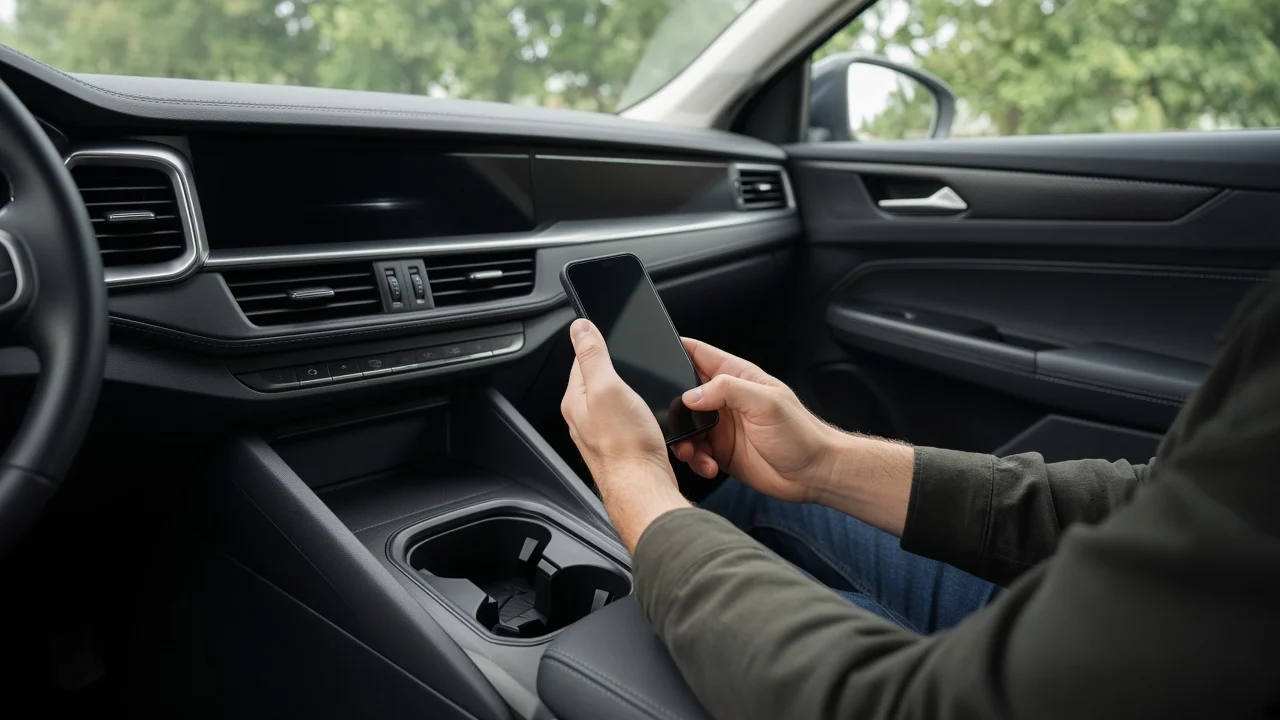
Connecting a phone to Ford audio turns a routine drive into a safer, more convenient way to manage calls, navigation prompts and media without handling the device. The exact method depends on the model year, trim level, body style and the Ford infotainment system installed in the vehicle. A truck, SUV or car from one generation may offer wireless projection, while another requires a USB cable. Understanding the available connection paths, menu locations and basic troubleshooting helps you match the phone to the system cleanly and avoid distraction.
Essential answer
The essential answer is that Ford vehicles typically support phone integration through Bluetooth, a USB connection, or both, depending on the infotainment system. Bluetooth handles hands-free calling and audio streaming once the phone and vehicle are paired. A USB connection may enable Apple CarPlay, Android Auto, or media indexing while also charging the phone. Some newer systems allow wireless Apple CarPlay or Android Auto, but availability can vary by market specification and model generation, so the owner should confirm what the specific vehicle actually offers.
The scope of the task widens when a phone connects by one method but not another. For example, a Bluetooth pairing may succeed for calls while a separate cable or setting is needed for app projection. Sync and later-generation Ford interfaces may also assign specific USB ports for data transfer, leaving other ports as charge-only. Checking the audio source menu after connection confirms whether the car is using the phone as a media device or only as a hands-free profile.
Procedure
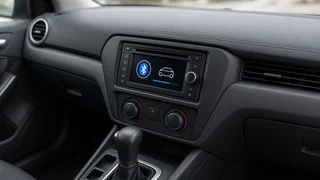
Begin with the vehicle parked and the ignition or accessory mode active. On the Ford touchscreen or information display, open the phone or connectivity menu and select the option to add a phone. Enable Bluetooth on the device, choose the vehicle from the phone’s available devices list, and confirm the pairing code if one appears. After the phone is paired, allow any requested access for contacts, messages and media so that call handling and audio routing work consistently during later drives.
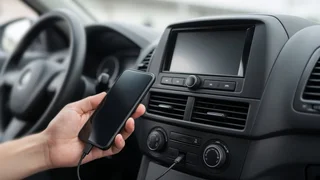
For system projection such as Apple CarPlay or Android Auto, use the factory USB data port and an undamaged cable. The phone may prompt for permission the first time it connects. After connection, select the projection icon or phone source in the Ford audio interface. If audio does not switch automatically, choose the correct source manually. Wireless connection, when supported, may require enabling the feature in the phone projection settings and verifying Bluetooth and Wi-Fi are active. If pairing or projection fails, restart the phone, remove the old pairing from both devices, and repeat the process before assuming a hardware fault.