How to Enable Bluetooth Pairing Mode in a Cadillac
The Short Answer
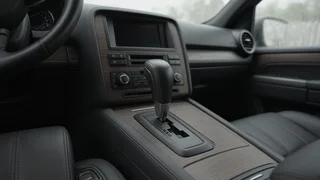
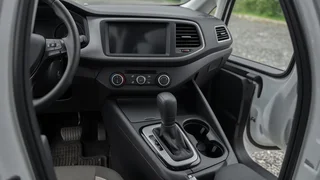
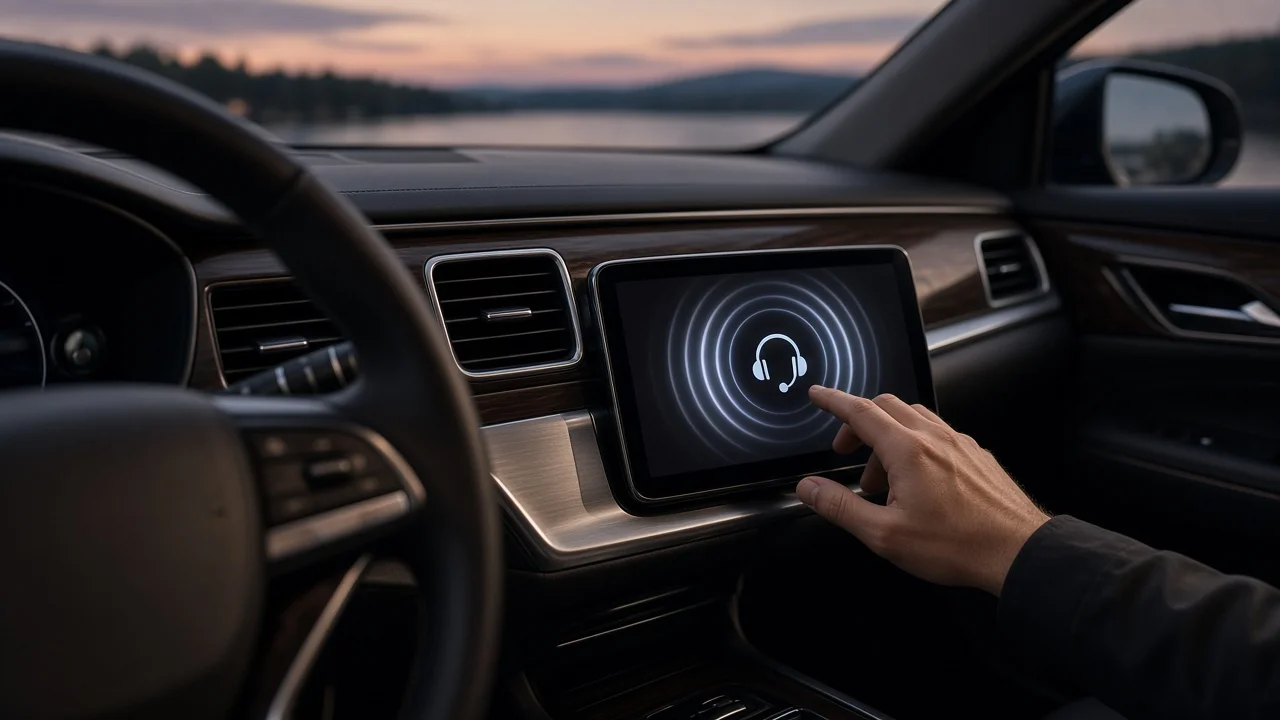
In most Cadillac models, you start Bluetooth pairing from the vehicle's infotainment system, not from the phone. The vehicle makes itself discoverable, and you then select it in your phone's Bluetooth settings and confirm the connection. On touchscreen systems this is usually done through a phone or Bluetooth section of the settings menu with an option to add or pair a device. Some older vehicles without a touchscreen used voice commands instead.
The exact menu names, button locations and prompts depend on the model year and the infotainment system installed. Cadillac has used several generations of infotainment, so no single set of steps applies to every vehicle. The owner's manual for your specific model year is the authoritative source.
What Pairing Mode Means
Pairing mode is a temporary state in which the car's Bluetooth module announces itself to nearby devices and accepts a new connection. Pairing is the one-time process of creating a trusted link between a phone and the vehicle. After that, the two devices normally reconnect automatically when the phone's Bluetooth is on and the vehicle is running. You need pairing mode only when adding a new phone or re-adding one that was removed.
Pairing mode is different from simply having Bluetooth turned on. A phone that is already paired does not require pairing mode to connect. A new phone will not find the vehicle until pairing mode is active.
General Steps on Touchscreen Cadillac Systems
The following sequence reflects the common pattern for in-vehicle Bluetooth pairing. Labels vary by system and software version, so treat it as a guide rather than an exact script.
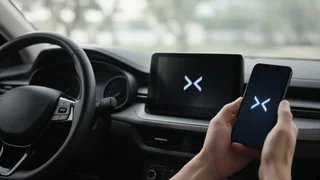
1) With the vehicle parked, turn on the ignition or vehicle power. Many systems restrict pairing while the vehicle is moving. 2) On the infotainment screen, open the Phone, Bluetooth or Settings area. 3) Choose the option to add, pair or connect a new device. The vehicle then becomes discoverable. 4) On your phone, turn on Bluetooth and open the list of available devices. 5) Select the vehicle's name when it appears. 6) Compare the code or PIN shown on the phone with the one on the vehicle screen, then confirm on both if prompted. 7) Allow any requests to share contacts or call history if you want those features in the vehicle.
How the Process Differs Across Cadillac Vehicles
The main difference is the generation of infotainment system, which depends on model year and model. Touchscreen systems start pairing from an on-screen menu. Some earlier GM-family vehicles without a touchscreen started pairing through the steering-wheel voice button and spoken commands. Newer systems may arrange menus differently or combine Bluetooth with phone projection features such as Apple CarPlay or Android Auto where equipped. The supplied information does not confirm which system or procedure applies to any specific Cadillac model or year.
Phone projection and Bluetooth calling are related but separate. Depending on the vehicle and phone, projection may use a cable or a wireless connection, and pairing a phone over Bluetooth does not always enable projection automatically.
If the Vehicle Does Not Appear on Your Phone
Common causes include pairing mode not being active on the vehicle, the phone's Bluetooth device list not being refreshed, or the vehicle having reached the limit of stored devices. Removing an old or unused phone from the vehicle's device list, restarting the phone, or deleting an outdated vehicle entry from the phone's Bluetooth list before trying again often resolves these issues. The device limit and reset options differ by system, so check the owner's manual for your vehicle.
Information Gaps
No confirmed, model-specific evidence was available for this guide. It does not state exact menu paths, button names, supported device counts or compatibility details for particular Cadillac models or years. For exact instructions, use the owner's manual or the infotainment section of your vehicle's documentation, or ask a Cadillac dealer.