Using an OBD2 Bluetooth Adapter with PC Software
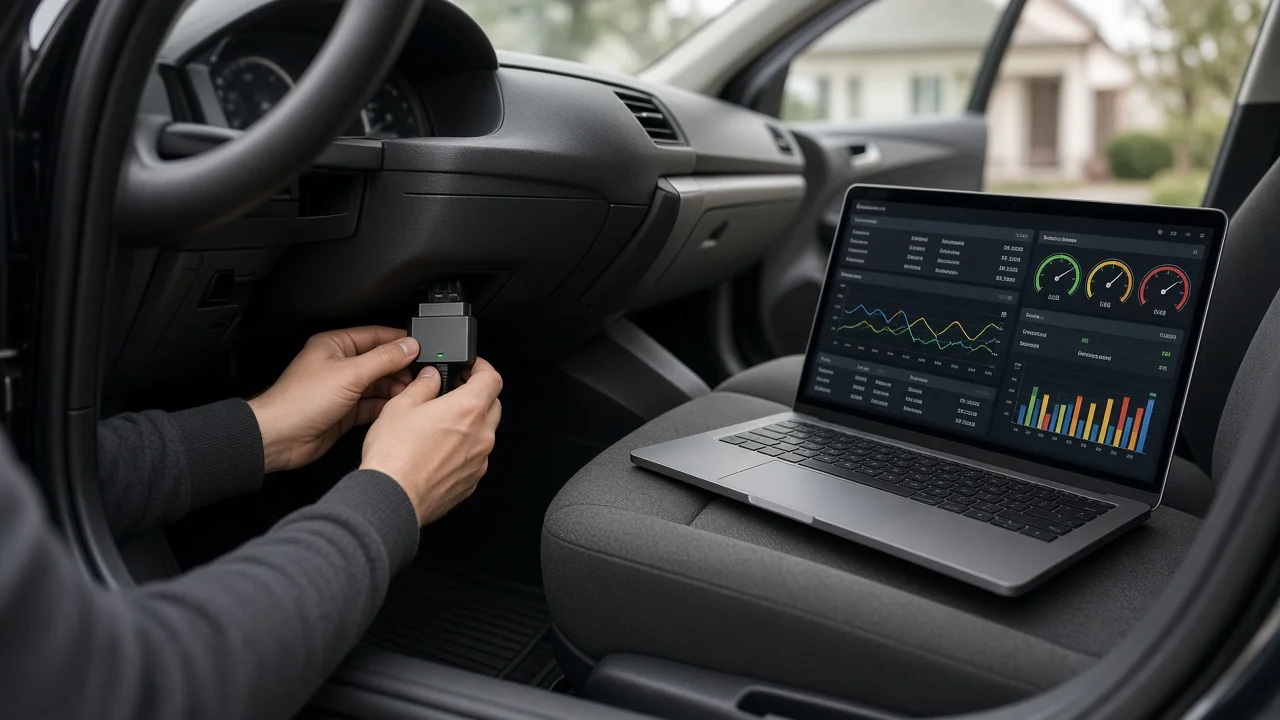
Pairing an OBD2 Bluetooth adapter with a Windows laptop opens a richer diagnostic view than a phone screen. The wireless link removes the cable clutter while PC software often shows deeper data, graphing, and logging tools. Success depends on correct device pairing, connection settings, and software compatibility. You are not locked into a single app, because many interface adapter choices work with common OBD2 protocols. Some setups can even support a steering wheel interface or deeper vehicle integration if the program supports that feature.
Essential answer
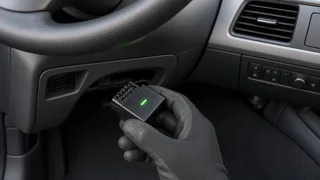
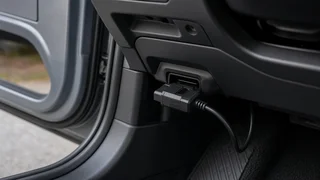
An OBD2 Bluetooth adapter can work with PC software, but the laptop must recognize the adapter as a serial device over Bluetooth rather than as a generic audio or file-transfer accessory. After plugging the adapter into the diagnostic port and turning the ignition to the run position, you typically pair it in Windows Bluetooth settings. The important step is noting the outgoing COM port that Windows assigns, because most PC scan tools and tuning utilities require that port number in their connection settings before they can communicate with the vehicle.
The scope of the answer depends on the software you choose. A basic OBD2 reader displays emissions data and trouble codes, while more advanced programs may add live sensor graphing, data logging, or manufacturer-specific modules. The adapter itself translates the vehicle's OBD2 protocol into a serial signal that the PC interprets, so the same compact hardware can often serve different programs. Confirm that the PC application supports the adapter's communication profile and your vehicle's OBD2 system before relying on any displayed reading.