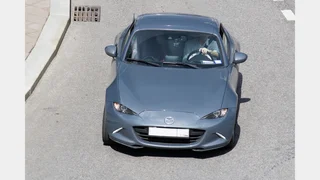
Using Google Maps with Apple CarPlay in a Mazda
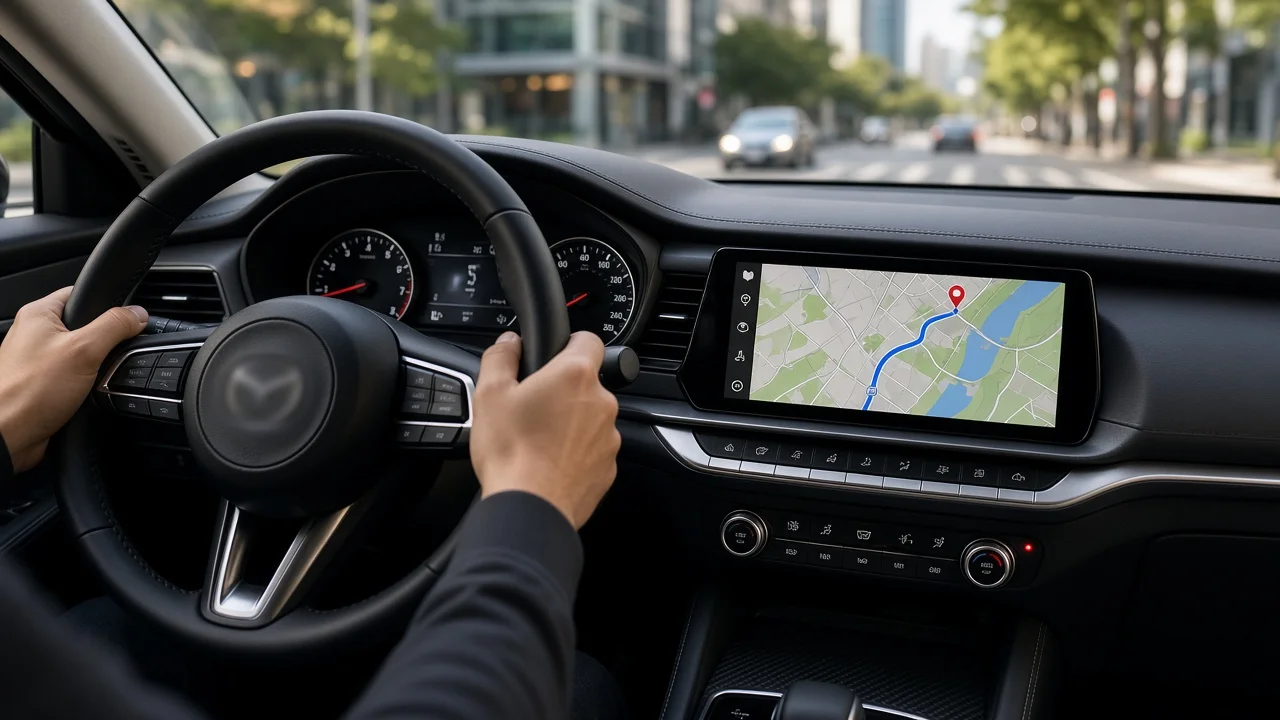
Yes, you can use Google Maps in a Mazda through Apple CarPlay, as long as the vehicle's infotainment system supports CarPlay and the Google Maps app is installed on your iPhone. Google Maps has been a supported CarPlay navigation app since Apple opened CarPlay to third-party navigation apps with iOS 12. The car does not run Google Maps itself. Your iPhone runs the app and projects its interface onto the Mazda display. The main things that change the answer are your Mazda's model year and infotainment generation, whether CarPlay was fitted at the factory or added later, and how your particular model handles touch input.
How Google Maps Works Through CarPlay
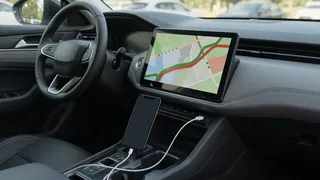
CarPlay is a projection system. The phone does the processing, mapping, routing and data connection, and the car acts as a screen, speaker and input device. This means Google Maps on a Mazda display looks and behaves like the CarPlay version of the iPhone app. It is not a Mazda-specific version. Your saved places, recent searches and Google account settings come from the phone. Live traffic and search results depend on the phone's cellular data.
This also explains why Google Maps does not replace Mazda's own navigation. Mazda Connect can offer a built-in navigation option, typically using a separate SD card map system on equipped vehicles. That system and Google Maps in CarPlay are independent of each other. You choose which one to use.
Which Mazdas Support Apple CarPlay
CarPlay support in Mazda vehicles falls into two broad groups. The exact model years and features vary by model, trim and market, so check against your specific vehicle.
Earlier Mazda Connect vehicles (roughly the mid-2010s): Many models with the first-generation Mazda Connect system did not ship with CarPlay. Mazda later offered a dealer-installed upgrade for many of them. The upgrade combines a software update with replacement USB hardware. Whether your car qualifies depends on the model and year, so a Mazda dealer is the place to confirm eligibility. Newer Mazda Connect vehicles (beginning with the redesigned Mazda3 and subsequent models): The second-generation Mazda Connect system includes CarPlay as standard equipment in the US market. Wireless CarPlay is available on some newer models and trims, while others remain wired only.
If your Mazda predates Mazda Connect or was never eligible for the upgrade, factory CarPlay is not an option. Aftermarket head units and interface adapters exist for some of these vehicles. Integration quality, steering wheel control retention and fit vary widely between products, so treat them as case-by-case decisions.
Setting Up Google Maps for CarPlay in a Mazda
Install Google Maps from the App Store and sign in to your Google account if you want your saved places and history available. Update iOS and the Google Maps app. Software compatibility problems are a common reason an app fails to appear or behaves oddly in CarPlay. Make sure CarPlay is enabled on the iPhone and not blocked by Screen Time restrictions. For a wired connection, use a reliable data-capable Lightning or USB-C cable and plug into the USB port Mazda designates for smartphone connection. In some models only one port supports CarPlay, and it is often marked with a phone icon. For wireless CarPlay on equipped models, complete device pairing through the Mazda Connect connection settings and follow the prompts on both the car screen and the phone. Once CarPlay launches, find the Google Maps icon on the CarPlay home screen. If it is on a later page, you can rearrange icons on the iPhone in Settings, General, CarPlay, by selecting your car and choosing Customize.
Controlling Google Maps in a Mazda
The way you interact with Google Maps depends heavily on your Mazda's interface. This difference matters more in a Mazda than in many other brands.
Commander knob: Mazda's center-console rotary controller is the primary input on most Mazda Connect systems. In CarPlay, the knob lets you move between on-screen elements, select items and go back. Navigating a map app this way works, but it is less direct than tapping a touchscreen. Touchscreen: On first-generation Mazda Connect, the screen generally accepts touch input only when the vehicle is stopped. Many second-generation Mazda Connect systems were designed for knob-only operation. Some later models and updates enable touch for CarPlay. Whether you can tap Google Maps directly depends on your specific model, year and software. Steering wheel interface: A long press of the voice button on the steering wheel typically activates Siri while CarPlay is running. Audio controls on the wheel continue to work with CarPlay media. Voice input inside Google Maps: The Google Maps CarPlay interface has its own microphone button for spoken destination searches. This can be easier than entering text with the knob.
Siri may default to Apple Maps when you ask for directions. To make sure a route opens in Google Maps, the most dependable approach is to start the search inside the Google Maps app, either with its voice button or by selecting a saved or recent destination. You can also include Google Maps by name in your Siri request.
What to Expect and Where It Differs From Apple Maps
Aspect | Google Maps in CarPlay | Apple Maps in CarPlay; Availability | Separate app download from the App Store | Built into iOS; Siri integration | Works most reliably when started inside the app or named in the request | Default for Siri navigation requests; Account data | Uses your Google account's saved places and history | Uses Apple account and iPhone data; Offline use | Supports downloaded offline map areas | Offline map support depends on iOS version; Display in the car | Shown on the CarPlay screen and CarPlay Dashboard view | Shown on the CarPlay screen and CarPlay Dashboard view
Turn-by-turn guidance shown outside the main screen, such as in the instrument cluster or Mazda's Active Driving Display head-up display, is designed mainly around Mazda's own navigation. Support for showing CarPlay app directions in those locations is limited and varies by model and software. Do not assume Google Maps directions will appear there unless you have confirmed it for your vehicle.
If Google Maps Doesn't Appear or Won't Work
Confirm CarPlay itself is working. If no CarPlay screen appears at all, the issue is with the connection, cable, USB port or vehicle software rather than with Google Maps. Check whether the icon is hidden on another CarPlay page or removed in the iPhone's CarPlay Customize settings. Update the Google Maps app and iOS, then reconnect the phone. Try a different cable and confirm you are using the CarPlay-capable USB port. For wireless setups, remove the car from the iPhone's CarPlay list and pair it again through the Mazda connection settings. Ask a Mazda dealer whether a Mazda Connect software update is available, since infotainment updates can affect CarPlay stability. If maps load slowly or traffic data is missing, check the phone's cellular signal and data settings. Downloading offline areas in Google Maps can help in places with weak coverage.
The Bottom Line
Using Google Maps in a Mazda is straightforward if the car has CarPlay, either from the factory on newer Mazda Connect models or through Mazda's dealer upgrade on eligible earlier ones. The app runs on your iPhone, so updating the phone and app solves many problems. The biggest Mazda-specific consideration is input. Depending on the model and software, you may rely mostly on the commander knob and voice rather than the touchscreen. Starting navigation requests within Google Maps itself avoids Siri sending you to Apple Maps instead.