How to Manage Multiple Phones Paired to One Car
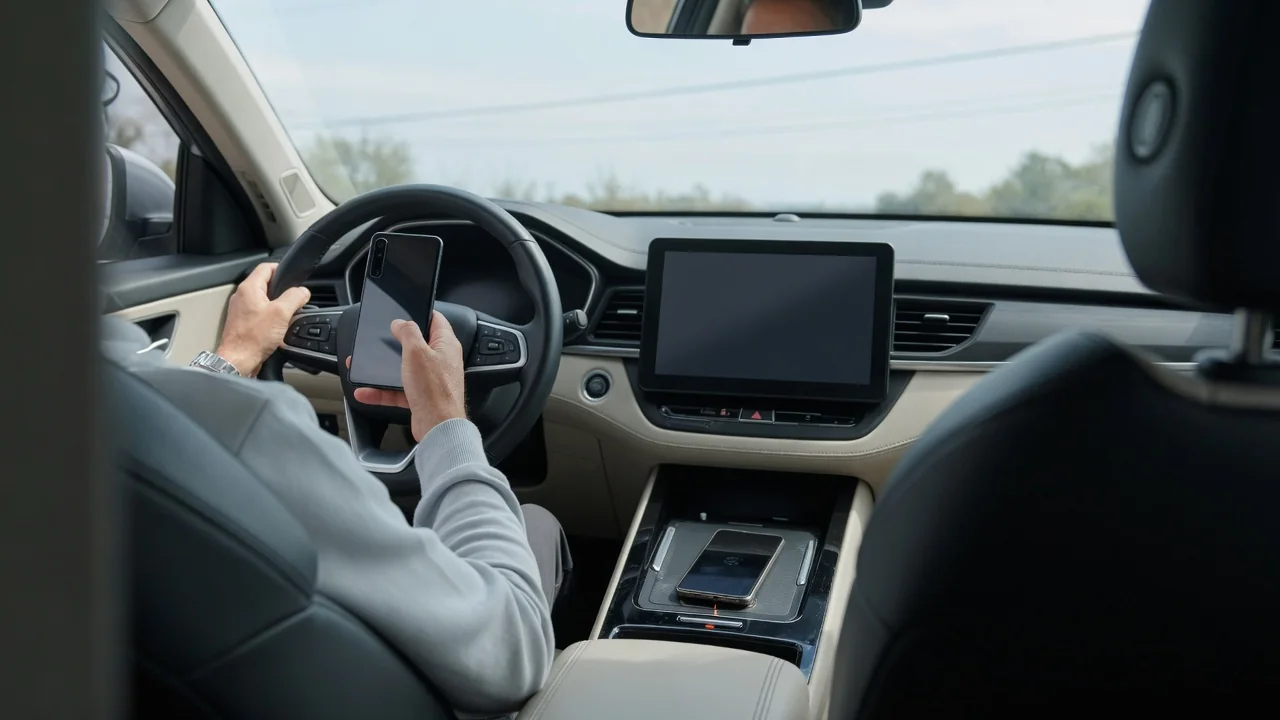
Most households share at least one vehicle, and the infotainment system usually remembers every phone that has ever connected to it. Knowing how to manage multiple phones paired to one car comes down to three things: which device the system connects to first, how drivers switch between handsets, and what personal data stays behind in the head unit.
Pairing list
The pairing list is the head unit's record of every phone that has completed a Bluetooth handshake with the vehicle. It normally sits in the settings menu under a heading such as phone, connections or devices, and each entry shows the name the handset broadcasts. If two family members own the same model, both may appear with identical labels, so renaming each phone in its own Bluetooth settings before pairing makes the list far easier to read at a glance.
Many systems cap the number of stored devices, and the limit differs between manufacturers and even between trim levels of the same model. When the list is full, some vehicles refuse a new pairing until an old entry is deleted, while others quietly overwrite the oldest one. The list may also show small icons indicating whether a phone is approved for calls, media audio, or both, which explains why one handset can stream music while another handles hands-free calling.
Default device
When two paired phones are in the cabin at startup, the car has to choose one. Some systems let the owner mark a priority or favorite device, and the head unit will look for that handset first every time the ignition is switched on. Others simply reconnect to whichever phone was used last, which means the passenger from yesterday's trip can end up taking over the speakers and the steering wheel call buttons today.
Priority matters most for the primary driver who relies on hands-free calls and navigation prompts. If the vehicle offers a ranked order, placing the regular driver's phone at the top avoids a daily tug of war. Cars with driver profiles linked to a key fob or seat memory may switch the preferred phone automatically with the profile. Where no priority setting exists, temporarily turning off Bluetooth on the second handset before starting the car is a dependable workaround.
Remove unused phones
Old entries are more than clutter. A paired phone may have synced its contacts, recent calls and text message previews to the head unit, and that information can remain readable on the screen after the handset has left. A former partner's phone, a friend who borrowed the car once, or a previous owner's device has no reason to stay, and each one is another candidate for the system to chase during its startup search.
Deleting a device is usually a matter of selecting it in the pairing list and choosing remove, forget or delete, with the car parked. It is worth forgetting the vehicle on the phone as well, because a one-sided removal can leave the handset attempting to reconnect and failing. Before selling or returning a car, a full factory reset of the infotainment system is the more thorough choice, since it also clears stored addresses, garage door codes and saved accounts.
Everyday Use and Observations
In daily driving, the signs of a shared car are easy to spot. Music resumes from the wrong person's playlist, an incoming call rings through the cabin for a passenger, or the navigation app shows someone else's destinations. Switching is generally done from the device list by tapping the other phone's name, though some head units need the active handset disconnected first. Several newer systems hold two phones at once, routing calls from both while taking media from one.
Phone projection adds another layer. With wired Apple CarPlay or Android Auto, the phone plugged into the data port generally takes control regardless of Bluetooth order, while wireless projection tends to follow the same priority logic as Bluetooth itself. Privacy deserves attention here, because message notifications can appear on the central display for everyone to read. Most phones allow notification previews and contact sharing to be limited per vehicle, which suits anyone who regularly carries colleagues or clients.
Limits and Next Steps
Not every frustration can be solved in the settings menu. Older head units may connect only one phone at a time, lack any priority option, or take a long while to search through a crowded list before giving up. Behavior also changes with software updates on either side, so a phone that connected reliably for years can become stubborn after an operating system upgrade. Menu names, device limits and dual-phone capability all vary, so the owner's manual remains the reference for a particular vehicle.
When connections keep failing, the cleanest reset is to delete the pairing on both the car and the phone, restart each, and pair again from scratch. Checking for an infotainment software update, either over the air or through a dealer, is a sensible next step if problems persist across several handsets. If only one phone misbehaves, the fault more likely lies with that device's settings than with the vehicle, and reviewing its Bluetooth permissions is the logical place to begin.