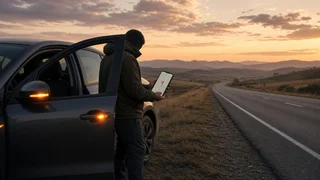
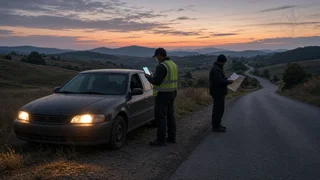
Google Maps URL With a Latitude/Longitude Marker: How to Share a Breakdown Location

The short answer
To send a Google Maps link that shows a marker (a pin) at an exact spot, you need a link that carries the coordinates as a search query, not just as the map's view position. You can get one in two ways. The simplest is to drop a pin in the Google Maps app and use its Share option. The other is to build the link yourself using Google's documented Maps URLs format, which places the coordinates in a query parameter written as latitude, a comma, then longitude, with no space required.
This matters at the roadside because a tow operator, roadside assistance dispatcher or friend who opens the link sees a pin on the precise spot, rather than a nearby business, a street name or a map that is merely centered somewhere close.
Marker link versus map-view link
This distinction causes the most confusion. When you browse Google Maps in a web browser, the address bar often shows a number pair preceded by an @ sign, followed by a zoom value. Those numbers describe where the map view is centered. They do not necessarily mean a pin sits there. If you copy that address bar text after scrolling around, the recipient may see a map centered on a point with no marker, or with a marker on a different place you searched earlier.
A marker link places the coordinates in the search or query part of the link. Google Maps then treats them as a location to find and drops a pin on them.
Option 1: Drop a pin and share it from the app
This is usually the most reliable method when you are standing next to the vehicle. Exact menu labels can differ between Android, iPhone and app versions, so treat these steps as a general pattern.
1) Open Google Maps and wait for the blue dot showing your current position to settle. 2) Press and hold on the map at your location, or on the exact spot where the vehicle is, until a red pin appears. The app typically labels it as a dropped pin. 3) Check the coordinates shown for the pin, usually in the search box or the information panel at the bottom. 4) Tap the panel to expand it and choose Share. 5) Send the link by text message, a messaging app or email to the person or service that needs it.
Google Maps also has a separate location-sharing feature that shows your live position to chosen contacts over time. That is useful if you are walking to a safer spot or the vehicle is being moved. A dropped-pin link shows a single fixed point.
Option 2: Build the link from coordinates
If you already have coordinates, for example from a GPS (Global Positioning System) device, a vehicle navigation screen or a compass app, you can build a marker link with Google's Maps URLs format. That format uses Google Maps' search address followed by two parameters. The first, api=1, tells Google Maps to read the link in this documented format. The second, query, holds the coordinates. The parameter part looks like this, with your own values replacing the placeholders:
?api=1&query=LATITUDE,LONGITUDE
Put this parameter string after Google Maps' search address, as described in Google's Maps URLs developer documentation. When the link is opened, Google Maps searches for the coordinates and drops a marker on them. On a phone it typically opens in the app if installed, otherwise in the browser.
Getting the coordinate format right
Most problems with coordinate links come from formatting, not from the map itself.
Latitude comes first, longitude second. Swapping them sends the pin to a completely different part of the world. Use decimal degrees, such as numbers with a decimal point, rather than degrees-minutes-seconds notation, when building a link by hand. In the continental United States, latitude is positive (north of the equator) and longitude is negative (west of the prime meridian). A missing minus sign on the longitude moves the point to the opposite side of the globe. Use a period as the decimal separator and a comma between the two numbers. Phones set to some regional formats may display a comma as the decimal mark, which can break a hand-typed link. Keep enough decimal places. Rounding coordinates heavily reduces precision; the more digits you keep from the source, the closer the pin stays to the true spot.
If the link does not show the right marker
Check these causes in order, from most to least common:
1) The link is a map-view link. If you copied it from the browser address bar after panning, it may only show the map center. Re-share from a dropped pin instead. 2) Latitude and longitude are swapped, or a minus sign is missing. Compare the numbers to the coordinates shown on your own screen. 3) The pin was dropped in the wrong place. A long press on a crowded map can land on a nearby business or road label. Zoom in before dropping the pin. 4) Your position fix was poor. GPS accuracy varies with sky visibility, tall buildings, tree cover, tunnels and terrain. If the blue dot shows a wide shaded circle, the position is less certain; waiting briefly or moving to open sky may improve it. 5) The message did not send. Your phone can usually determine GPS position without mobile data, but sending a link still needs a cellular or data connection. If data is weak, sending the coordinates as a plain text message may get through when a data-based app will not.
Practical tips for breakdown situations
Read the coordinates aloud as well as sending the link, in case the recipient cannot open it. Say latitude first, then longitude, including any minus sign. Add a short description with the link: direction of travel, which side of the road, nearest exit, mile marker or landmark, and vehicle color and type. In an emergency, call 911 first. Emergency call systems may receive phone-based location data, but a dispatcher may still ask you to confirm where you are, and coordinates can help. If the vehicle has a built-in connected-services or emergency button, its features and how it reports location depend on the manufacturer, model year, market and subscription status. Check the owner's manual for your specific vehicle.
What this guide cannot confirm
No specific evidence was available on current Google Maps app menu wording, GPS accuracy figures, or how particular roadside assistance providers or emergency centers handle shared links. Menu names and app behavior change between versions and platforms, and service providers differ in what location formats they accept. If you rely on a particular roadside assistance plan, ask the provider in advance whether they prefer a map link, raw coordinates or their own app's location feature.