Fix wireless Android Auto disconnections
The short answer
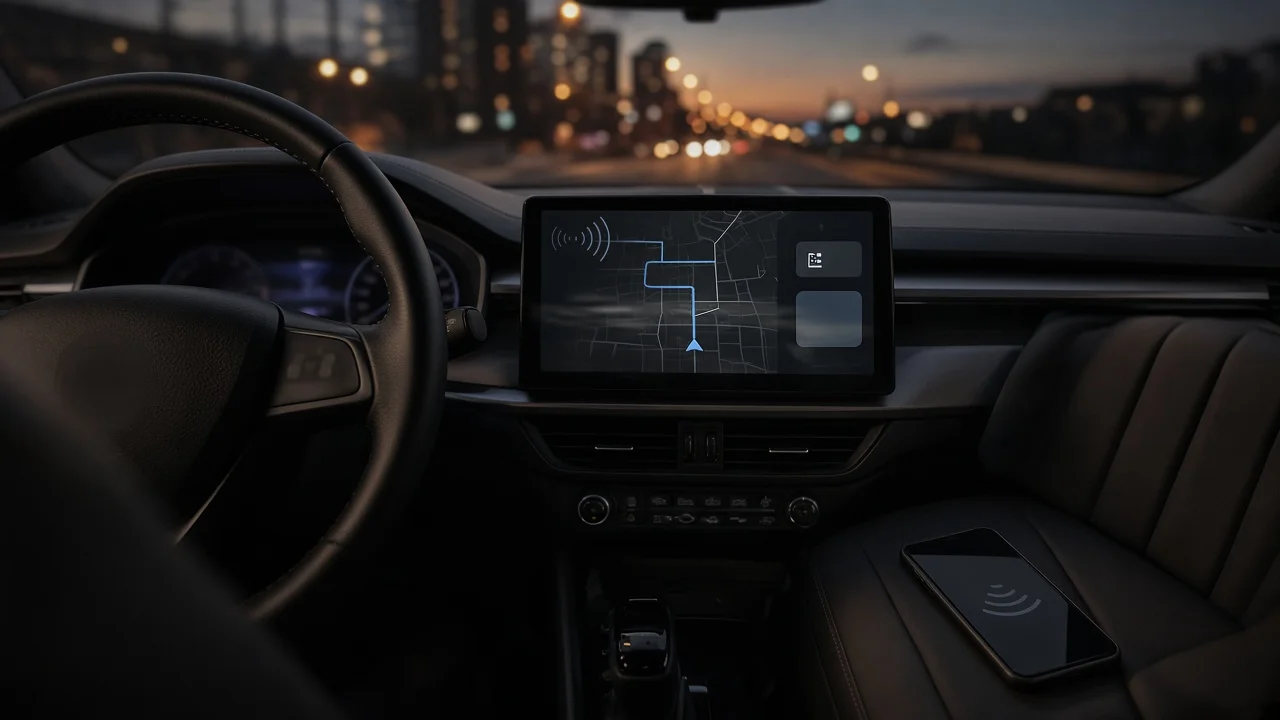
Wireless Android Auto does not run over Bluetooth alone. Bluetooth handles the initial handshake and usually phone-call audio. The projected display, navigation and media stream run over a direct Wi-Fi link between the phone and the car's head unit, the infotainment computer in the dashboard. When Android Auto drops while Bluetooth still shows as connected, the Wi-Fi link has usually failed, or something on the phone has stopped the Android Auto session.
The most common fixes cost nothing and should be tried first. Update the phone, the Android Auto app and the head unit software. Remove and re-pair the car on both sides. Stop the phone from restricting Android Auto in the background. Remove anything that competes for the phone's Wi-Fi or Bluetooth, such as VPNs, hotspots, other paired cars and wearables. If the problem continues after these steps and also happens with a USB cable, the cause is more likely in the head unit or the vehicle than in the phone.
Support depends on the vehicle. Wireless Android Auto is offered only on certain head units, and support varies by manufacturer, model year, trim, infotainment generation and market. Phone support also varies by manufacturer and Android version. Some cars that offer wired Android Auto never received wireless support, and some gained it only through a software update. This article does not include confirmed compatibility lists, version numbers or model-specific fixes, so check your vehicle and phone documentation for what applies to your combination.
How the wireless connection works, and why it matters for diagnosis
A wireless session usually starts like this. The phone and car find each other over Bluetooth and exchange credentials. The phone then joins a Wi-Fi network created by the head unit, or a similar direct link, and the Android Auto interface streams across it. While this link is active, the phone generally cannot use a separate Wi-Fi network at the same time, which is why some phones show no internet over Wi-Fi during a drive and rely on mobile data instead.
This explains two typical patterns. In the first, the screen freezes or returns to the car's own menu while calls still work, which points to the Wi-Fi side or the app. In the second, Bluetooth drops at the same moment, which points to pairing, the Bluetooth stack on either device, or interference with the handshake.
Before you start
Do these checks only while parked. Do not change phone settings or watch the display while driving. If the dropouts make navigation unreliable on a trip, switch to a wired connection or use the phone in a legal mount until the problem is resolved.
Step 1: Find out where the problem sits
The most useful early test is to connect the same phone with a good-quality USB data cable in a port the car supports for Android Auto. Compare that result with a second phone used wirelessly in the same car. Together, these two checks show whether the cause is the phone, the wireless link or the car.
Test result | What it suggests | Next step; Wired works reliably, wireless drops | The problem is specific to the wireless link: Wi-Fi, Bluetooth handshake, interference or phone power management | Work through the wireless checks below; Wired and wireless both drop | Head unit software, the Android Auto app, or a vehicle-side fault | Update the app and head unit, then consider dealer diagnosis; A second phone stays connected wirelessly, yours does not | Your phone's settings, software or hardware | Focus on phone settings, updates and a phone reset as a last resort; Every phone drops in this car | Head unit, its antenna or its software, or an aftermarket adapter if one is fitted | Head unit updates, adapter checks, dealer or installer diagnosis; Drops happen only in certain places or at certain times | Radio interference or heat | Note the pattern and check heat and interference factors
Step 2: Update and restart everything in the chain
Update the Android Auto app and Google Play services from the Play Store. Some phones build Android Auto into system settings, but it still updates through the Play Store. Install pending phone system updates. Check for head unit software updates. Depending on the brand, these arrive over the air, through the manufacturer's app, by USB download, or only at a dealer visit. Restart the phone. Then restart the head unit by turning the car fully off, waiting until the infotainment screen shuts down, and starting it again.
Software mismatches between a new phone update and older head unit software are a known source of connection problems. Neither side may be faulty on its own. A firmware or app update from one party is sometimes the only real fix.
Step 3: Reset the pairing on both sides
On the phone, remove the car from the Bluetooth device list. In Android Auto settings on the phone, remove the car from the previously connected cars list. On the head unit, delete the phone from its device list. If the car stores several phones, remove the ones you no longer use. Some head units connect to whichever known phone they find first. Pair again from scratch while parked, and accept every permission prompt on the phone, including contacts, notifications and nearby devices.
Corrupted or outdated pairing records are a common cause of repeated drops, especially after a phone replacement, a data transfer to a new phone, or a head unit update.
Step 4: Check phone settings that can end the session
Battery optimization: set Android Auto, and on some phones Google Play services, to unrestricted battery use. Aggressive power-saving features on some phones stop background apps and are a frequent cause of random disconnections. Power-saving or performance modes: turn them off for a test drive to see whether the drops stop. VPNs, private DNS, firewall and ad-blocking apps: disable them temporarily. These can interfere with the local network link between the phone and the car. Mobile hotspot: turn it off. Sharing the phone's Wi-Fi radio can conflict with the head unit connection. Wi-Fi and Bluetooth: both must stay on. Wireless Android Auto needs Wi-Fi switched on even when you are not connected to a home network. Auto-switching Wi-Fi features: some phones automatically leave networks without internet access. Since the car's link provides no internet, these features can drop it. Disable them if your phone has them. Permissions: confirm that Android Auto still has its required permissions. Updates or cleanup apps can sometimes remove them.
If the problem began right after a phone update or a change to these settings, that timing is strong evidence. Reverse the change if possible, or check whether the app or phone maker has acknowledged the issue.
Step 5: Reduce interference and competing connections
Unpair or switch off other Bluetooth devices in the car during testing, such as smartwatches, earbuds, other passengers' phones and dashcams. If passengers' phones have connected to the car before, they can trigger handoffs. Remove them from the head unit's device list. Note whether the drops cluster in specific locations, such as dense urban areas, parking structures or particular stretches of road. Patterns like this point to radio interference rather than a settings problem. Dashcams, plug-in chargers, phone mounts with built-in electronics and other accessories can add electrical or radio noise. Unplug them for a test drive.
Step 6: Look at heat and phone placement
Wireless Android Auto keeps the phone's Wi-Fi radio busy while it streams. Combined with navigation, wireless charging and direct sunlight, this can make the phone run hot. Many phones reduce performance or shut down radios when they overheat, and that can end the session. If the drops happen mainly on long drives, in hot weather or on a wireless charging pad, test with the phone off the pad and out of the sun. If the phone feels very hot, let it cool before reconnecting.
Step 7: If you use an aftermarket wireless adapter
Some drivers add wireless Android Auto to cars that support only the wired version by plugging a third-party adapter into the USB port. The adapter adds its own firmware, Bluetooth and Wi-Fi radios, and power supply to the chain, and each of these can cause dropouts.
Check the adapter maker's app or support channel for firmware updates. Try a different car USB port. Some ports supply less power or carry no data. Connect the phone with a cable and no adapter. If that is stable, the adapter is the likely cause. Check whether the adapter maker lists your vehicle or phone as having known issues. Compatibility claims for these products vary, and this article cannot confirm the behavior of any specific adapter.
Step 8: Clear app data or reset as a later step
If the steps above have not helped, clear the cache and then the storage for the Android Auto app in the phone's app settings. Clearing storage removes saved cars and preferences, so you will need to pair again. Some head units also offer a reset of connectivity or infotainment settings. Check the owner's manual first, because a full head unit reset can erase saved profiles, presets and other personal settings. Factory-resetting the phone is a last resort, used only when testing has clearly isolated the problem to that phone.
When to stop troubleshooting and get professional diagnosis
Most disconnections are a software or settings matter. Some symptoms, however, point to a vehicle-side problem that a dealer or qualified technician should inspect:
The head unit reboots, freezes or goes dark on its own, with or without a phone connected. The car's built-in features, such as radio, backup camera display or climate controls shown on the screen, also glitch or drop out. Disconnections occur together with dimming lights, slow cranking, battery warnings or other electrical symptoms. Low or unstable system voltage can cause infotainment systems to reset. Every phone fails, both wired and wireless, after all software is up to date. There is a burning smell, visible damage, heat or loose connections around the dashboard or USB ports. Stop using the system and have it inspected.
If a technician reads diagnostic trouble codes from the infotainment or electrical system, treat a code as a lead to investigate, not as proof that a particular part has failed. Infotainment faults can come from software, wiring, antennas, power supply or connected modules, and confirming the cause usually requires further testing. If the vehicle is under warranty, report the issue with notes on when it happens, which phones are affected and whether a cable connection also fails. That record helps the technician reproduce the fault.
What this guide cannot confirm
No model-specific evidence was available for this article. That means no confirmed compatibility lists, software version numbers, known-issue bulletins, recall information or test results for particular cars, phones or adapters. The steps above are general troubleshooting principles for wireless Android Auto, not documented fixes for any specific vehicle. For your exact model year, trim and market, the owner's manual, the manufacturer's support resources and a dealer service department are the authoritative sources. Ask the dealer specifically whether any head unit software updates or service bulletins address Android Auto connectivity on your vehicle.