Wireless CarPlay and Android Auto Compatibility: What You Need to Know
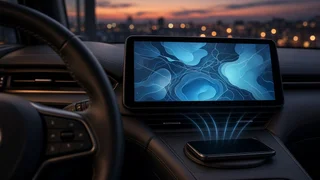
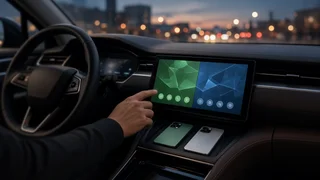
Wireless CarPlay and Android Auto let your phone's maps, music, messaging and voice assistant appear on the car's dashboard screen without a cable. Compatibility depends on both sides of the connection. The vehicle's infotainment system has to support the wireless version of each platform, and the phone has to meet that platform's software requirements. Many cars support CarPlay and Android Auto only over a USB cable, so having either feature does not guarantee a wireless connection. Support often varies by model year, trim level, infotainment package and market, even within one model line.
The Short Answer
Your car can run wireless CarPlay or wireless Android Auto if its head unit was built or later updated to support it. Your phone must also run a compatible operating system version with Bluetooth and Wi-Fi turned on. If your car supports only the wired versions, you have two common ways to go wireless: a plug-in wireless interface adapter, or an aftermarket head unit with built-in wireless support. Some vehicles support wireless CarPlay but not wireless Android Auto, or the other way around, so check each platform separately.
How the Wireless Connection Works
Both systems use two radios. Bluetooth handles the initial device pairing and helps the car recognize your phone when you get in. A direct Wi-Fi link between the phone and the head unit then carries the actual CarPlay or Android Auto session, including the screen display, audio and touch input. Bluetooth alone cannot carry this much data, which is why the phone's Wi-Fi must stay enabled even though you are not joining a regular internet network.
The phone does the processing. The car's screen works as a display and input device. As a result, app features, map data and interface design come mostly from the phone's software. The vehicle controls how the interface fits into its screen, speakers, microphones and physical controls.
Wired vs. Wireless at a Glance
Factor | Wired connection | Wireless connection; Setup each drive | Plug in the cable | Connects automatically after the first pairing; Phone charging | Usually charges while connected | Does not charge unless the car has a wireless charging pad or you use a separate charger; Battery and heat | Lower net drain because the phone charges | Higher drain and possible phone warming on long drives; Responsiveness | Generally the most direct link | Can show slight lag or occasional dropouts, depending on hardware and interference; Vehicle requirement | Wired CarPlay or Android Auto support | Native wireless support, or a wired system plus an adapter; Convenience | Cable clutter, port wear | Phone can stay in a pocket, bag or tray
What the Vehicle Needs
Native wireless support depends on the head unit's hardware, including a suitable Wi-Fi radio, and on the automaker's software. Because of this, two cars of the same model can behave differently. One may have a larger screen or upgraded infotainment package that includes wireless projection, while a base trim supports only wired. Model year matters too, since automakers often add wireless support during a refresh rather than across a whole generation at once.
Some manufacturers have added wireless support to existing vehicles through dealer-installed or over-the-air software updates. Others have not, usually because the original hardware cannot handle it. If you are researching a specific car, check the owner's manual, the infotainment settings menu or the automaker's published feature list for that exact model year and trim. A general claim that a model has CarPlay is not enough.
What the Phone Needs
iPhone: Wireless CarPlay requires a supported iPhone running a compatible version of iOS, with Siri enabled. Bluetooth and Wi-Fi must be on, and CarPlay must not be blocked by Screen Time or content restrictions. Android: Wireless Android Auto requires a phone and Android version that meet Google's current requirements, with Wi-Fi and Bluetooth on. On recent Android versions, Android Auto is built into the system settings rather than installed as a separate app. Some phone makers' power-saving features can interfere with background connections. Both: Keeping the phone's operating system and related apps updated improves software compatibility. Many connection bugs are fixed through these updates.
Going Wireless in a Car That Only Supports Wired
A wireless interface adapter is a small device that plugs into the car's CarPlay- or Android Auto-capable USB port. The car treats the adapter like a wired phone, and the adapter connects to your phone over Bluetooth and Wi-Fi. The adapter only works if the car already supports the wired version of the platform. It cannot add CarPlay or Android Auto to a vehicle that has neither. Some adapters handle only CarPlay, some only Android Auto, and some both. Performance varies between products. Possible drawbacks include a short delay at startup, occasional audio lag and the need for firmware updates.
An aftermarket head unit replaces the factory radio with one that includes wireless CarPlay, wireless Android Auto or both. This can also add those features to older cars that never had them. Vehicle integration is the main challenge. Keeping steering wheel controls, factory amplifiers, backup cameras, climate displays or vehicle settings menus working may require an extra steering wheel interface module or a vehicle-specific harness. In some modern cars, the factory screen controls so many functions that replacing it is impractical.
Steering Wheel Controls and Voice Assistants
With native support, the steering wheel voice button usually activates Siri or Google Assistant when you press and hold it. Track and volume controls work as they would with a wired connection. With an adapter, these controls generally keep working because the car still sees a standard wired session. With an aftermarket head unit, steering wheel controls depend on the interface module and how it is configured, so confirm this before buying.
Setting Up a Wireless Connection
Turn on Bluetooth and Wi-Fi on the phone. On the car's screen, open the phone or connection settings and start pairing a new device. Some cars ask you to plug in with a cable once to begin wireless setup. Accept the pairing code and any prompts on both the phone and the car, including permission to use CarPlay or Android Auto wirelessly. On later drives, the phone should connect automatically within a short time after the car starts.
Common Connection Problems and Fixes
Will not connect: Confirm the phone's Wi-Fi is on. Then remove the car from the phone's CarPlay or Android Auto list and the phone from the car's device list, and pair again. Connects to Bluetooth audio only: The Wi-Fi link has not been established. Check that wireless projection is enabled in the car's connection settings and in the phone's CarPlay or Android Auto settings. Drops during drives: Interference, phone power-saving modes, overheating or an outdated adapter firmware can cause this. Update the phone and the adapter, and turn off aggressive battery optimization for the projection service. Wrong phone connects: In a car shared by several drivers, set a preferred device or turn off auto-connect for the phones that should not take priority. Feature missing after a phone update: Occasional software compatibility issues appear after updates and are usually fixed in a later release. A car infotainment update may also help.
Is Wireless Worth It?
For short, frequent trips, a wireless connection removes the routine of plugging in and is usually the more convenient choice. For long drives, the extra battery drain and heat make a charging solution more important, and some drivers simply plug in on road trips. When shopping for a vehicle, treat wireless CarPlay and Android Auto as separate checklist items and verify them for the exact model year and trim. If your current car supports only wired projection, an adapter is the simplest and least invasive upgrade. An aftermarket head unit makes more sense when the factory system lacks projection entirely and the car's controls can be integrated cleanly.