Enabling Side Camera Recording After a Dashcam Update
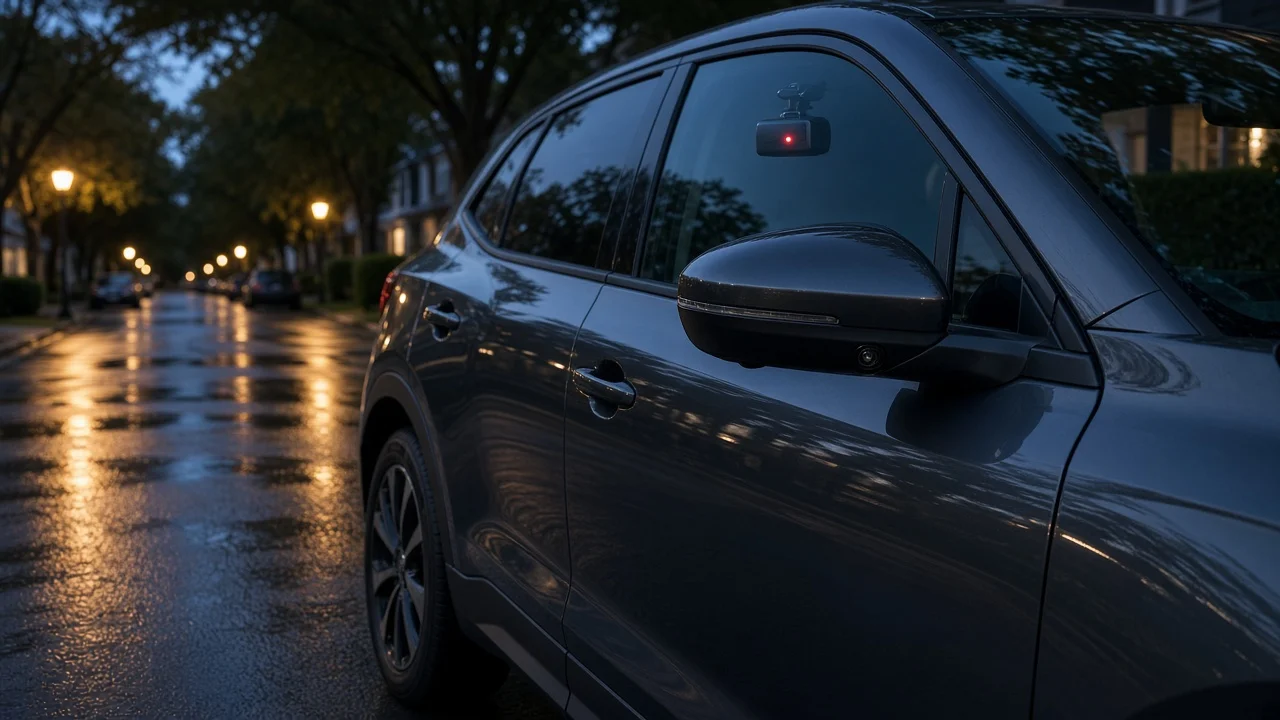
The Short Answer
If your side cameras stopped recording after a dashcam update, the cause is usually one of three things. The update reset your settings, the memory card no longer suits the new firmware, or a camera channel lost its connection or was disabled. In most multi-channel systems, side cameras are turned on per channel in the recording or camera settings menu, either on the unit or in its companion phone app. After any update, check those settings, reformat the memory card in the camera, and make a short test recording that you play back for every channel. That last step matters most.
One qualification changes the answer. Some vehicles record through factory-installed cameras, sometimes using the car's own side or repeater cameras. Those systems are controlled through the vehicle's software, not an aftermarket dashcam. Whether side recording is offered at all, and where the setting lives, depends on the manufacturer, model year, hardware version and market. If your recording is built into the car, the steps below still apply in principle, but the menu locations and limits come from the vehicle maker.
What "Side Camera Recording" Means
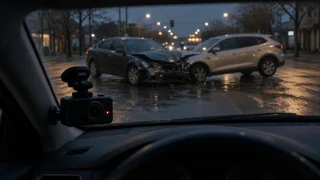
Dashcams are often described by how many channels they record. Each channel is one camera feed written to storage. A single-channel unit records the forward view only. A two-channel system usually adds a rear camera. Three- and four-channel systems add an interior camera, side-facing cameras, or both. Side cameras capture what front and rear units tend to miss, such as sideswipes, lane-change contact, T-bone impacts at intersections, and damage to a parked car from an adjacent vehicle or door.
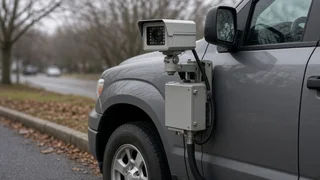
Side cameras typically plug into the main unit or a central hub with a cable. Some multi-camera systems use one recorder that combines several feeds, while others treat each camera as a separate module. That design affects troubleshooting. A hub-based system may drop a side channel when a connector shifts, while a modular system may need each camera paired or recognized again after an update.
Why Updates Can Switch Side Recording Off
Settings reset: Many firmware updates restore factory defaults. Defaults may enable only the front channel, or front and rear, which leaves side channels off. New or renamed menu options: An update can move channel controls into a different menu, rename them, or split one setting into several, such as separate toggles for driving and parking recording. Resource changes: New firmware may change how the processor shares bandwidth among cameras. Some units then limit the number of channels that can record at the highest resolution or frame rate at once. Storage format mismatch: Firmware may expect the card to be formatted by the camera itself. A card formatted under the old firmware, or on a computer, can cause write errors or skipped channels. App and firmware out of sync: If the companion app updated but the camera did not, or the reverse, channel settings may not display or save correctly. Interrupted update: Power loss during an update can leave the unit partly updated, and the result can be unpredictable behavior, including missing channels.
Step-by-Step: Getting Side Cameras Recording Again
1) Confirm the update finished. Check the firmware version shown in the device or app information screen. If the update looks incomplete, run it again using the method the manufacturer specifies, with a stable power supply. 2) Update the companion app as well. Firmware and app versions are often designed to work together. 3) Open the camera or recording settings and find the per-channel controls. Enable each side channel for normal driving recording. 4) Check parking mode separately. Many units treat parking recording as its own profile, with its own channel selection. 5) Review resolution and frame rate. If the unit cannot run every channel at maximum quality, a side channel may be dropped or greyed out. Lowering the front or rear resolution slightly can free up capacity. 6) Reformat the memory card in the camera, using the device's own format function, after backing up any footage you want to keep. 7) Reseat the side camera cables at both ends with the power off, and check for pinched or strained cables near doors and trim panels. 8) Restart the system, then confirm the live view or status indicators show every camera. 9) Record a short test drive, then play back the files from each channel, on the device, in the app or on a computer.
Memory Card Considerations
Adding side channels multiplies the amount of data written to the card, which affects both capacity and wear. With loop recording, the dashcam overwrites the oldest files when the card fills. More channels mean that cycle runs faster, so the history available after an incident gets shorter unless you use a larger card or lower the quality settings.
Constant writing from several cameras is also hard on cards. Cards sold as high-endurance or rated for video surveillance are generally better suited to this work than standard cards. Check the maximum card capacity and speed class your unit supports. Some updates change those limits, and an unsupported card is a common reason for channels that record intermittently or not at all.
Trade-Offs When Enabling Extra Channels
Factor | Effect of adding side channels | Practical response; Storage use | Each added camera adds data, so loop history gets shorter | Use a larger supported card or reduce resolution on lower-priority channels; Video quality | Some units lower per-channel resolution or frame rate when more cameras are active | Keep the front camera at the highest quality and accept lower quality on side views if needed; Parking mode power draw | More active cameras use more power while the vehicle is off | Review low-voltage cutoff settings and consider event-only parking recording; Heat | More processing and writing can raise unit temperature, especially in direct sun | Keep the mount area ventilated and watch for overheating warnings; Card wear | More writes shorten card life | Use endurance-rated cards and replace them on a regular schedule
Making Sure Side Footage Works as Collision Evidence
Recording side video is only useful if the footage survives and stays usable after an incident. A few habits make that much more likely.
Check the date and time. Updates can reset the clock, and footage with a wrong timestamp is harder to rely on when you explain an incident to an insurer or police. If your unit offers GPS or app-based time sync, turn it back on. Check impact sensitivity. The G-sensor detects sudden forces and locks the current clip so loop recording cannot overwrite it. Settings may have changed after the update. Too low a setting can miss a minor sideswipe, while too high a setting fills protected storage with clips from potholes. Confirm that event locking covers every channel. On most multi-channel systems, a triggered event protects all channels at once. Some units do not, so verify that a locked event includes side footage. Save footage promptly after an incident. Use the manual event button if your unit has one, then copy the files from the card or app to another device as soon as it is safe to do so. Keep the original files. Export copies for sharing, but keep the unedited originals with their file names and metadata intact.
When the Side Channel Still Will Not Record
Suppose you have done all of the above and a side camera still shows no feed or produces no files. Try connecting that camera to a different port, or a known-good camera to the problem port, if the system allows it. That separates a faulty camera or cable from a faulty input. If the problem began right after the update and affects a camera that worked before, check whether the manufacturer has released a later firmware revision or support guidance for the issue. Some brands also allow rolling back to an earlier version, though not all do.
For vehicles with factory-integrated recording, side recording may depend on the vehicle's hardware version, a specific software release, or the market where the car is sold. If the option is missing from the menu after an update, it may not be supported on that configuration. A dealer or the manufacturer's support channel can usually confirm this.
Bottom Line
After any dashcam update, assume your settings may have changed until you confirm they have not. Re-enable side channels in both driving and parking profiles, reformat the card in the camera, check the timestamp and impact sensitivity, and play back a test clip from every camera. A few minutes of checking after each update keeps you from finding out after a collision that the side angle was never recorded.