Connect a Laptop to Car Bluetooth
The Short Answer
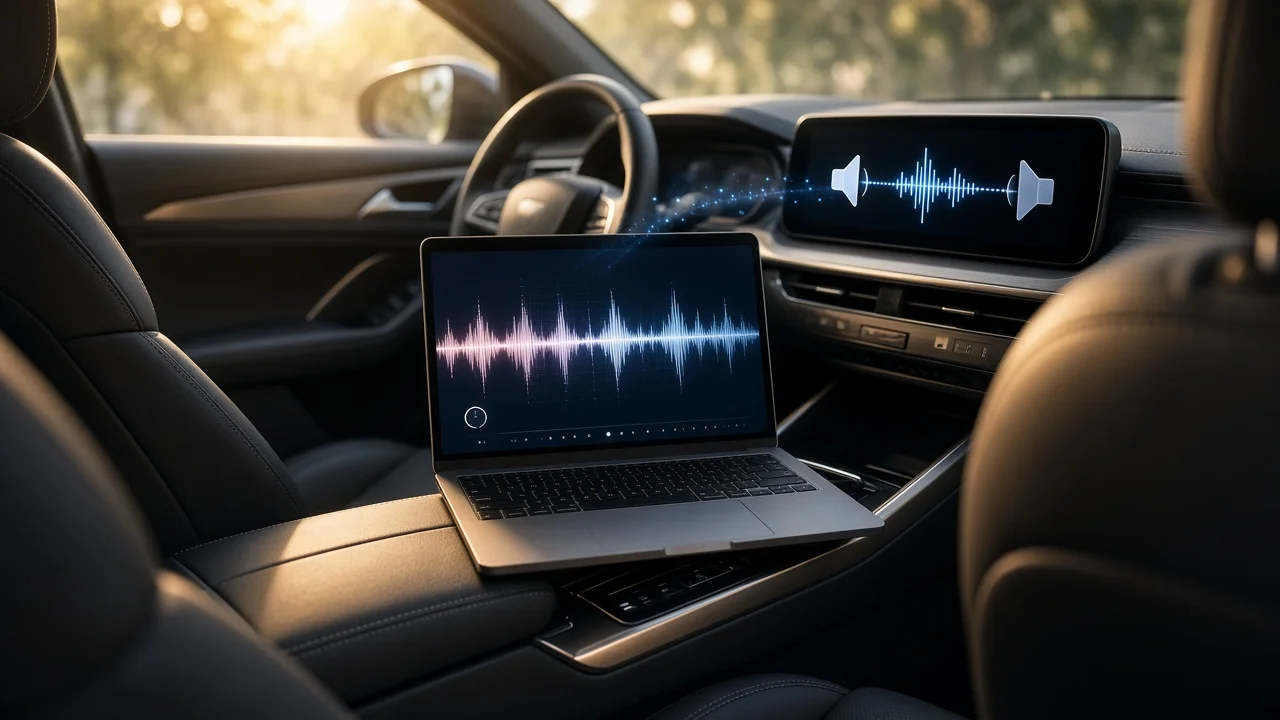
In many cases you can pair a laptop with a car's Bluetooth system and play its audio through the car speakers, using the same pairing process you would use for a phone. Whether it works depends on the vehicle, because most car infotainment and hands-free systems are designed with phones in mind. Some head units accept a laptop as a media audio source, some accept it only partially, and some may not pair with it at all. Support varies by manufacturer, model year, trim and infotainment software version, so check the owner's manual or infotainment documentation for your specific vehicle.
Why Laptops Behave Differently From Phones
Bluetooth devices communicate through profiles, which are standardized sets of functions. Two matter most in a car. A2DP (Advanced Audio Distribution Profile) carries stereo media audio such as music, podcasts or video sound. HFP (Hands-Free Profile) carries phone call audio in both directions, using the car's microphone and speakers.
Laptops running current versions of Windows and macOS can generally send media audio over A2DP, which is the same way they stream to a Bluetooth speaker. That is the connection most likely to work with a car. Hands-free calling is different: a car system expects a phone to supply the call connection, and laptops are not usually set up to play that role. As a result, call-related features in the car, such as the car microphone, call controls and contact syncing, may be unavailable or behave unpredictably with a laptop. Exact behavior has not been confirmed for any particular vehicle or laptop here, so treat this as a general expectation rather than a guarantee.
What You Need Before You Start
A laptop with built-in Bluetooth or a working Bluetooth adapter, with Bluetooth turned on. The vehicle parked in a safe location. Many vehicles restrict or block new device pairing while moving, and you should not operate a laptop while driving. The ignition or accessory power on so the infotainment system is active. Access to the vehicle's Bluetooth or phone settings menu on the infotainment screen or instrument cluster. Optionally, the owner's manual, which describes the exact menu names and any limit on how many devices can be paired.
Step-by-Step: Pairing a Laptop With the Car
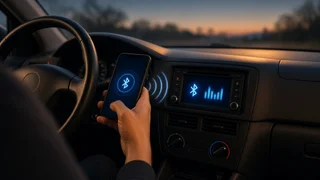
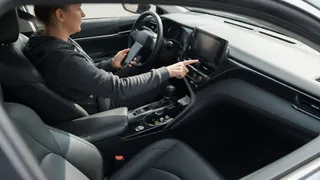
1) With the vehicle parked, open the infotainment system's Bluetooth, Phone or Connections menu and choose the option to add or pair a new device. This makes the car discoverable. Menu names differ by manufacturer. 2) On a Windows laptop, open Settings, go to Bluetooth & devices, choose Add device, then select Bluetooth. On a Mac, open System Settings and select Bluetooth. Exact menu wording can vary by operating system version. 3) Wait for the car's name to appear in the laptop's list of nearby devices, then select it. 4) If a passkey or PIN appears, confirm that the code shown on the laptop matches the one on the car's screen, then accept on both sides. 5) If the car asks for permissions such as contact or message access, you can decline them. They are intended for phones and are unlikely to be useful from a laptop. 6) Once connected, check that the car is selected as the laptop's audio output. On Windows this is in the sound output settings; on a Mac it is in the Sound settings or the menu bar sound control. 7) On the infotainment system, switch the audio source to Bluetooth Audio or the equivalent media source.
How to Confirm It Worked
Play a song or video on the laptop with the car's audio source set to Bluetooth media. If you hear sound through the car speakers and the laptop's volume control changes the output, the media connection is working. If the car lists the laptop as connected but no sound plays, the usual causes are the laptop still sending audio to its own speakers or the car's source still set to radio or another input.
Call Audio and Video Meetings
If your goal is to take a video call or online meeting through the car, expect limitations. Even when meeting audio plays through the car speakers, the laptop will probably keep using its own microphone rather than the car's. Some systems may also route the laptop's audio as a hands-free connection, which can reduce sound quality, or may not support it at all. Whether a particular vehicle handles a laptop's call audio could not be confirmed from available evidence. For calls made while driving, a phone paired through the car's hands-free system remains the configuration these systems are built for, and any video or screen use should stay limited to when the vehicle is parked.
If Pairing Fails
Make sure the car is in pairing mode at the same time the laptop is searching, since discoverable windows can time out. Remove unused devices from the car's paired list if it has reached its device limit, which varies by vehicle. On the laptop, remove any old entry for the car and pair again from the start. Turn Bluetooth off and on on the laptop, or restart the infotainment system by switching the vehicle off and on. Check whether a laptop operating system update or a Bluetooth driver update is available. If the car still will not accept the laptop, the head unit may not support that type of device. A dealer can confirm compatibility and whether an infotainment software update applies to your vehicle.
Wired Alternatives
If Bluetooth will not work, some vehicles have an auxiliary audio input that accepts a standard headphone cable from the laptop, which carries media audio without pairing. Many newer vehicles have dropped this input, so availability depends on the model and year. USB ports in cars are typically intended for phone integration, charging or media storage and usually will not accept a laptop as an audio source, though behavior varies by vehicle.
Information Gaps
No vehicle-specific compatibility data, test results or manufacturer statements about laptop pairing were available for this guide. The steps above describe the general process used by common car systems and current laptop operating systems. Confirm menu paths, supported profiles and device limits in your vehicle's documentation before relying on a laptop connection.