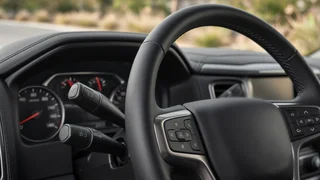
Chevy Trax Steering Wheel Controls: What Each Button Does and How Layouts Differ
The Chevrolet Trax uses steering wheel–mounted buttons so the driver can handle common tasks without reaching for the center screen. Depending on model year and trim, these controls typically cover audio volume and source, phone calls, voice commands, cruise control and, on newer models, the driver information display in the instrument cluster. The exact button set and placement are not the same across every Trax. The biggest dividing line is between the first-generation model, sold in the US for model years 2015 through 2022, and the redesigned second generation that arrived for the 2024 model year. Trim level and optional packages also decide whether features such as adaptive cruise control or a heated steering wheel are present.
The Short Answer
Most Trax steering wheels group buttons by job: one cluster handles audio, phone and voice, and another handles cruise control and related driving functions. Newer models add buttons or a directional pad for scrolling through cluster menus. If your Trax has a feature, its control is usually on the wheel. If it lacks the feature, the matching button is either absent or replaced by a blank panel. The owner's manual for your specific model year is the definitive reference for button placement.
Common Control Groups at a Glance
Control group | Typical functions | Availability notes; Audio | Volume up and down, mute, next or previous track or station, favorites or source selection | Found on Trax models with steering wheel audio controls; Phone | Answer or start a call, end or decline a call | Works only with a paired Bluetooth phone; Voice | Activate the built-in voice recognition, or the phone's assistant through smartphone projection | Behavior depends on infotainment system and phone connection; Cruise control | On/off, set, resume, accelerate, decelerate, cancel | Availability varied by year and trim on first-generation models; Adaptive cruise gap | Adjusts the following distance to the vehicle ahead | Only on trims or packages equipped with adaptive cruise control; Driver assistance | Turns lane keeping functions on or off, where equipped | Depends on the safety features fitted to the vehicle; Information display | Scrolls and selects cluster menus such as trip data, fuel economy and vehicle settings | More often on the wheel in newer models; some earlier years used the turn-signal stalk
How the Generations Differ
First Generation (US Model Years 2015–2022)
First-generation Trax models generally offered audio, phone and voice buttons on the wheel, with cruise control buttons on equipped vehicles. Equipment varied with trim and year, and the 2017 refresh brought interior and infotainment updates. Some earlier versions handled the driver information center through a button and thumbwheel on the turn-signal stalk rather than through the steering wheel. If you are shopping for a used first-generation Trax, check the actual vehicle instead of assuming a particular button set from the model name alone.
Second Generation (2024 Model Year Onward)
The redesigned Trax has a modernized steering wheel that reflects current Chevrolet design. It includes controls for audio, phone and voice, along with cruise control and navigation of the digital driver display. Driver assistance features from the Chevy Safety Assist suite, such as lane keeping, can have a dedicated control. Trims equipped with adaptive cruise control add a following-distance button. Some trims or packages offer a heated steering wheel, controlled by a dedicated button or through the climate or infotainment menus depending on the vehicle. Because Chevrolet can revise layouts between model years, treat these as general patterns rather than a guaranteed specification for every 2024 or later Trax.
Using the Main Functions
Audio and Media
The volume controls work the same way as the radio's volume knob. The mute button silences audio, and on some systems it also ends or declines a call. A favorites or next/previous control cycles through saved stations or skips tracks, depending on the active source. When Apple CarPlay or Android Auto is running, track controls usually pass through to the phone's media app.
Phone and Voice
The phone buttons only work after a phone is paired over Bluetooth or connected through smartphone projection. The voice button typically starts the vehicle's own voice recognition. On many Chevrolet systems, pressing and holding it, or pressing it while CarPlay or Android Auto is active, hands the request to Siri or Google Assistant instead. If voice commands open the wrong assistant, check whether smartphone projection is connected and how long you are holding the button.
Cruise Control
Press the cruise on/off button to arm the system. An indicator appears in the cluster. Once you reach your desired speed, press set to lock it in. Use the plus and minus controls, or the resume and set controls, to raise or lower the set speed in small steps. Press cancel or tap the brake to suspend cruise while keeping the system armed. Press resume to return to the previous set speed when conditions allow. On vehicles with adaptive cruise, use the gap button to choose a closer or farther following distance.
Driver Information Display
Where the wheel includes cluster controls, a directional pad or arrow buttons move between display pages, and a center or select button confirms a choice. These menus commonly show trip odometers, fuel economy, tire pressure, oil life and some vehicle personalization settings. If your Trax has no wheel-mounted display controls, look for a button or thumbwheel on the turn-signal stalk.
If a Button Stops Working
Confirm that the vehicle is equipped with the feature. A button that does nothing may control an option the vehicle does not have. For phone and voice buttons, check the Bluetooth pairing and try reconnecting the phone. Turn the vehicle fully off, open and close the driver's door, and restart. Doing so often clears a temporary infotainment glitch. Check for available infotainment or software updates through the dealer or the vehicle's update menu, if supported. If several wheel buttons fail together, or the horn or airbag warning light is also affected, the clock spring may be at fault. The clock spring is a coiled connector that carries signals from the rotating steering wheel to the vehicle. Have it diagnosed by a qualified technician, since it sits next to the driver airbag. If only one button fails, a worn switch or a fault in the switch assembly is more likely than a wiring problem.
What This Means When Choosing a Trax
If steering wheel controls matter to you, focus on the features behind them rather than the buttons themselves. Adaptive cruise control, a heated wheel and wheel-mounted cluster navigation are tied to specific trims and packages, especially on the second-generation model. For a used first-generation Trax, sit in the vehicle and check which buttons are present and working, including cruise control, which was not standard on every configuration. Pairing a phone during a test drive is a quick way to confirm that the phone and voice buttons respond.
Bottom Line
Chevy Trax steering wheel controls cover the everyday essentials, including audio, calls, voice commands and cruise control, and newer models add display navigation and driver assistance functions. The details depend on generation, model year and trim. Use the owner's manual for your exact vehicle to confirm what each button does, and check equipment directly when buying used.