Integra Bluetooth Pairing: How It Works by Generation and What to Do When It Won't Connect
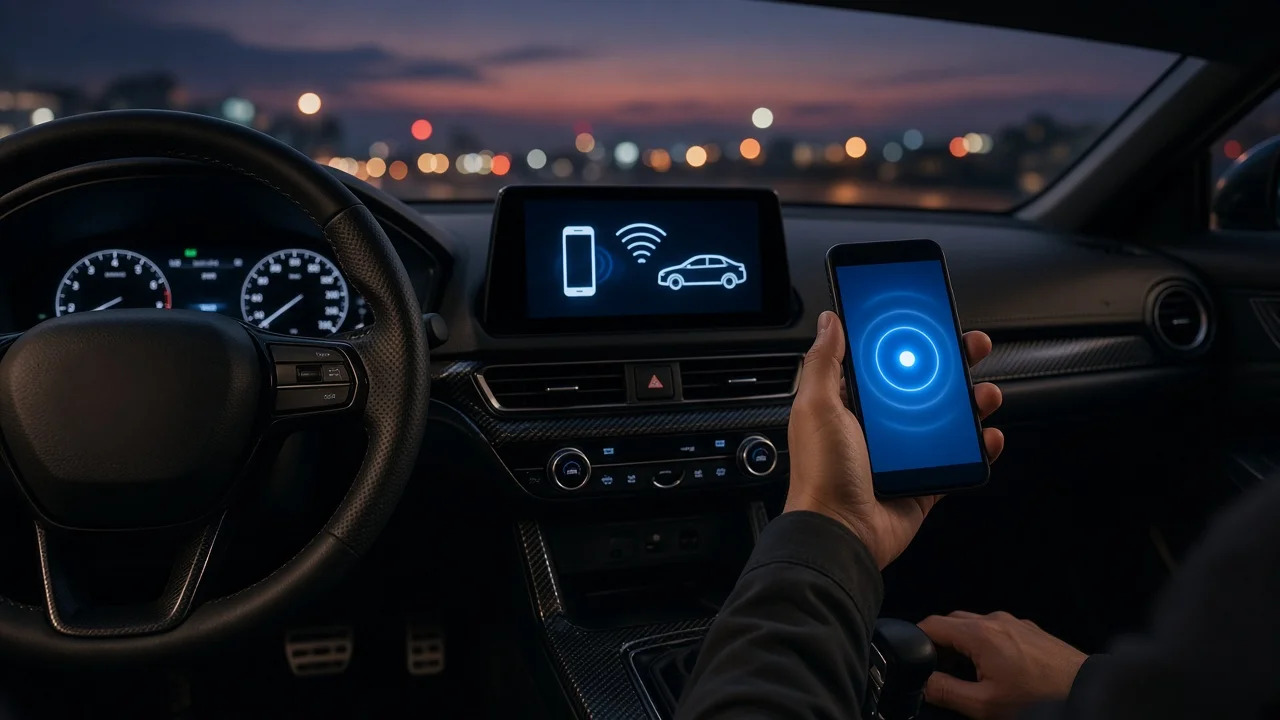
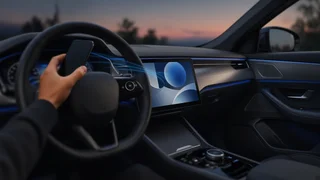
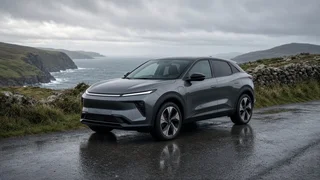
Integra Bluetooth pairing depends on which Integra you have. The current Acura Integra, sold in the US from the 2023 model year, has Bluetooth hands-free calling and audio streaming built into its infotainment system, and you pair a phone through the touchscreen or the steering wheel phone controls. The earlier Acura Integra, sold in the US through the 2001 model year, predates factory Bluetooth. Adding wireless calls and music to those cars means installing aftermarket hardware such as a Bluetooth head unit or an interface adapter. This guide explains both cases, how the pairing process generally works, and what to check when a phone will not connect or call audio misbehaves.
Which Integra Are You Pairing?
Most of the confusion around this topic comes from the long gap in the nameplate. In the US, Acura sold the Integra through 2001 and then replaced it with the RSX. The Integra name returned as a new model for 2023. Phone integration differs completely between these two eras, so start by identifying your car.
Integra era (US market) | Factory Bluetooth | How phone connection works; 1986–2001 Acura Integra | No | Requires aftermarket equipment: Bluetooth head unit, add-on interface adapter, or a simpler audio-only device; 2023 and later Acura Integra | Yes | Built-in Bluetooth hands-free calling and audio streaming, plus smartphone projection (Apple CarPlay and Android Auto); features and screen size vary by trim and model year
Readers outside the US may also see the Honda Integra name, which was used in other markets with different equipment. The general principles below still apply, but menus and features can differ by market.
Pairing a Phone in the 2023+ Acura Integra
The current Integra uses Acura's hands-free system, which Honda and Acura have long called HandsFreeLink. Device pairing creates a trusted link between the phone and the car, so the car can reconnect automatically on later drives. The exact wording of menus can change with trim level, display type and software version, so treat the steps below as the general sequence rather than an exact script.
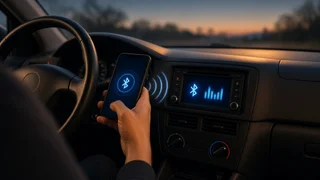
1) Park the car with the ignition or power on. Many vehicles restrict pairing while the car is moving. 2) Turn on Bluetooth on your phone and keep the phone unlocked on its Bluetooth settings screen. 3) On the Integra's display, open the phone or connection settings area and choose the option to add or connect a new device. Pressing the phone button on the steering wheel when no phone is paired typically prompts you to start pairing as well. 4) On your phone, select the vehicle's name from the list of available Bluetooth devices. 5) Confirm that the numeric code shown on the phone matches the code on the car's screen, then accept on both. 6) Allow or decline access to contacts, call history and messages when the phone asks. Declining limits what the car can display, but calls still work. 7) Make a short test call and play some audio to confirm both the hands-free and streaming profiles connected.
Bluetooth Pairing vs. Apple CarPlay and Android Auto
Bluetooth pairing and smartphone projection are related but not the same. Plain Bluetooth handles calls and music streaming through the car's own interface. Apple CarPlay and Android Auto project a phone-style interface onto the car's screen. Depending on trim, the Integra supports these through a USB cable or wirelessly; wireless projection generally relies on an initial Bluetooth handshake followed by a Wi-Fi connection. When projection is active, calls and audio usually route through CarPlay or Android Auto instead of the standard hands-free menus. If call behavior seems inconsistent, check which mode the phone is actually using.
Steering Wheel Controls and Voice
In the current Integra, the steering wheel interface includes buttons for answering, ending and placing calls, adjusting volume and triggering voice commands. Once a phone is paired, a long or short press of the talk button typically activates either the car's voice system or the phone's own assistant, depending on whether smartphone projection is in use. The microphone is mounted in the cabin rather than on the phone, so call clarity depends on cabin noise and how loudly you speak toward it.
Adding Bluetooth to a Classic Integra (Through 2001)
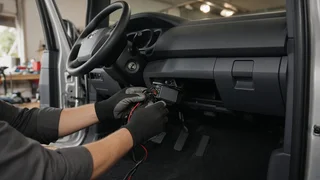
Older Integras left the factory with conventional radios, so true Bluetooth pairing requires vehicle integration through aftermarket parts. The right choice depends on whether you want hands-free calling, music streaming, or both, and how much you want to preserve the original dashboard.
Option | What it does | Trade-offs; Aftermarket Bluetooth head unit | Replaces the factory radio with a unit that handles calls, streaming and often smartphone projection; usually includes an external microphone | Best overall integration; needs a dash kit and wiring harness adapter for a clean fit and changes the original look; Add-on interface adapter | Connects to a compatible factory or aftermarket radio input to add Bluetooth audio, sometimes with calling | Keeps the existing radio; depends entirely on the radio having a usable input or expansion connection; Aux or cassette-input Bluetooth receiver | Small receiver plugged into an auxiliary or cassette input | Inexpensive and simple; call quality and controls are usually basic; FM transmitter | Broadcasts phone audio to an unused FM frequency | Works with any radio; prone to interference and lower audio quality
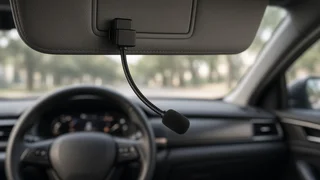
When shopping, check software compatibility with your phone's operating system, whether the unit supports both hands-free calling and audio streaming profiles, and where the microphone can be mounted. A microphone placed near the headliner or A-pillar usually picks up voice better than one buried low in the dash. If you plan to add steering wheel controls later, confirm the head unit accepts a steering wheel interface module, since that capability varies widely between brands.
When Integra Bluetooth Won't Pair or Connect
Most pairing failures come from stale pairing records, a phone that is connected elsewhere, or software mismatches rather than faulty hardware. Work through these steps in order.
Delete the existing pairing on both sides: remove the car from the phone's Bluetooth list and remove the phone from the car's device list, then pair again from scratch. Disconnect the phone from other Bluetooth devices such as earbuds, smartwatches or another vehicle that may grab the connection first. Restart the phone, then turn the car off and on again so the infotainment system reloads. Check the car's paired-device list; if it is full, delete devices you no longer use before adding a new one. Install pending phone software updates, and check whether the vehicle's infotainment software has an update available through the dealer or the car's update function. Make sure the car is parked and you are not rushing the confirmation prompts, which can time out.
Fixing Call Audio Problems
If the phone connects but call audio is poor, the cause is usually routing or settings rather than the pairing itself.
No sound during calls: confirm the phone's audio output is set to the car and not to the handset or earbuds. Caller cannot hear you: check that nothing is blocking the cabin microphone and reduce fan speed or window noise during the call. Echo or low volume: adjust call volume using the steering wheel controls while a call is active, since call and media volume are often stored separately. Music plays but calls fail, or the reverse: the phone may have connected only one Bluetooth profile; deleting and re-pairing usually restores both. Calls behave differently on different drives: check whether CarPlay or Android Auto is connecting some days and plain Bluetooth on others.
The Bottom Line
For a 2023 or newer Acura Integra, Bluetooth pairing is a built-in, touchscreen-guided process, and most problems are solved by clearing old pairings and checking whether smartphone projection is taking over. For a classic Integra, there is no factory Bluetooth to pair with, so the real decision is which aftermarket path fits your needs, with a Bluetooth head unit offering the most complete integration and simpler adapters trading features for lower cost and less dash work. For trim-specific menu wording or features, the owner's manual for your exact model year remains the most reliable reference.