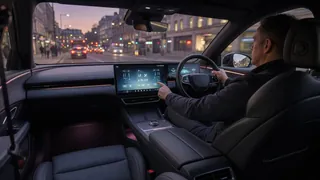
Find Cars With a Touchscreen Dashboard: What to Check Before You Buy
The short answer
If you are shopping for a new car in the US, finding one with a touch screen dashboard is easy. A center touchscreen is now standard or widely available across most mainstream brands and body styles, from compact sedans to full-size trucks. The harder part is confirming that the specific vehicle you are considering has the screen you actually want. Screen size, software, phone integration and the split between touch and physical controls often change by model year, trim level and option package, sometimes within the same model.
Two conditions change the answer. First, if you are buying used, especially an older or base-trim vehicle, a touchscreen is far from guaranteed, and some cars have a non-touch display or an aftermarket unit instead. Second, the phrase "touchscreen dashboard" means different things to different shoppers, so it helps to decide which kind of screen you are looking for before you compare cars.
What "touchscreen dashboard" usually refers to
Modern dashboards can contain several displays, and only some of them respond to touch. Knowing which one you care about keeps your search focused.
Center infotainment touchscreen: the most common meaning. It sits in the middle of the dash and typically handles audio, navigation, phone connection, the backup camera view and vehicle settings. Digital instrument cluster: the screen behind the steering wheel that replaces analog gauges. It shows speed, fuel or charge level, warning indicators and display messages. It is usually controlled with steering-wheel buttons, not by touch. Integrated or panoramic displays: some vehicles join the cluster and center screen under one wide piece of glass. Typically only the center portion is touch-sensitive, even though it looks like one continuous screen. Secondary touch panels: some vehicles add a separate lower touchscreen or touch-sensitive panel for climate controls, or a display on the passenger side. Touch-sensitive buttons: capacitive buttons or sliders on the dash or steering wheel that respond to touch without being part of a screen.
Most shoppers searching for cars with a touch screen dashboard mean the center infotainment screen. If you specifically want a large display, a fully digital driver's display or touch-controlled climate settings, treat each as a separate feature to verify, because they are often packaged differently.
How to confirm a specific car has the screen you want
Because displays vary by trim and year, a model name alone is not enough. Use the following identifiers to pin down exactly what a given vehicle has.
Model year and trim: check the manufacturer's current build-and-price tool or brochure for the exact year and trim. Base trims frequently get a smaller screen or fewer features than upper trims, and a mid-cycle refresh can change the dashboard layout from one year to the next. Option packages: a larger screen, built-in navigation or a digital instrument cluster may be bundled into a technology or convenience package rather than tied to a trim. Window sticker: on a new car, the federally required window sticker lists standard and optional equipment, usually including the screen size and display features. VIN-based build information: for a used car, a dealer or the manufacturer can often decode the VIN to show the original factory equipment. This helps you tell a factory screen from a later aftermarket installation. Owner manual: the owner manual for the applicable year describes the infotainment system, what each display shows, and which functions are touch-controlled versus button-controlled. Many manufacturers make manuals viewable online by year and model. In-person inspection: listings and photos sometimes show a higher trim than the actual car. Sit in the vehicle, power it on and confirm the screen, its size and its features yourself.
Telling look-alike variants apart
Several dashboard setups can look nearly identical in photos. These clues help separate them.
Screen size versus bezel: two versions of the same dashboard may share a housing while one has a smaller active screen surrounded by a wide black border. Turn the system on and look at the lit area, not the trim piece. Touch versus non-touch displays: some vehicles use a display controlled only by a rotary knob, touchpad or buttons. Tap the screen during your inspection to confirm it responds. Factory versus aftermarket: aftermarket head units often show their own brand logo on startup, may not match the dash trim perfectly, and may not display factory vehicle settings, climate information or some warnings. Ask the seller, and compare against the VIN build information. Navigation and phone integration: built-in navigation, wired or wireless Apple CarPlay and Android Auto, and connected services can vary by trim and year even when the screen looks the same. Check the settings menus or connect your phone during the test drive.
What to evaluate beyond having a screen
Nearly every new car has some kind of touchscreen, so the useful comparison is how well it works for you day to day. Spend a few minutes with the system before committing.
Responsiveness: note how quickly the system starts after you power on the car and how fast it reacts to taps and swipes. Lag is easy to spot in person and hard to judge from a spec sheet. Physical controls: check whether volume, climate temperature, fan speed and defrost have dedicated knobs or buttons, or whether you must go through the screen. Many drivers find physical controls easier to use without looking away from the road. Layout and menu depth: try common tasks such as changing the audio source, adjusting climate, pairing a phone and opening the camera view. Count how many taps they take. Reach and placement: sit in your normal driving position and confirm you can reach the whole screen comfortably, including the far side. Glare and visibility: if possible, look at the screen in daylight. Reflective glass or a poor viewing angle can make some displays hard to read. Phone integration: confirm whether Apple CarPlay or Android Auto is supported, whether it is wired or wireless, and whether it fills the full screen or only part of it. Software updates: ask whether the system receives over-the-air updates or needs a dealer visit, and whether any features depend on a paid subscription after a trial period.
Where critical vehicle information appears
As dashboards become more screen-based, it is worth understanding where the car communicates its operating status. In most vehicles, essential driving information and warning indicators, such as low oil pressure, brake system, engine, tire pressure and charging warnings, appear in the instrument cluster in front of the driver. More detailed display messages and settings may appear on the center screen.
During a test drive, check that the instrument cluster is easy to read and that the main warning lights illuminate briefly at startup, which is a normal self-check in many vehicles. Use the owner manual for that model year to learn what each warning indicator means, since symbols and colors vary between manufacturers.
Extra checks when buying used
Touchscreens are durable, but they are electronic components that can wear or fail, and replacements can be expensive. On a used vehicle, look for the following.
Dead zones or ghost touches: tap across the whole screen, including corners and edges, and watch for areas that do not respond or inputs that register on their own. Screen surface damage: look for cracks, delamination, bubbling, discoloration or a hazy layer, which can affect readability and touch response. Reboots and freezes: leave the system running through the test drive and note any restarts, frozen screens or lost connections. Camera and audio function: confirm the backup camera image appears promptly and clearly, and that all speakers and audio sources work. Stored warnings: check the center screen and instrument cluster for any lingering display messages, and ask a mechanic to run a diagnostic check during a pre-purchase inspection. Infotainment faults do not always trigger a dashboard warning, so a scan can reveal issues that are not obvious. Software status: ask whether the system has received available updates and whether older versions of phone integration or navigation are still supported.
Trade-offs to weigh
A larger, more capable touchscreen is not automatically better. Moving controls onto the screen can reduce dashboard clutter and allow software improvements over time, but it can also make simple adjustments harder while driving and increase repair costs if the unit fails out of warranty. Screens on upper trims may come bundled with other features you do not need, raising the price. Older systems can also lose functionality as phone software and connected services move on. Decide which functions you want on the screen and which you prefer to keep on physical controls, and let that guide your trim choice.
Next steps
Decide which display matters to you: a center touchscreen, a digital instrument cluster, touch-controlled climate settings or a large integrated panel. Shortlist models in your budget and body style, then compare their screens trim by trim for the exact model year using manufacturer build-and-price tools or brochures. For a new car, confirm the equipment on the window sticker. For a used car, verify factory equipment through the VIN and look for signs of an aftermarket unit. Test the system in person: responsiveness, physical controls, phone connection, glare, reach and the camera view. On a used car, add a screen inspection and a diagnostic check to your pre-purchase inspection, and ask about software updates and any subscription-based features.