How to Use Chevrolet Tahoe Steering Wheel Controls
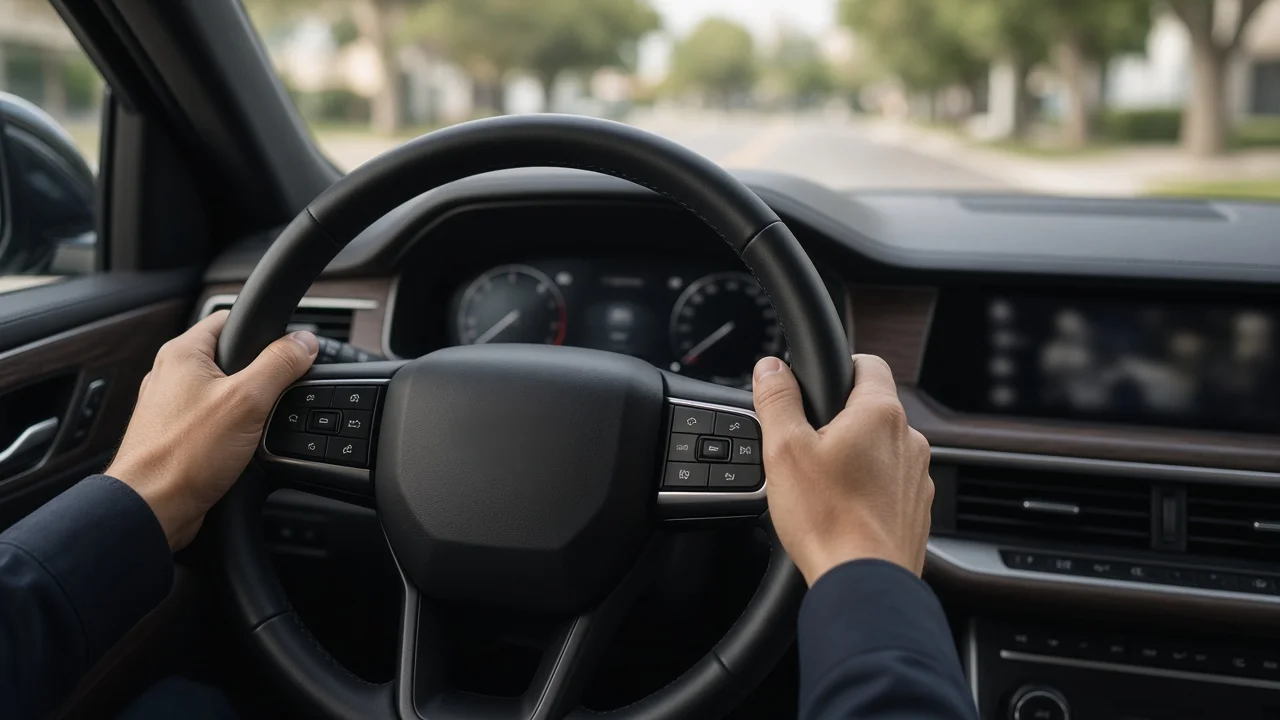
Chevrolet Tahoe steering wheel controls let you adjust audio, take phone calls, use voice commands, set cruise control and move through the driver information display without taking your hands off the wheel. The basic idea is the same across recent Tahoes, but the exact buttons, their layout and what they can do depend heavily on the model year, generation and trim. A late-model Tahoe with a large touchscreen and driver-assistance features has a more complex steering wheel interface than an early-2000s truck with a basic radio. Treat this guide as an overview of how the controls generally work, then confirm the details for your specific vehicle in its owner's manual or on-screen settings.
The short answer
On most Tahoes that have them, the steering wheel controls fall into a few groups: audio buttons for volume, source and track or station seek; phone and voice buttons for answering, ending and placing calls or starting voice recognition; cruise control buttons for setting and adjusting speed; and a directional pad or similar control for scrolling through the instrument cluster's driver information center. Some equipped trims add buttons for features such as a heated steering wheel, following-distance adjustment for adaptive cruise control or a hands-free driver-assistance system. If a button is missing or appears as a blank, that feature was likely not ordered on that vehicle.
How the controls differ by generation
Because the Tahoe has gone through several generations, the steering wheel is one of the clearest places where older and newer trucks differ. The descriptions below are general and should be read as typical patterns rather than a guarantee for every trim or package.
Era | General character of the steering wheel controls; Early Tahoes (1990s) | Many trucks had few or no audio buttons on the wheel; cruise control was often operated from a stalk or wheel-mounted switches depending on equipment. Early-to-mid 2000s | Audio controls became more common on better-equipped trims, usually covering volume and seek, alongside cruise control switches. Late 2000s to mid 2010s | Wider availability of audio, phone and voice buttons as Bluetooth and onboard communication services spread; controls for the driver information display became more integrated. Mid-2010s onward | More fully integrated layouts with dedicated phone, voice and driver information controls, tied closely to the touchscreen infotainment system. Current generation (2021 onward) | The most feature-rich setup, with controls that can include adaptive cruise and driver-assistance functions on equipped trims, plus deeper integration with smartphone projection.
Audio controls
Audio buttons are usually the most-used part of the steering wheel interface. Volume up and down work as expected. A seek or next/previous control moves between radio stations, presets or tracks depending on the active source. A source or mode button, where fitted, cycles through inputs such as radio, satellite radio, USB or Bluetooth audio. A mute or similar button may also pause playback on some systems. On newer Tahoes, some of these buttons may behave differently when a smartphone projection app is active, because the phone app can take over certain media functions.
Phone and voice controls
Phone controls let you answer or end calls and, on many models, start a call through voice recognition. The voice button generally does one of two things: a short press often opens the vehicle's built-in voice recognition, while a longer press on compatible systems may hand the request to your phone's own assistant when the phone is connected through smartphone projection. Behavior varies by model year and infotainment software, so if a press does something unexpected, try the other press length or check the voice settings on the touchscreen.
Pairing a phone so the buttons work
The phone buttons only control calls after device pairing is complete. The general process on Tahoes with Bluetooth is similar across model years, although menu names vary:
With the vehicle in park, open the phone or connection settings menu on the infotainment screen, or use the voice button and follow the prompts on older systems. Choose the option to add or pair a device so the vehicle becomes discoverable. On your phone, open Bluetooth settings and select the vehicle from the list. Confirm that the codes shown on the phone and the vehicle screen match, if prompted. Allow contact and call history access if you want to call by name using voice commands. Place a test call and use the steering wheel buttons to answer and end it.
If the buttons stop controlling calls, deleting the phone from the vehicle's device list and from the phone's Bluetooth list, then pairing again, often resolves the problem. Phone and infotainment software updates can also affect software compatibility, so keeping both up to date is a reasonable first step when connection behavior changes.
Cruise control and driver-assistance buttons
Cruise control is typically grouped on one side of the wheel. A main on/off button arms the system, a set control locks in your current speed, and resume or adjust controls raise or lower the set speed or return to a previously set speed after braking. A cancel function disengages cruise without turning the system off. On Tahoes equipped with adaptive cruise control, an additional button usually adjusts the following gap to the vehicle ahead. Newer, higher-equipped trucks may also offer a hands-free driver-assistance system with its own steering wheel button; availability depends on model year, trim and package, and such systems carry their own operating rules that are explained in the owner's manual and on-screen prompts.
Driver information center controls
Many Tahoes include a directional pad, thumbwheel or set of arrow buttons for the driver information center, the display in or near the gauge cluster. These controls let you scroll through screens such as trip data, fuel economy, tire pressure readings on equipped models, vehicle settings and driver-assistance status. A center or select button usually confirms a choice or resets a trip meter. On newer trucks, the same controls may also let you customize what appears in a reconfigurable cluster.
Other buttons you may find
Heated steering wheel: available on certain trims and packages; a dedicated button or a setting may control it. Onboard assistance or emergency buttons: these are typically on the overhead console rather than the steering wheel, so don't expect them on the wheel itself. Shifting controls: depending on the generation, manual gear selection may be on the column shift lever or, on newer models, handled through other controls rather than steering wheel paddles. Blank switch positions: these simply indicate a feature that was not ordered on that vehicle.
Keeping steering wheel controls with an aftermarket stereo
If you replace the factory radio in an older Tahoe, the steering wheel buttons usually stop working unless you add a steering wheel interface adapter. This module sits between the vehicle wiring and the new head unit, reads the signals from the wheel buttons and translates them into commands the aftermarket stereo understands. Vehicle integration varies a lot: on some Tahoes, the factory radio also handles chimes, warning sounds or other functions, and a suitable interface may need to retain those as well.
Check that the adapter is listed as compatible with your exact model year and factory audio system, including whether the truck has a premium or amplified sound system. Confirm the new head unit supports a steering wheel control input and that the adapter supports that brand. Expect a setup step in which the adapter is programmed or the buttons are mapped to functions. In newer Tahoes where the radio is tightly tied to vehicle settings and displays, replacing the head unit may not be practical, and keeping the factory unit is often the better choice.
Troubleshooting when buttons stop working
If only phone functions fail, re-pair the phone and check its connection settings and permissions. If media buttons behave oddly, check whether a smartphone projection app is controlling playback. If every button on one side stops working, the cause may be a wiring or connection fault in the steering column, such as the component that carries signals through the rotating wheel; this is a job for a qualified technician because it involves the airbag area. If the problem began after installing an aftermarket stereo, recheck the interface adapter's programming and compatibility. If a warning appears in the driver information center, follow its message and consult the owner's manual.
Bottom line
Tahoe steering wheel controls cover audio, phone and voice, cruise control and the driver information display on most equipped models, with newer generations adding driver-assistance and comfort functions. The specific layout depends on your model year and trim, so use the owner's manual for your truck as the final reference. For phone features, complete device pairing first; for aftermarket stereos, a compatible steering wheel interface adapter is usually what keeps the buttons working.