Alpine CDE-143BT Bluetooth Pairing: How It Works and What to Expect
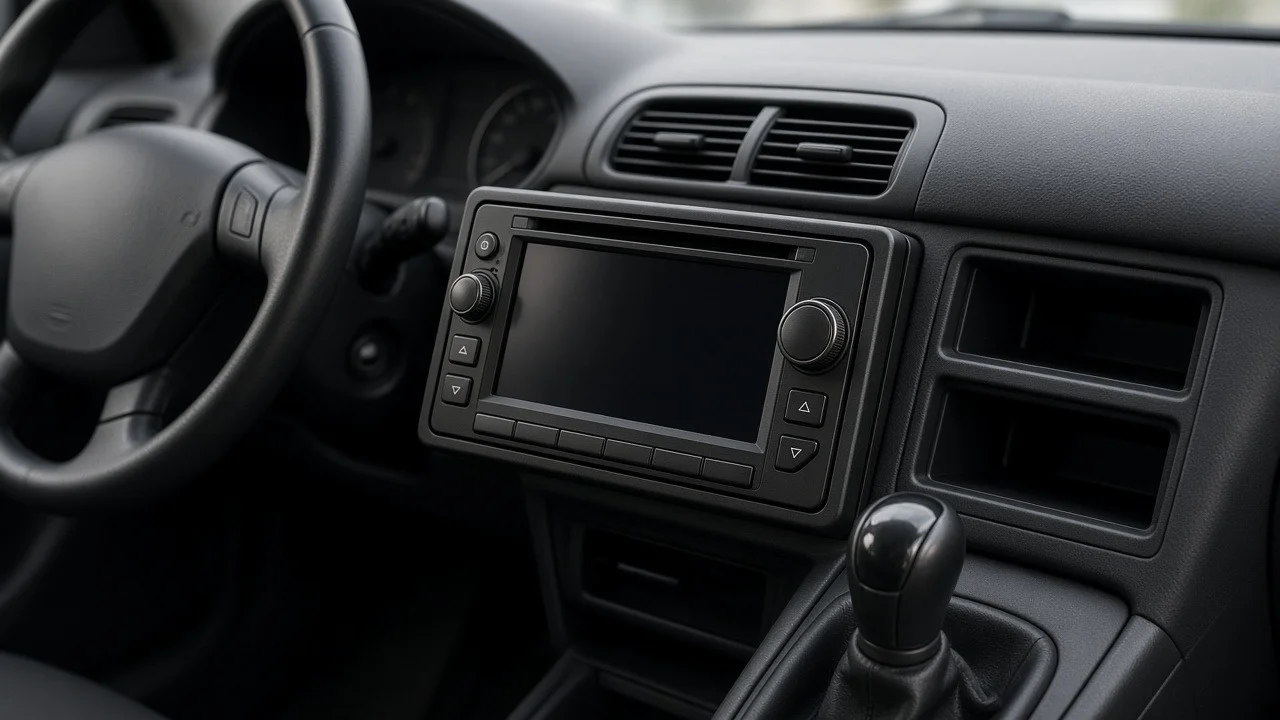
The Alpine CDE-143BT is a single-DIN CD receiver with built-in Bluetooth for hands-free calling and wireless audio streaming. Pairing a phone follows the usual pattern for aftermarket head units. You make the receiver discoverable or confirm that its Bluetooth function is on. You then start the search from the phone, select the receiver by name and confirm the connection. Some phones also ask you to enter or accept a code. The main caveat is that this is an older design. Most phones still connect, but newer phone software sometimes behaves differently with older Bluetooth stacks, so it helps to know the troubleshooting steps.
What the CDE-143BT Is
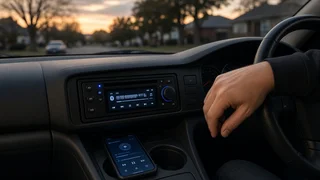
The CDE-143BT belongs to Alpine's line of single-DIN CD receivers sold in the US market. It combines a CD player, a tuner, USB and auxiliary inputs, and Bluetooth in one chassis that fits a standard single-DIN dash opening. Bluetooth here covers two jobs. The first is hands-free calling, handled by the Hands-Free Profile. The second is music streaming, handled by the A2DP audio profile, with basic track control over AVRCP. Call audio is picked up by a microphone connected to the receiver rather than one built into the faceplate, so where that microphone is mounted affects call quality.
Exact menu labels, button names and default settings can differ between production runs and from related Alpine models. Treat the steps below as a description of the general process, and use the owner's manual for your specific unit if a menu item doesn't match.
Before You Pair
Make sure the receiver is powered with the vehicle in accessory or run mode, and that the microphone is plugged into the receiver. Turn on Bluetooth on the phone and keep the phone close to the dash during pairing. Disconnect the phone from other nearby Bluetooth devices, such as headphones or another car, so it doesn't automatically connect to the wrong device. If this phone was paired with this receiver before and stopped working, delete the old pairing on the phone before starting again.
The General Pairing Process
1) Open the receiver's setup menu and find the Bluetooth section. Confirm that Bluetooth is switched on. 2) If the unit has a pairing or visibility option, select it so the receiver can be found. 3) On the phone, open the Bluetooth settings and scan for new devices. 4) Select the Alpine receiver from the list. It usually appears under a name that includes the brand or model. 5) If the phone shows a numeric code, confirm that it matches and accept it. If it asks for a PIN, enter the one listed in the unit's documentation. Older head units often use a simple default such as 0000, but check your manual rather than assuming. 6) Allow any phone prompts for contacts, call access or media access if you want those features. 7) Confirm on the receiver that the phone shows as connected, then test both a phone call and music playback.
Once paired, the phone should reconnect automatically when you start the car, provided Bluetooth is on and the phone isn't connected elsewhere. If it only reconnects for calls or only for music, check the device's Bluetooth details on the phone. Many phones let you switch calls and media audio on or off separately for each paired device.
Connection Settings Worth Checking
The receiver's Bluetooth menu typically holds a few options that affect everyday use. These include switching Bluetooth on or off, automatic reconnection, a list of paired devices with an option to delete them, and call-related settings such as microphone gain or call volume. On the phone side, the important settings are the per-device toggles for phone audio and media audio, and the permission for contact or call-history access. If audio streams but calls don't route to the car, or the other way around, these toggles are usually the first thing to check.
Call Audio and Microphone Placement
Hands-free call quality depends heavily on the external microphone. A microphone mounted near the headliner or on the A-pillar, aimed toward the driver, generally picks up speech better than one tucked behind the dash or placed near a vent. If callers report echo, low volume or road noise, try these fixes in order:
Move the microphone closer to the driver and away from vents and speakers. Adjust the receiver's microphone gain or call settings, if available. Lower the in-car call volume slightly to reduce speaker sound feeding back into the microphone. Check that the microphone cable is fully seated and not pinched behind trim panels.
Software Compatibility With Newer Phones
Bluetooth is designed to be backward compatible, so a current phone can usually pair with an older receiver. Issues tend to come from the phone's side. A major operating system update can change how the phone handles older devices. That can show up as dropped connections, missing track information, or a receiver that pairs but won't reconnect automatically. Firmware updates for older aftermarket receivers are limited or unavailable, so the practical fixes are on the phone. Delete and re-pair the device, restart both the phone and the receiver, and make sure no other Bluetooth device is competing for the connection. If a specific phone model keeps having trouble after these steps, the cause may be a compatibility gap rather than a fault in the receiver.
Steering Wheel Controls and Vehicle Integration
Pairing a phone to the receiver is separate from making the car's factory steering wheel buttons work with it. Alpine receivers generally provide a wired remote input on the rear harness. A steering wheel interface adapter, sold by several aftermarket integration brands, translates the vehicle's button signals into commands the receiver understands. Depending on the adapter and the vehicle, this can include volume, track selection and call answer or end. Which functions are supported depends on the specific adapter and how it is programmed for that vehicle. Check the adapter's compatibility listing for both your vehicle and the Alpine receiver before you buy. In vehicles with factory amplifiers, data networks or chimes routed through the radio, a fuller interface module may be needed to keep those systems working after the factory unit is removed.
Quick Troubleshooting Reference
Symptom | Likely cause | What to try; Receiver doesn't appear on the phone | Bluetooth is off on the receiver, or the receiver isn't discoverable | Turn on Bluetooth in the receiver's setup menu and start the pairing or visibility option; Pairing fails or the code is rejected | Old pairing record, or the wrong PIN was entered | Delete the device on the phone and in the receiver's paired list, then pair again with the correct code; Music works but calls don't | Phone audio is turned off for this device on the phone | Turn on call audio in the phone's settings for this paired device; Calls work but music doesn't | Media audio is turned off, or the receiver isn't on the Bluetooth audio source | Turn on media audio on the phone and select the Bluetooth audio source on the receiver; No automatic reconnection | Phone connected to another device, or the phone's power-saving settings | Disconnect other devices, then re-pair; check the phone's battery optimization settings; Callers hear echo or noise | Microphone placement or gain | Move the microphone toward the driver and adjust the call settings
Bottom Line
Pairing a phone with the CDE-143BT is a standard process. Enable Bluetooth on the receiver, search from the phone, confirm the code, and allow the call and media permissions. Most problems come from outdated pairing records, per-device audio toggles on the phone, or how a newer phone handles older Bluetooth hardware. Call quality depends mostly on microphone placement. Steering wheel control requires a separate interface adapter matched to your vehicle.