How to Use MG ZS Steering Wheel Controls
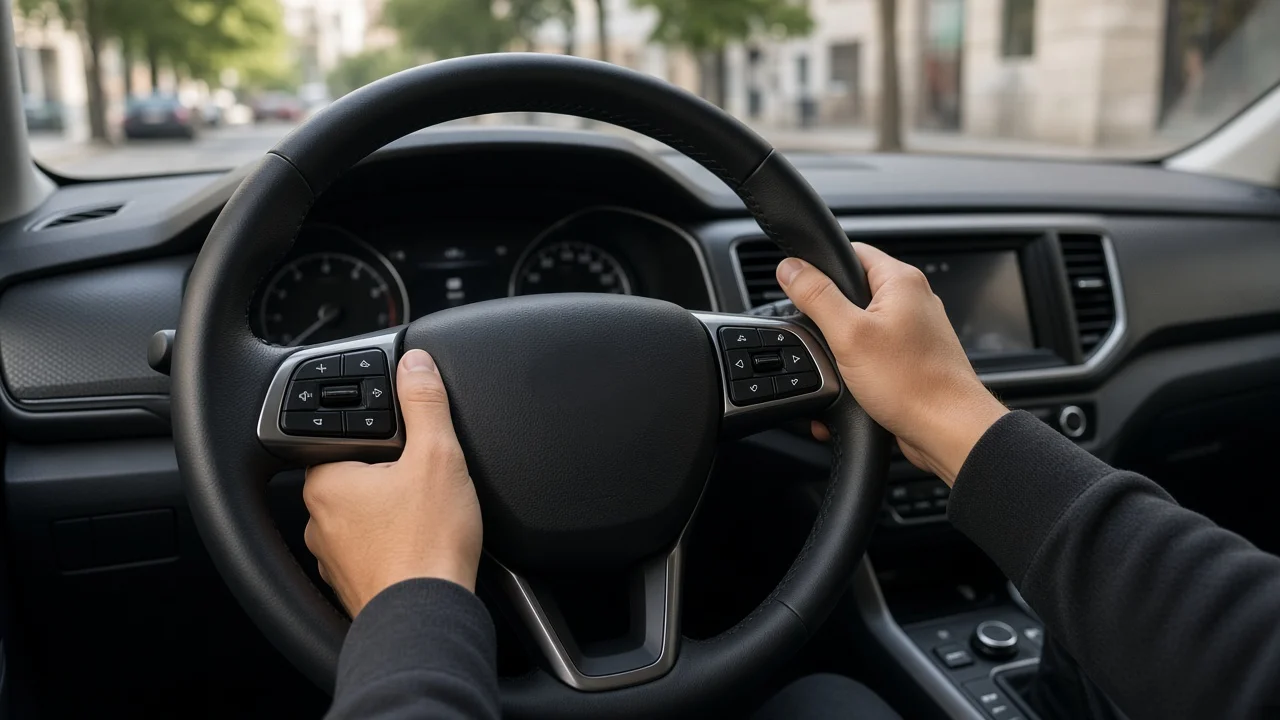
The MG ZS steering wheel controls let the driver manage audio, phone calls, the instrument display and, on equipped versions, cruise control without taking their hands off the wheel. The general pattern is consistent: one spoke handles media and communication, and the other handles driving-assistance and display functions. The exact buttons, icons and features, however, depend on the model year, generation (pre-facelift or facelift), powertrain (petrol, ZS EV or hybrid) and trim. Treat the descriptions below as a guide to typical layouts, and confirm the specifics against the controls and owner's handbook for your own vehicle.
An Important Note for US Readers
The MG ZS has been sold mainly in markets such as the UK, Europe, Australia, the Middle East and parts of Asia, not as a mainstream new-car offering in the United States. If you are researching the vehicle from the US, you are likely looking at an imported or overseas-market example, or comparing it with vehicles sold locally. Market-specific equipment, menu languages, radio bands and driver-assistance features can differ, so the controls on a particular car may not match a description written for another region.
How the Controls Are Typically Arranged
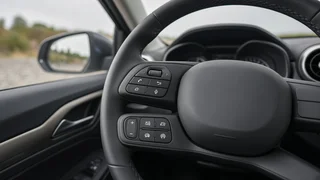
Most versions group the steering wheel interface into two clusters of buttons, one on each horizontal spoke. Some versions also use a stalk behind the wheel for cruise control instead of, or in addition to, spoke-mounted buttons, particularly on earlier or lower-trim cars.
Area | Typical functions | Variation to expect; Left spoke | Volume up/down, mute, audio source or mode, track or station skip | Icon style and button shape differ between pre-facelift and facelift cars; Left spoke or nearby | Phone answer/end, voice command | Voice control may route to the car's own system or to a connected smartphone; Right spoke | Cruise control on/off, set, resume, speed adjustment, following distance on adaptive systems | Adaptive cruise and lane-assist buttons appear only on cars fitted with the relevant driver-assistance package; Right spoke or display buttons | Scrolling through instrument cluster menus, trip data, confirming selections | Digital instrument clusters on later cars typically offer more menu pages than analog-style clusters
Audio and Media Controls
The media buttons are the most frequently used. In general terms:
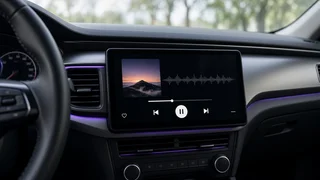
Volume buttons or a scroll control raise and lower the level of whatever source is playing, including navigation prompts on some systems. The mute button silences audio; on some versions it also pauses playback from a connected phone. The source or mode button cycles through available inputs such as radio, Bluetooth audio, USB and smartphone projection. Track or seek buttons skip songs when playing media and step through stations when using the radio. A press-and-hold may scan or fast-forward, depending on the system.
Phone Calls and Device Pairing
The phone buttons only work once a phone is paired with the infotainment system. Device pairing is normally started from the touchscreen's phone or Bluetooth connection settings rather than from the steering wheel itself. After pairing, the steering wheel controls usually allow you to:
Answer an incoming call with a short press of the phone button. End or reject a call with the hang-up button, or with a press-and-hold on single-button designs. Activate voice commands, which may trigger the car's own voice assistant or, when smartphone projection is active, the phone's assistant. Adjust call volume using the same volume controls as for media.
If the buttons stop responding during calls, the most common cause is a connection issue rather than a fault in the wheel. Removing the phone from the paired device list on both the car and the handset, then pairing again, often resolves it. A software update for the infotainment unit may also address compatibility problems with newer phone operating systems, where such updates are offered for your model.
Cruise Control and Driver-Assistance Buttons
On cars fitted with conventional cruise control, the usual sequence is to switch the system on, accelerate to the desired speed, press set, and then use the plus and minus controls to adjust. Pressing the brake typically cancels cruise, and a resume button returns to the previously set speed when conditions allow.
Later versions with an MG Pilot driver-assistance package may add adaptive cruise control, which maintains a chosen gap to the vehicle ahead, plus a button to change that following distance. Lane-keeping or traffic-jam assistance may also be activated from the wheel or through the display menus. Because these features depend heavily on trim and market, check whether your car shows the relevant icons on the wheel and the instrument cluster before assuming they are fitted.
Instrument Display and Menu Navigation
Some steering wheel buttons control the instrument cluster rather than the touchscreen. These let you scroll through pages such as trip information, fuel or energy consumption, driver-assistance status and vehicle settings. On the ZS EV, the cluster pages typically include energy-related information in place of fuel data. Facelifted cars with a fully digital cluster generally provide more configurable views than earlier versions.
Retaining the Controls with an Aftermarket Head Unit
Owners who replace the factory infotainment unit often want to keep the steering wheel controls working. This usually requires a steering wheel interface adapter, a module that translates the car's button signals into a format the new head unit understands. Key points for vehicle integration:
Software compatibility matters: the adapter must support both the specific MG ZS version and the brand of the new head unit, and some adapters need programming or a firmware setting to match the car. The factory infotainment unit in many modern cars is linked to other vehicle functions, such as the reversing camera, vehicle settings menus or, on the EV, charging-related screens. Replacing it can mean losing access to those functions unless the installation accounts for them. After installation, the button assignments are often configured in the new head unit's settings; some units allow custom mapping of short and long presses. Because factory systems differ between pre-facelift and facelift cars, confirm with the adapter supplier which model years their product supports before buying.
Quick Troubleshooting
No response from any button: check whether the infotainment system has fully started, and try restarting the car. Media buttons work but phone buttons do not: re-pair the phone and check the Bluetooth connection settings. Cruise buttons do nothing: make sure the system is switched on and that the car meets the operating conditions, such as a minimum speed, which varies by version. Buttons stopped working after a head unit change: check the interface adapter configuration and its wiring. Intermittent or unexplained faults: have the car inspected, as the wheel's wiring passes through the airbag clock spring, which should only be handled by a qualified technician.
The Bottom Line
The MG ZS uses a familiar two-spoke layout: media and phone functions on one side, cruise control and display functions on the other. What your particular car offers depends on its year, generation, powertrain, trim and market, especially for adaptive cruise and digital cluster features. Learn the icons on your own wheel, pair your phone through the touchscreen, and if you plan an aftermarket head unit, choose an interface adapter confirmed to support your exact version.