Wireless Apple CarPlay Not Working? Causes and Fixes to Try
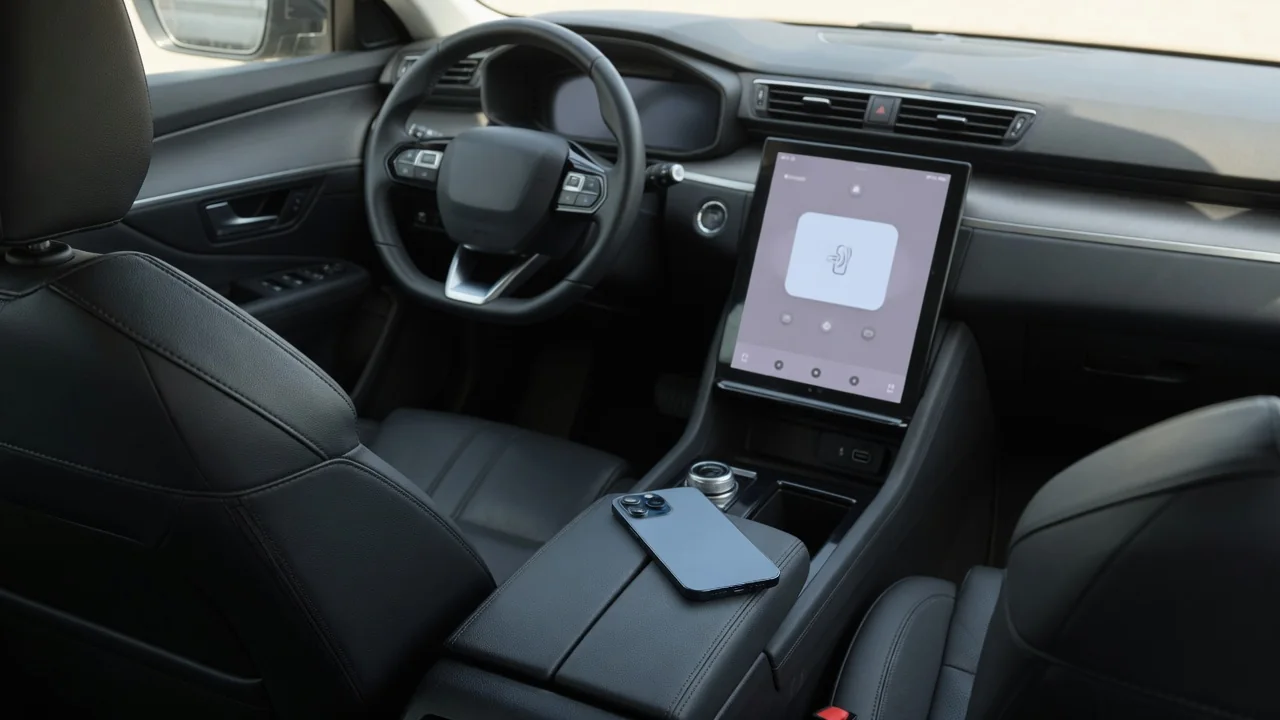
When wireless Apple CarPlay is not working, the cause is usually a setting, a stale pairing or outdated software rather than a failed part. This guide explains how the connection is built, what to check on the iPhone and the head unit, how Subaru and Hyundai owners should approach the problem, and when a dealer visit makes sense.
Why Wireless Apple CarPlay Stops Working: How the Connection Actually Works
Wireless CarPlay typically relies on two radio links working together. Bluetooth handles the introduction, letting the phone and head unit recognize each other and agree to start a session. The system then hands off to a direct Wi-Fi connection to the car, which carries the maps, audio and screen data. If either link fails, CarPlay may never appear or may drop soon after starting, which is usually why it stops working even though the phone seems connected.
Not every vehicle or trim with CarPlay supports it without a cable, so the owner's manual or the infotainment settings should be the first stop. Where wireless is supported, common causes include phone settings, a stale or corrupted pairing, outdated phone or infotainment software, radio interference, and two phones competing for the same head unit. Most fixes involve settings and resets rather than parts, and every step should be carried out while safely parked, never while driving.
iPhone Settings to Check When CarPlay Won't Connect Wirelessly
Start with the basics on the phone. Bluetooth and Wi-Fi both need to be switched on and Airplane Mode off, because wireless CarPlay depends on both radios. Then look at Screen Time, where content and privacy restrictions can block CarPlay entirely; if it is disallowed there, the car will not offer it however often the phone is paired. Restarting the iPhone clears many temporary glitches, and keeping iOS up to date means the phone has Apple's current connectivity fixes.
If CarPlay still won't connect wirelessly, open the CarPlay section of the iPhone's general settings, select the vehicle and choose 'Forget This Car', then pair again as though the car were new. That replaces a saved profile that may have become corrupted. A VPN, Low Power Mode or an active connection to another Wi-Fi network, such as a home network reaching the driveway, may affect some setups. Switch each off in turn as a test, since none is a guaranteed cause.
Bluetooth Works but CarPlay Doesn't: Telling the Two Apart
Standard Bluetooth pairing for hands-free calls and audio streaming is a separate function from a CarPlay session. A phone can pair successfully, show the car as connected and still fail to launch CarPlay, because the handoff to Wi-Fi never completes. Drivers often describe this as Apple CarPlay Bluetooth not working, when Bluetooth itself is doing its job. Typical signs are calls coming through the car speakers with no CarPlay interface on the screen, or CarPlay starting and then dropping out.
A clean start on both sides is the most useful response. Delete the phone from the car's device list, remove the car from the iPhone's Bluetooth list, then pair again from scratch and accept the CarPlay prompts on both screens. It also helps to clear out old phones stored in the head unit. Many systems reconnect to a previously used or priority device first, so a family member's phone in the cabin can claim the connection before yours does.
Troubleshooting Wireless CarPlay in a Subaru
When Subaru Apple CarPlay wireless is not working, first confirm that the head unit supports it at all. Support can vary by model, year and audio system, and the owner's manual or the infotainment settings will show whether a cable is required. If wireless is listed, look for the phone or CarPlay settings on the head unit, delete the iPhone and add it again, and restart the system in the way the owner's manual describes for that unit.
Infotainment software updates may be available through a Subaru retailer or Subaru's official owner resources. It is worth checking whether the system is current, although no particular update can be assumed to cure a given fault. Menu names and steps differ between Subaru systems, so a path that suits one screen layout may not exist on another. Following the on-screen prompts and the manual for the specific vehicle is more reliable than instructions written for a different generation.
Troubleshooting Wireless CarPlay in a Hyundai
Hyundai owners should begin the same way, by checking whether the infotainment unit supports wireless CarPlay. Support varies by model, year and trim, and it should not be assumed just because wired CarPlay is present. If Hyundai Apple CarPlay is not working wireless, confirm the phone projection or CarPlay option is enabled in the head unit settings, because the feature can be switched off there. Then remove old phone profiles and pair the iPhone again so the system builds a fresh connection.
Navigation and infotainment software updates may be offered through Hyundai's official update channels or a dealer. Bringing the system up to date is a reasonable step, but it does not promise a cure, and the result should be judged by whether the connection actually becomes stable afterward. Setting names change between head unit generations, so a label described for one Hyundai may read differently on another. The owner's manual remains the authority on where each option lives in that vehicle.
Intermittent Disconnects, Lag and Other Symptoms Worth Noting
Not every fault is a complete failure. CarPlay keeps disconnecting on some drives, the display goes to a black screen, audio stutters, or the car fails to reconnect on startup even though it worked the day before. Simple notes make these problems easier to solve. Record whether it happens on a cold start, in a certain location or after a phone or vehicle update, because a pattern gives a technician something specific to reproduce rather than an occasional complaint.
Nearby wireless interference may play a part, as may a phone case with metal parts or a magnetic mount, so try a drive with the case off and the phone in a different spot. Plugging in a cable is another useful test where the car allows it. If wired CarPlay works but wireless doesn't, the problem may lie in the wireless link, yet that alone does not prove whether the phone, the head unit or its software is responsible.
When to Get the Infotainment System Checked by a Dealer
Swapping devices helps narrow things down before booking a visit. If several iPhones fail in the same car, the vehicle becomes the likelier source; if one iPhone fails in several cars, attention shifts to the phone. Beyond that, hardware diagnosis belongs with a dealer or qualified technician. Do not open the dashboard, remove the head unit or alter wiring, since trim, connectors and nearby safety systems are easy to damage and modern infotainment units are tied into other vehicle electronics.
At the appointment, ask whether any infotainment software updates or service actions apply to your VIN. There may be none, but the dealer can check records an owner cannot see. Bring the phone model, the iOS version and your documented symptoms, including when CarPlay stopped working wirelessly and what you have already reset. With that information the technician can reproduce the fault faster and avoid repeating steps that have already been ruled out at home.