Wireless Android Auto Not Working: How to Find Where the Connection Fails
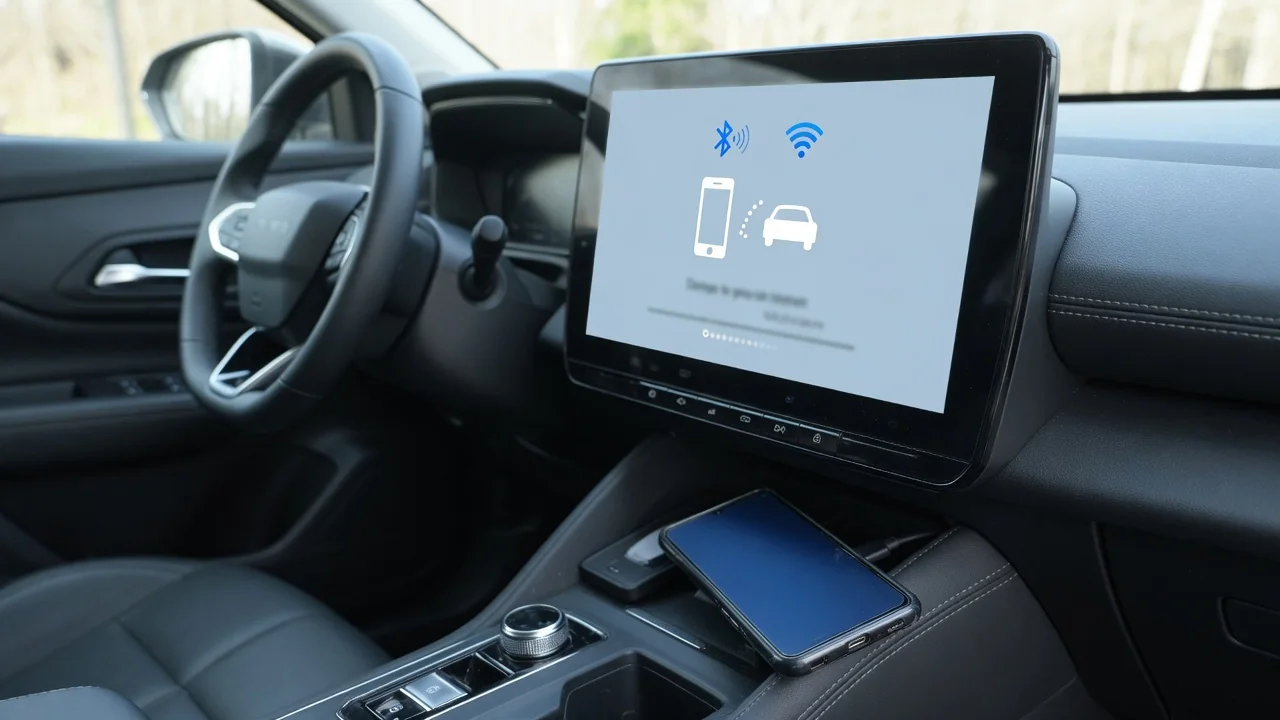
When wireless Android Auto is not working, the fault is rarely random. The connection is built in stages, and each stage fails in its own recognizable way. This guide explains why Android Auto may not be working wirelessly, how to tell a phone problem from a car problem, and which checks are safe to do yourself before contacting a dealer or device support.
How Wireless Android Auto Connects and Where It Usually Breaks
Wireless Android Auto uses a two-stage handshake. Bluetooth pairing comes first and lets the phone and the infotainment head unit recognize each other and agree to start a session. The car then passes the phone the details of a direct Wi-Fi link, and that link carries the projected display, audio and touch input. The phone therefore needs a reasonably current Android version, an up-to-date Android Auto app, and Wi-Fi switched on even though it is not joining a normal network.
Before chasing a fault, confirm in the owner's manual or the manufacturer's support resources that the vehicle or head unit supports wireless smartphone projection and not only wired Android Auto. A cable bypasses both radio stages, so a car can work over USB and still fail wirelessly for several different reasons. Then note where the process stops: no pairing at all, pairing without a launch, a launch followed by a dropout, or a connection with a blank screen.
Bluetooth Pairs but Android Auto Will Not Start
A phone that handles calls and streams music over Bluetooth has not necessarily been set up for Android Auto. The hands-free and audio profiles are separate from the projection session, so the complaint that Android Auto Bluetooth is not working often describes a car that paired as an ordinary phone and never offered projection. Another phone in the cabin can also take over, especially if a second paired handset is set as the primary device in the head unit.
A clean re-pair often clears this. Remove the phone from the car's paired devices list, forget the car in the phone's Bluetooth settings, then pair again from the head unit's Android Auto or phone menu rather than from the phone alone. Watch for prompts that are easy to dismiss, including contact and call access and permission for Android Auto to start. If the device list is full or shows duplicate entries, delete the old ones first.
Wi-Fi Handoff Problems, Dropouts and Projection Failures
When the Wi-Fi handoff fails, the connecting message stays on screen, the session times out, or audio plays while the display stays blank, which is why some drivers describe it as wireless projection not working. Phone settings are frequent suspects. Wi-Fi may be switched off, the phone may auto-join a saved home network or nearby hotspot as the car leaves the driveway, a VPN may be filtering traffic, or the phone's own hotspot may be occupying the radio.
Ordinary Wi-Fi auto-connect, where a phone rejoins saved networks, is a different feature from the car's direct link, so a complaint that Android Wi-Fi auto connect is not working at home is a separate matter from the one covered here. For the car link, safe resets are restarting the phone, switching the vehicle off and on as the manual describes, and updating the Android Auto app and Google Play services. Intermittent dropouts can stem from radio interference or app bugs, so log the time, place and circumstances rather than assuming one cause.
Phone-Specific Settings on Samsung and Motorola Devices
Phone makers layer their own battery saving, background app limits and connection settings over Android, and these can stop Android Auto from running in the background. That explains many reports of wireless Android Auto not working on Samsung or Motorola phones after an update or a settings change. Check that the Android Auto app is excluded from battery optimization and from any sleeping-app list. Menu names differ by model and software version, so look up the wording for your own phone instead of following a fixed path.
Install any pending system updates, since connectivity fixes often arrive that way, and read the phone maker's support notes for known Android Auto issues on that model. The most telling test is a second compatible phone in the same car. If the other phone connects wirelessly without trouble, attention belongs on the first phone's settings and software. If both fail at the same stage, the vehicle side deserves a closer look.
Factory Infotainment Systems, Including Audi Head Units
Factory systems vary widely, even within one brand. An owner who finds Audi Android Auto wireless not working, for example, should first confirm that wireless projection is supported for the exact model, year, trim and infotainment hardware, because wired-only and wireless-capable versions can share similar screens. The same applies to every make. Smartphone projection often has its own switch in the head unit's connection or phone settings, and the owner's manual gives the exact steps for enabling it.
Head unit software update availability varies by vehicle; some receive updates over the air, while others need a dealer visit. Telling a head unit problem from a phone problem comes down to patterns. When every phone fails in one car, or a phone that fails there works normally in another car, the head unit is the likely source. When a phone misbehaves in every vehicle it meets, the phone is the better place to look.
Troubleshooting Aftermarket Wireless Android Auto Adapters
Most plug-in adapters do not add Android Auto to a car. They rely on the vehicle already supporting wired Android Auto and place a wireless link on top of it, with the adapter presenting itself to the car as a connected phone. So when a wireless Android Auto adapter is not working, first confirm the car runs wired Android Auto with a good cable. Then try a different USB port, since some ports are meant for charging only and carry no data.
Slow startup, repeated reconnects and lag can come from marginal power delivery at the USB data port, outdated adapter firmware, or the same phone settings that upset built-in systems. Follow the adapter maker's setup steps and firmware updates, and check its compatibility information rather than assuming it suits your vehicle. Removing the adapter and running a direct wired connection for a few drives shows whether the adapter is the weak link.
When to Get Help From a Dealer or Device Support
Before asking for help, write down the phone model and software version, the Android Auto app version, the vehicle's model, year and infotainment details, and exactly when the failure happens, including the stage it reaches. Dealer or installer attention is appropriate when every phone fails, when projection menus are missing, or when the head unit freezes or restarts. Those signs point toward the vehicle's software or hardware, which needs proper diagnostic equipment.
Avoid opening dash panels, rewiring a head unit or installing unofficial infotainment software. These steps can damage trim, disturb airbag or electrical circuits, and create warranty disputes, and they seldom address a connection fault. Professional diagnosis is the safer route. When the problem follows the phone across different cars, the phone maker or Google's Android Auto support is the better contact, and your notes will let them see quickly where the connection breaks.