Tesla Automatic Emergency Braking Unavailable or Disabled: What It Means
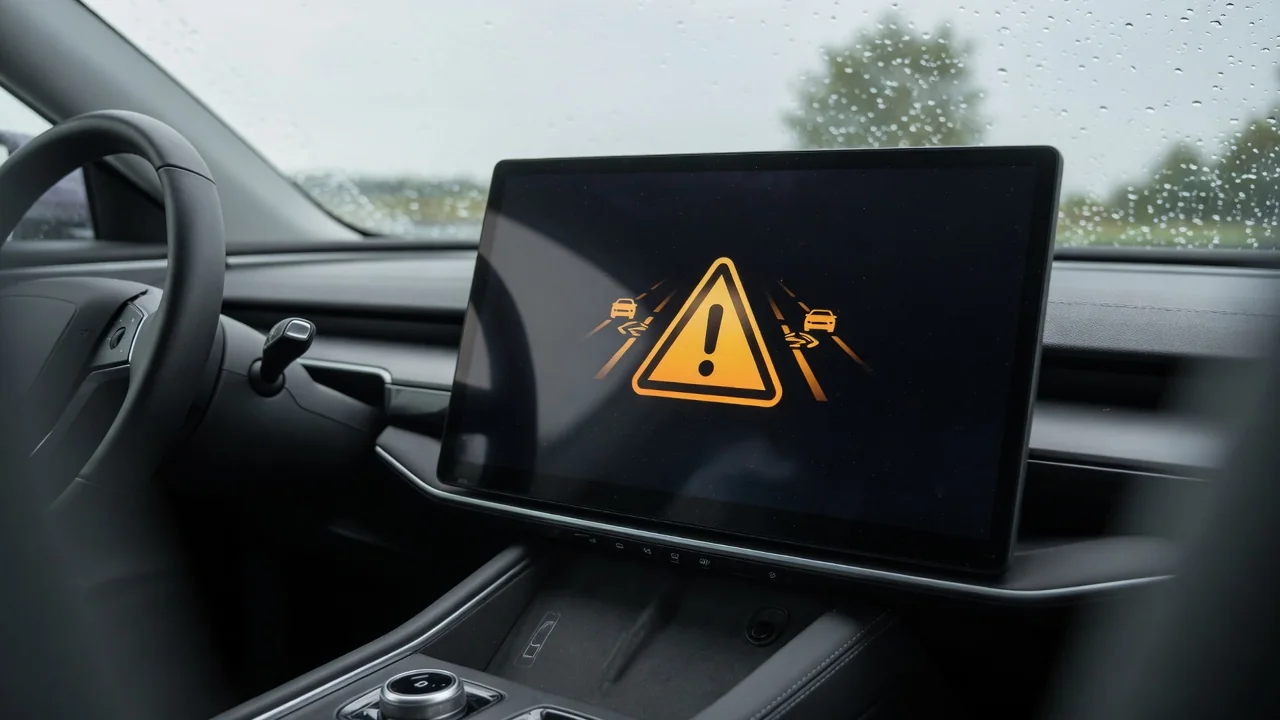
Seeing "Automatic Emergency Braking is unavailable" or "Automatic Emergency Braking is disabled" on a Tesla touchscreen can be unsettling, especially in the middle of a drive. The message means a driver-assistance safety feature has changed. It does not mean the brakes themselves have failed. Knowing what the alert covers, what usually triggers it and which checks are safe to do yourself helps you decide whether to wait, clean the glass or book service.
What the "Automatic Emergency Braking Is Unavailable" Message Tells You
When a Tesla says automatic emergency braking is unavailable, the car is telling you it can't currently count on AEB to brake by itself if it senses a likely collision. Your normal service brakes are separate from that system and still work when you press the pedal. What you lose is the safety net. Forward collision warning and related collision avoidance assist functions may also be reduced, so the car is less able to step in if your attention slips.
Watch how the message behaves. Many Tesla alerts are temporary and clear by themselves once the cameras can see well again. Others stay on until something is repaired. Read the full alert text and any extra details on the touchscreen. Then compare them with the owner's manual for your car and software version instead of assuming one meaning fits every case. Either way, treat the alert as a reason to drive more carefully, not as something to ignore.
"Unavailable" vs. "Disabled": Reading the Warning and Indicator Light
The wording matters. In general, "unavailable" usually describes a temporary condition, such as poor visibility. "Disabled" can mean the feature was turned off in settings, or that a fault is stopping it from running. Check the exact meaning for your vehicle in its manual. When the warning or indicator light appears, make a mental note, without taking your eyes off the road, of when it started and whether other alerts, such as Autopilot features limited, showed up with it. Also note whether it comes back on the next drive.
Before you assume there's a fault, open the vehicle's settings menu while parked. Check whether automatic emergency braking was turned off, maybe by another driver or by accident. Some settings may reset or behave differently after a software update, so a recent install is worth keeping in mind. If the automatic emergency braking disabled light stays on, or appears with several other system alerts, write down what you saw and photograph the screen while parked. That record gives a technician far more to work with than memory.
Why Is My Tesla's Automatic Emergency Braking Disabled? Common Conditions
So why is automatic emergency braking disabled on your Tesla? The common triggers have to do with what the cameras can see. A dirty, fogged, iced or blocked windshield camera area can limit camera-based assistance. So can heavy rain, snow, fog, strong low-angle glare or very low light. In these conditions the system may decide it can't see the road reliably and step back. Alerts like these often clear once the glass is clean and conditions improve, and that pattern is a useful clue in itself.
The system may also not be ready yet. This can happen right after a software update, after windshield replacement or other work near the cameras, or while the cameras are still calibrating. Look for an on-screen camera calibration message instead of assuming calibration is always the cause. Aftermarket tints, mounts, stickers or accessories near the camera area can also block the cameras' view. Beyond these visible causes, a driver can't tell just by watching the car whether a sensor, wiring, module or software problem is responsible. That diagnosis takes proper service tools.
Model 3 and Model Y Owners: What to Check for Your Specific Car
Many Model 3 and Model Y owners report seeing the automatic emergency braking is disabled warning on their screens. Alert wording, where the settings are and how the system behaves can all differ, so check the details in the owner's manual for your model year and software version. Hardware generation and software release both affect how the warning looks and what triggers it. Advice that fits one Model 3 may not fit another, and a forum explanation written for a Model Y may not match your car.
Gather a few facts before you contact service. Note the software version shown on the vehicle's information screen, the exact alert text and the conditions when it appeared. Useful conditions include weather, time of day, speed and whether the car had just updated or been to a glass shop. These details help narrow down the cause quickly. Be careful with online claims that name one specific part, fix or service interval for every Model 3 or Model Y. Only an inspection of your own car can confirm what it needs.
Safe Checks a Driver Can Do Before Booking Service
Do every check while safely parked. Look at the outside of the windshield in front of the camera area for dirt, bug residue, ice, condensation or anything stuck to the glass. Clean it gently with a soft cloth and a non-abrasive glass cleaner. Fog on the inside near the camera housing may clear with the defroster. Then open the driver-assistance settings and confirm automatic emergency braking is switched on. Also look for any pending or recently installed software update notices.
A software restart done while parked, following the steps in the owner's manual, can clear some temporary touchscreen alerts. Use only the official method. Don't remove trim panels, cameras or wiring, don't disconnect the low-voltage or high-voltage power systems, and don't try to change or bypass safety systems. High-voltage parts can cause serious injury, and a calibrated sensor that gets disturbed may need to be recalibrated by a professional. If cleaning, checking settings and restarting don't fix it, the next step is a service appointment.
Driving Safely While AEB Is Off and When to Get Professional Testing
While the alert is on, assume the car won't brake by itself to help avoid a collision. Leave more following distance, slow down, look farther ahead, and don't rely on other driver-assistance features that may also be limited. Schedule service if the message stays on through several drives in clear conditions or appears with other system faults. Do the same if it shows up after windshield or collision repair, or comes with unusual braking behavior such as unexpected slowing or hesitation.
Professional testing usually includes reading stored fault information, inspecting the cameras and sensors, confirming calibration and checking the software status. A stored fault is evidence to interpret, not automatic proof that a part has failed. A technician confirms the cause before recommending a repair, and no specific fix can be promised ahead of time. Separately, if the regular brakes feel soft, pull to one side, grind or respond oddly, or a brake system warning appears, stop driving as soon as it's safe and have the car inspected.